Configuring Project Roles
Click on Admin Tab and select Project Roles
Click the Add New Project Role Link (present at top-right corner of the Project Role List View)
- In Add New Project Role form, provide the Project Role Name
Provide description for the new Project Role
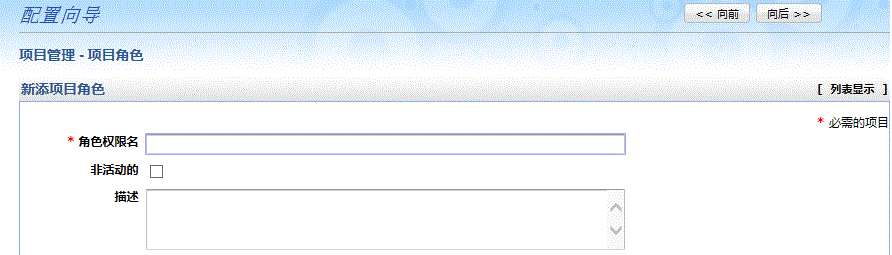
Choose the Access Permissions for the newly formed project role
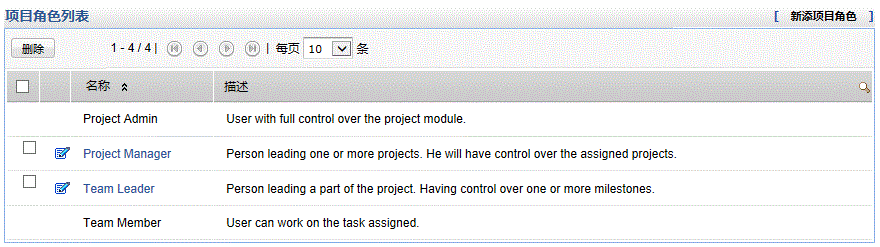
- Like already stated there would be 2 non-editable default options: Project Admin & Team Manager
- Project Admin would have full control over Project Module and Team Manager would have permission to work on Tasks assigned to him
- Also it is impossible to uncheckTask View option as it is mandatory for a project role
- Configure project roles as per requirement and assign them to project members
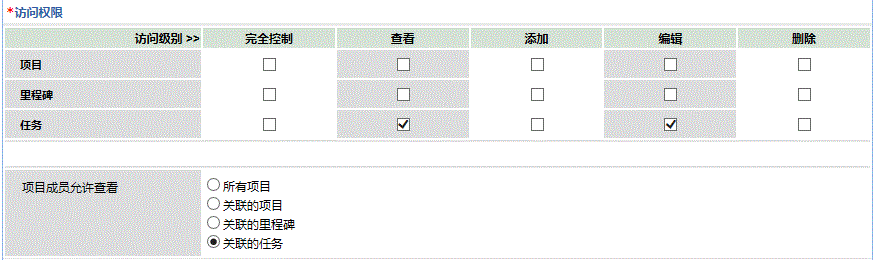
- Based on the permissions configured the project member will be automatically associated with anyone of the following: all Projects/associated Projects/associated Milestones/ associated Tasks (this would be pointed out by Project Member allowed to view radio button selection
- By default the following project roles are available:
| Note:
|