SDP - ManageEngine Analytics Plus / Analytics Plus Cloud 集成
.png)
将 ManageEngine Analytics Plus/Analytics Plus Cloud 与 SDP 集成,可轻松生成、分析和解读报表,并具备及时同步的优势。ManageEngine Analytics Plus 用于本地部署集成,而 Analytics Plus Cloud 用于云端集成。
要配置集成,请访问以下链接:
所需角色: SDAdmin
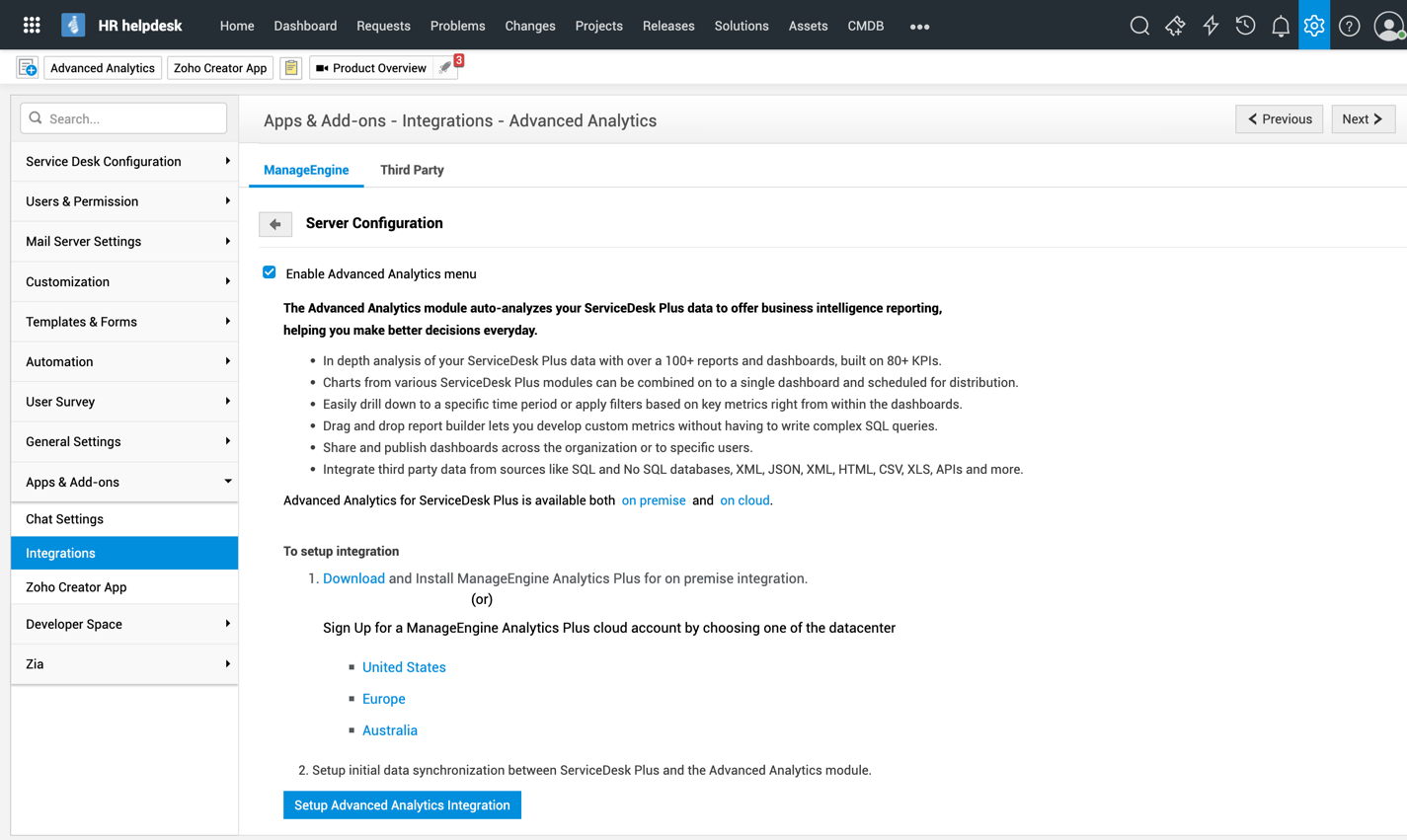
前往 管理 > 集成 > 高级分析,然后点击设置高级分析集成。默认情况下,系统会选中 启用高级分析菜单 选项,以便从页眉快速导航到高级分析数据。
Analytics Plus Cloud
Analytics Plus Cloud 是一项 报表与商业智能服务,可帮助用户分析业务数据并创建富有洞察力的报表/仪表板。通过将 Analytics Plus Cloud 与 ServiceDesk Plus 集成,您可以分析服务台的关键指标,并据此做出明智决策,以优化业务运营。
前提条件:创建 Analytics Plus Cloud 帐户
Analytics Plus Cloud 托管在多个数据中心,因此可通过不同域名访问。Analytics Plus Cloud 集成共有 5 个不同域名可用。
在设置集成之前,您需要先在适用的数据中心创建一个 Analytics Plus Cloud 帐户。我们强烈建议您在注册时使用一个通用电子邮箱地址。
使用以下任一注册链接在 Analytics Plus Cloud 中创建帐户:
生成 OAuth 凭据
Service Desk Plus 使用基于 OAuth 的授权协议,为用户提供安全且委托式的访问方式。管理员可通过 Zoho API Console 使用以下任一数据中心链接生成 OAuth 凭据。请确保您选择的数据中心与之前创建 Analytics Plus Cloud 帐户时所使用的注册网址对应。
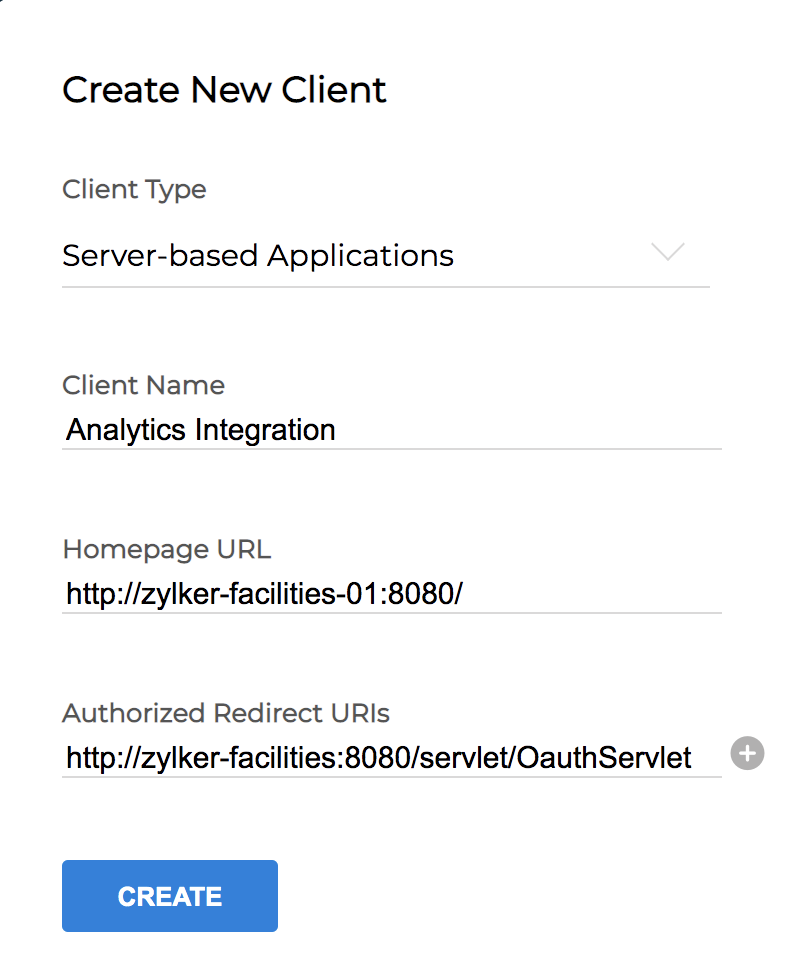
在数据中心网页中,系统会提示您创建一个新客户端。请按照以下步骤生成您的 OAuth 凭据:
- 选择 Serverapplication 作为客户端类型。
- 输入一个客户端名称。
- 输入您的 ServiceDesk Plus 域 URL 作为主页 URL。
- 复制 ServiceDesk Plus application中显示的重定向 URL,将其作为授权重定向 URI。
- 点击创建。
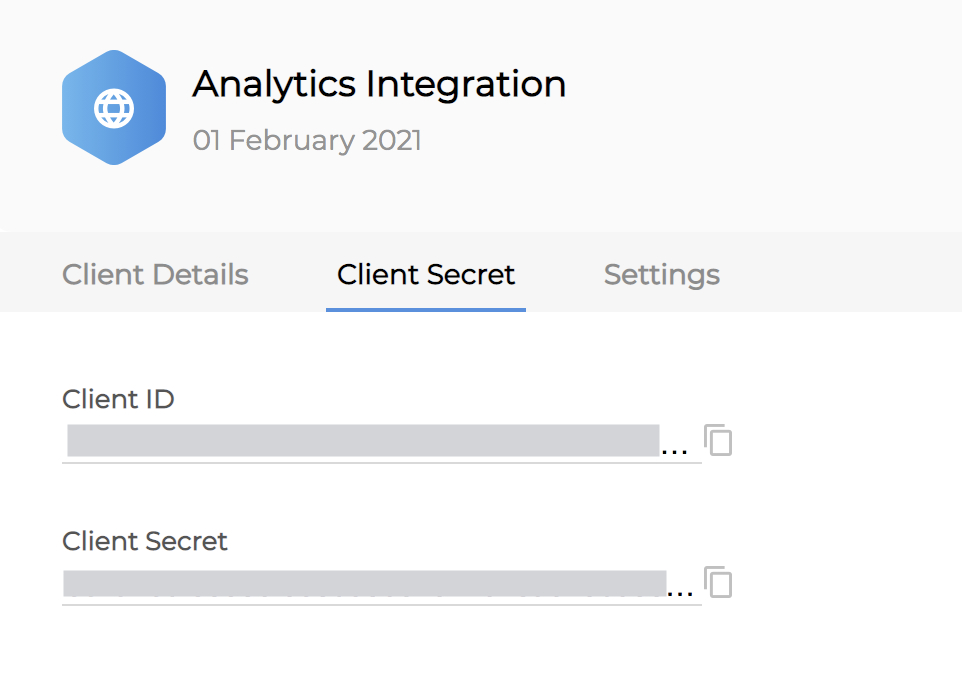
创建客户端后,导航到 Client Secret 选项卡,安全地复制 Client ID 和 Client Secret 值,以便在 ServiceDesk Plus 中进行配置。
在 ServiceDesk Plus 中配置 Analytics Plus Cloud 集成
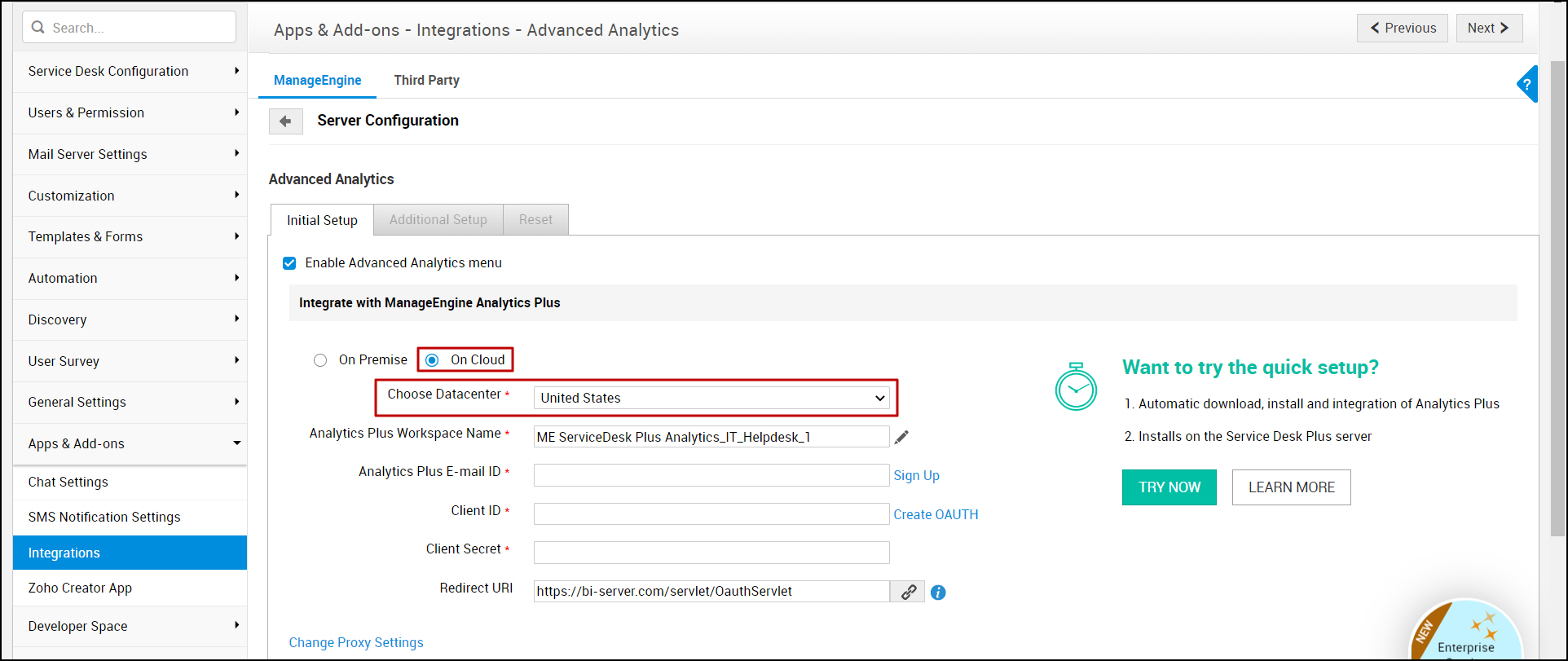
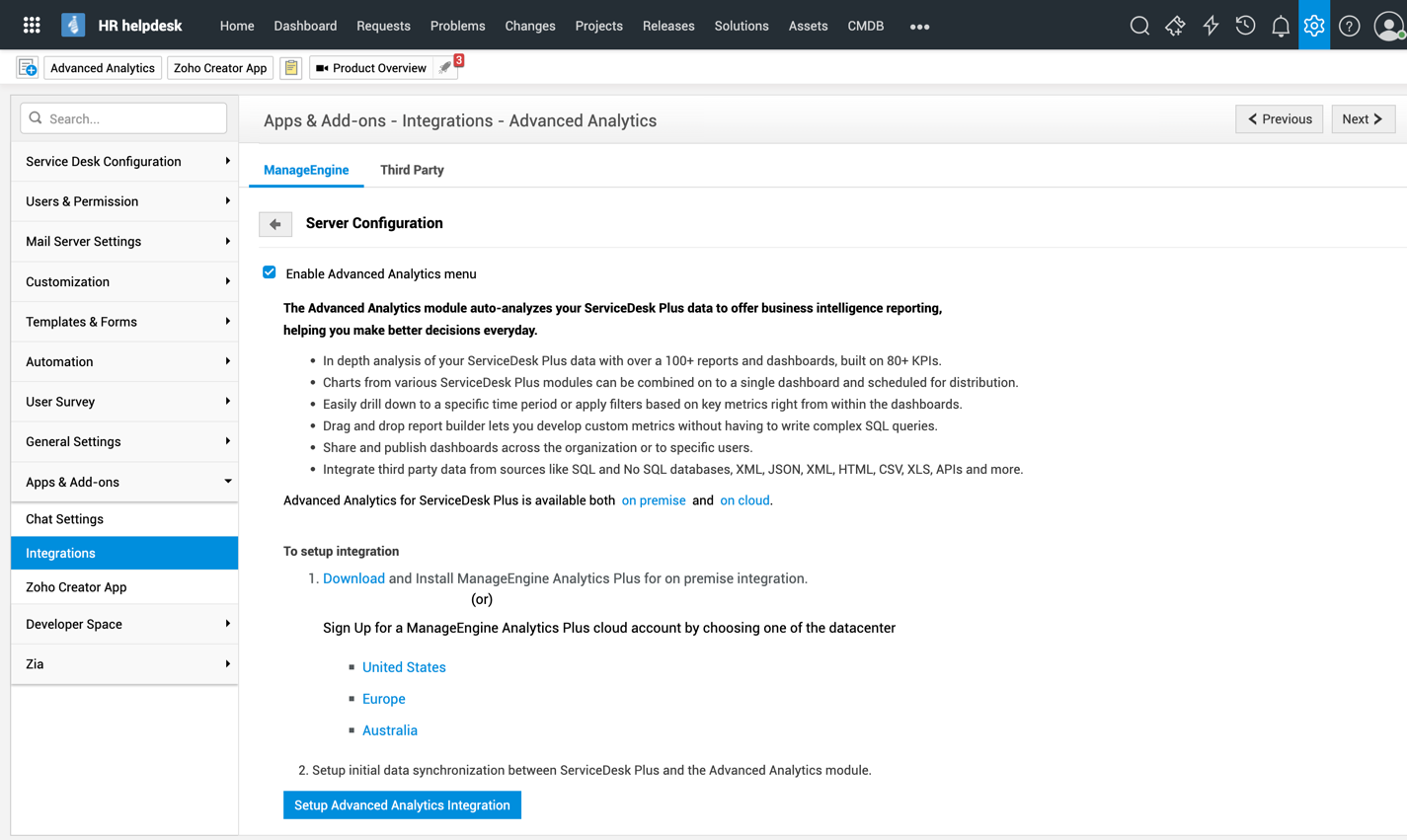
安全复制 Client ID 和 Client Secret 值后,前往 ServiceDesk Plus 中的高级分析配置页面,按如下方式完成集成过程:
- 从选择数据中心下拉菜单中,选择您为 Analytics Plus Cloud 帐户创建 OAuth 客户端时所使用的数据中心。
- Analytics Plus 工作区名称将自动填充。您也可以编辑一个将在 Analytics Plus Cloud 中创建的唯一工作区名称。
- 输入您创建 Analytics Plus Cloud 帐户时使用的Analytics Plus 邮箱 ID。
- 提供您在生成 OAuth 凭据时为 Analytics Plus Cloud 帐户生成的OAuth Client ID 和 Client Secret 。
- 如有需要,点击更改代理设置来配置和修改代理设置。输入主机、端口、用户名和密码等详细信息。有关代理设置的更多信息,请点击此处。
- 在初始数据同步部分,选择报表开始同步的起始日期。完成初始同步后,数据将根据定期数据同步部分中指定的间隔定期同步。
- 点击保存以验证您的凭据。要同步您的数据,请点击保存并同步。
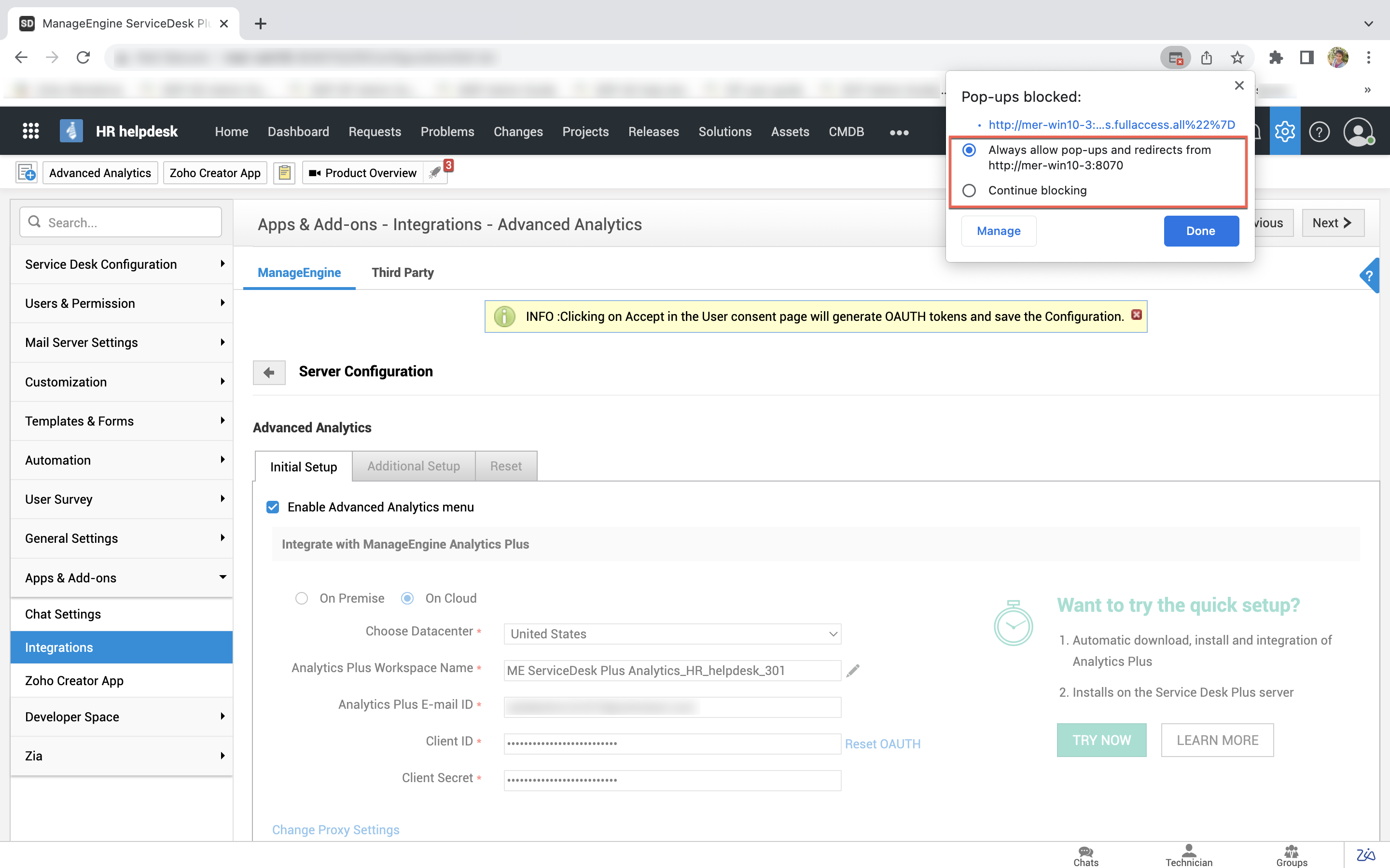
如果您在浏览器中阻止了弹出窗口,则在点击任一保存选项时会打开用户同意页面。该页面会通知您,application正尝试重定向到 Analytics Plus Cloud Reports API。请选择 始终允许来自 <servicedeskplus_domain_URL> 的弹出窗口和重定向 并点击完成。
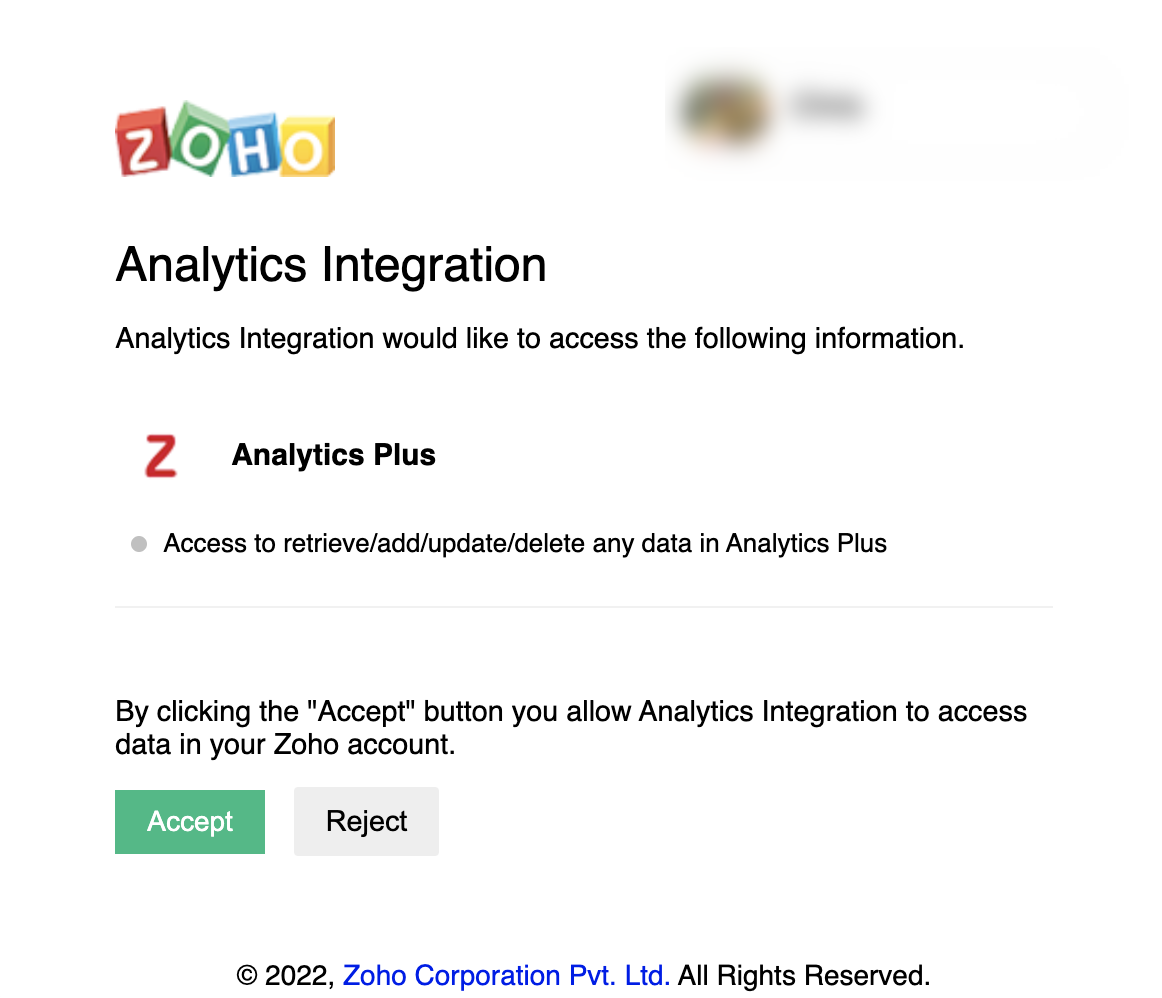
将您的application URL 添加为例外后,请重新配置 Analytics Plus Cloud 集成。点击任一保存选项后,将打开一个弹出窗口,列出 Analytics Plus Cloud 完成集成所需的权限。请确保权限范围仅允许 Analytics Plus Cloud 访问您的数据,然后点击接受。
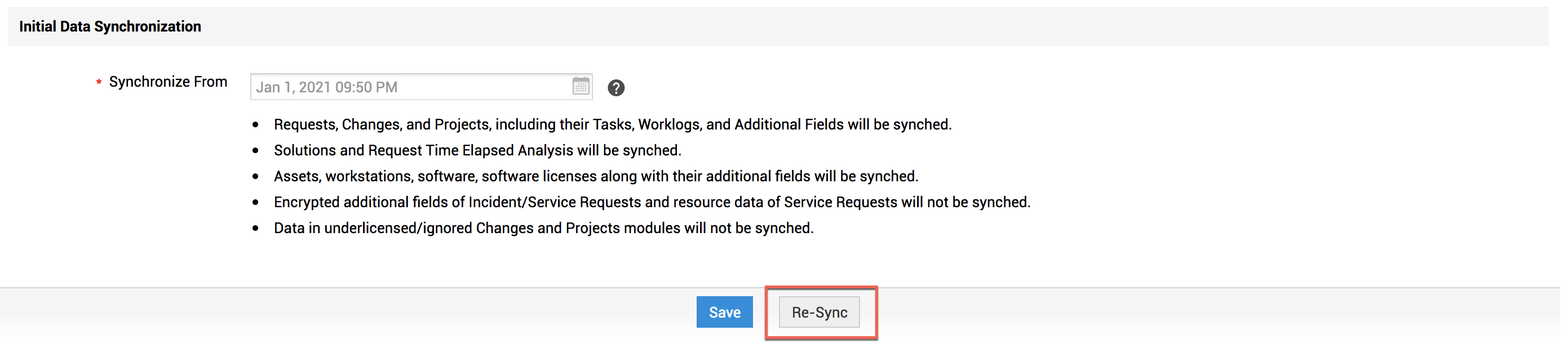
设置完集成并同步数据后,将显示重新同步按钮。您可以随时使用此按钮手动发起同步。
页面顶部将显示Analytics Plus Cloud 管理员、同步状态和上次成功同步时间等详细信息。
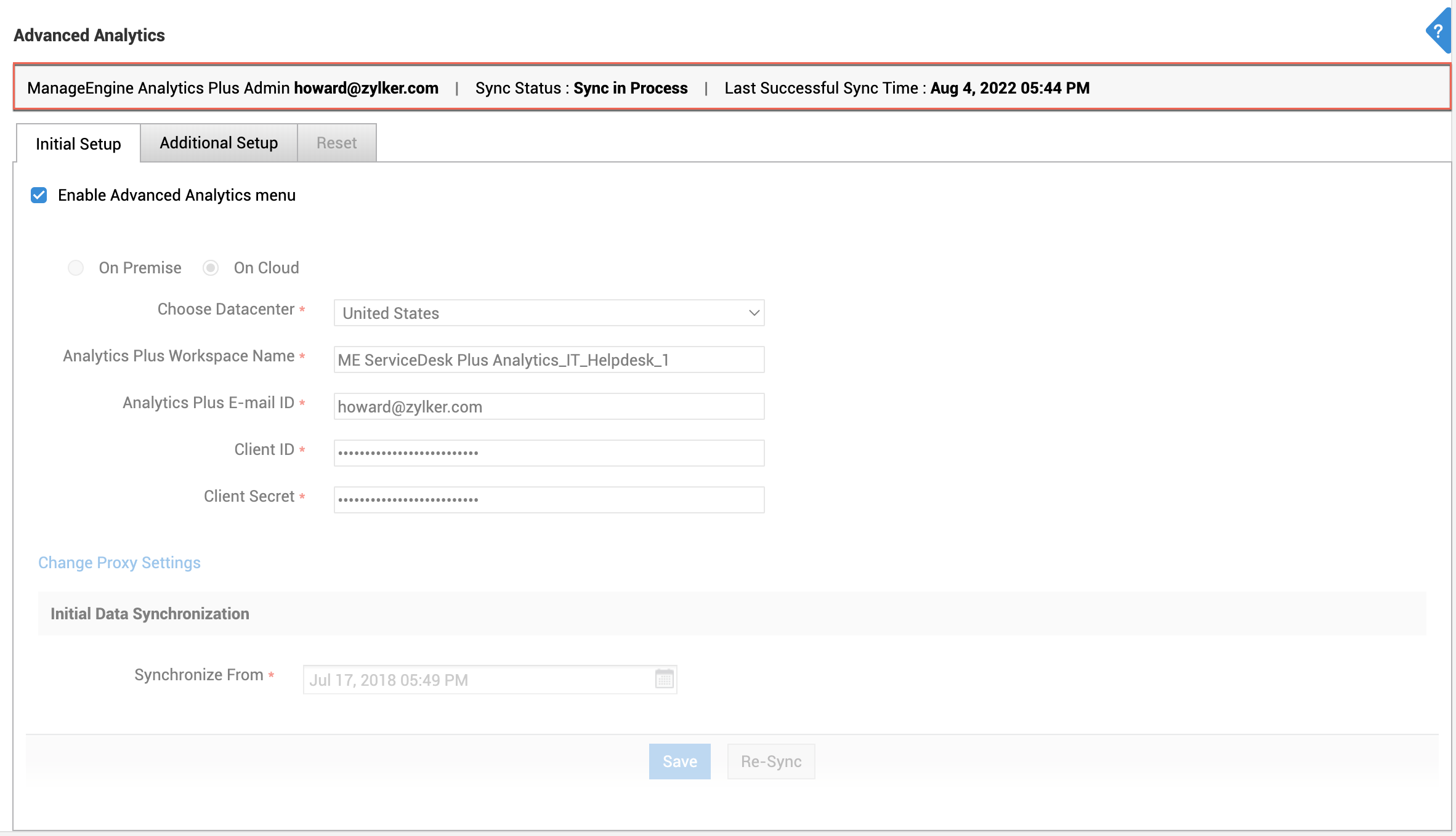
导航到附加设置选项卡并参考以下说明:
- 在定期数据同步 部分中选择计划数据同步的日期和时间。您也可以随时使用即时同步按钮立即将报表与数据库同步。
- 在数据保留策略部分中,选择清理旧数据的时间期限。
- 在Analytics Plus Cloud 用户信息中,您可以查看在 Analytics Plus Cloud 中共享已配置数据库的用户。此处会显示 ServiceDesk Plus 中可用和不可用的所有用户。
- Analytics Plus Cloud 许可证信息下会显示可用记录数和 Analytics Plus Cloud 许可证到期日期。
- 安全信息提供有关数据传输及其他预防措施的详细信息。
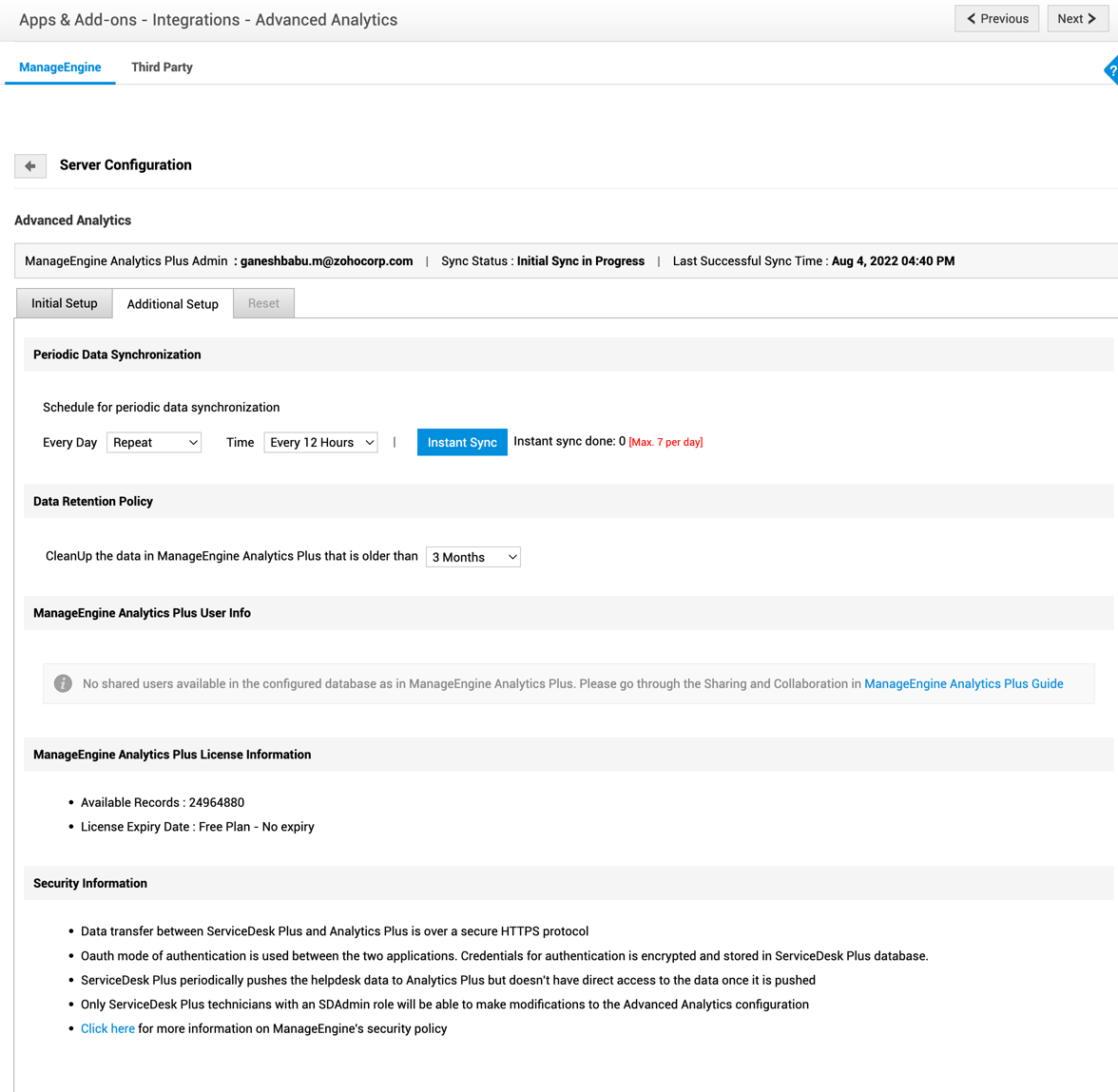
重置集成
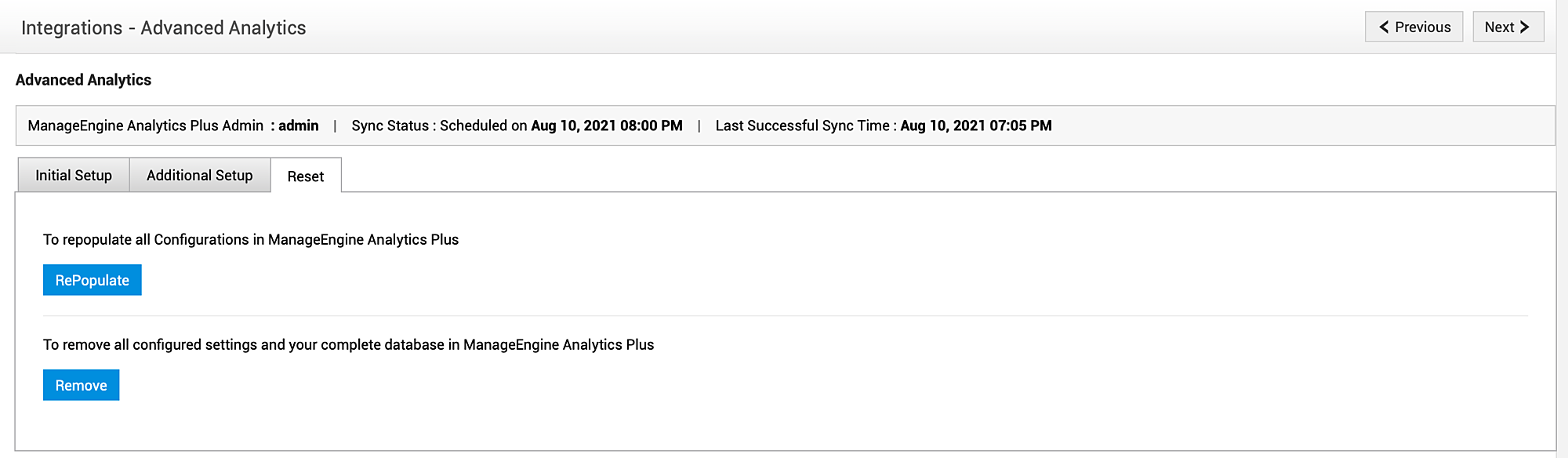
导航到重置选项卡以:
- 在 Analytics Plus Cloud 中重新填充所有配置
- 删除 Analytics Plus Cloud 中所有已配置的设置
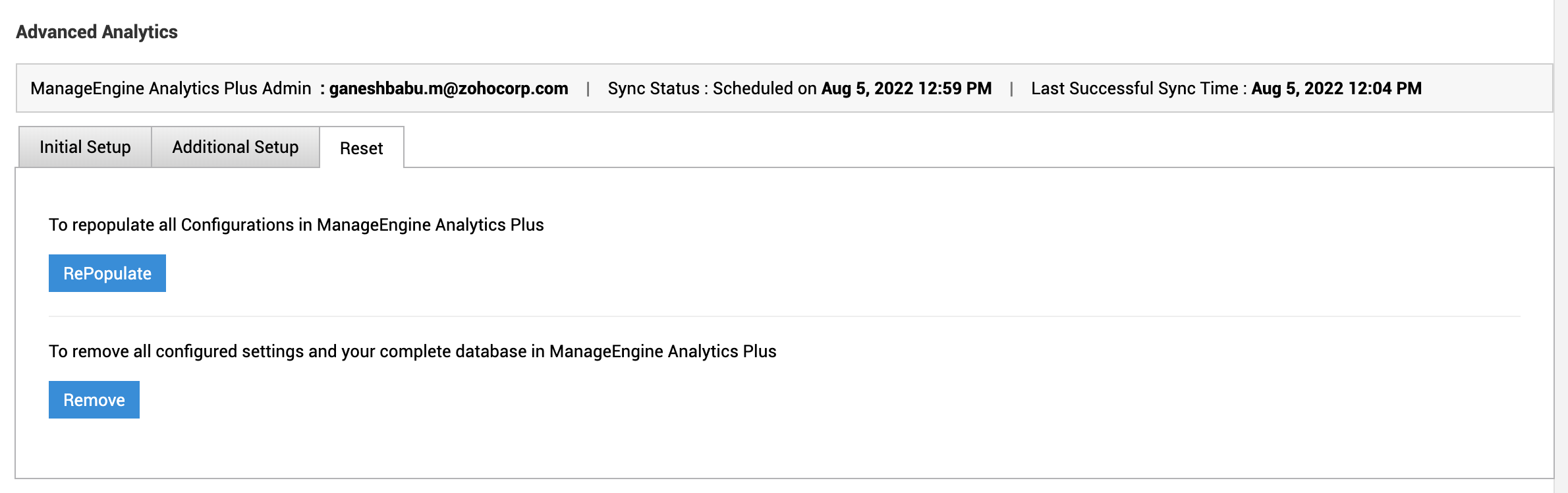
如果删除该集成,默认报表和自定义报表也将被删除。
用于本地部署的 ManageEngine Analytics Plus
ManageEngine Analytics Plus 是 ManageEngine 推出的一款商业智能和报表软件,可帮助生成有关您的帮助台性能和指标的详细报表。借助多种报表功能,它可帮助您分析帮助台,并更好地管理您的资产和工单。
要集成 ManageEngine Analytics Plus,
前往 管理 > 集成 > 高级分析。
选中复选框 启用高级分析菜单。(可选)
点击 设置高级分析集成。
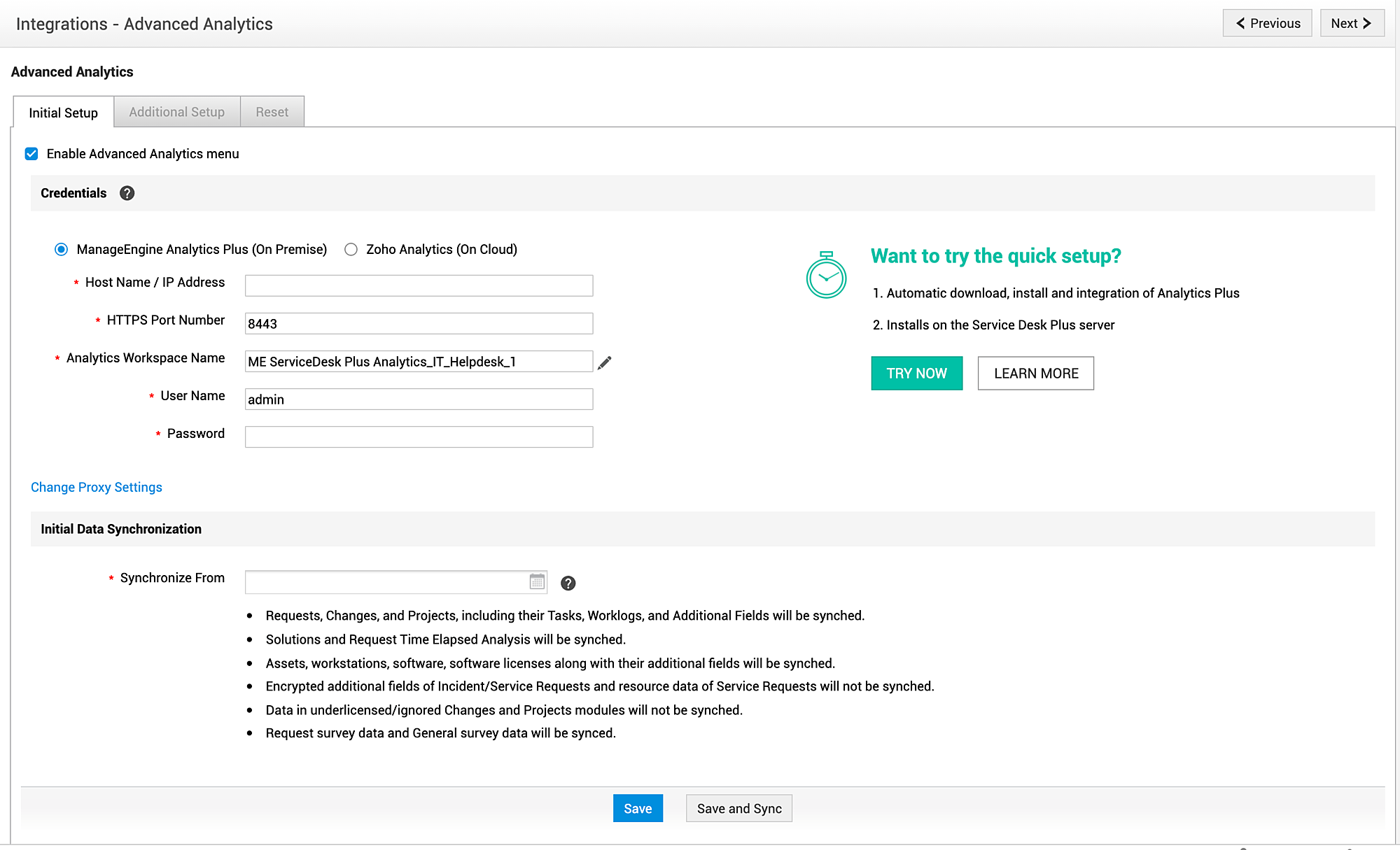
选择 ManageEngine Analytics Plus(本地部署),并提供以下信息:主机名/IP 地址、HTTPS 端口号、Analytics 工作区名称、 用户名和密码。
如有需要,请配置代理设置。
对于同步起始时间,请选择一个同步日期和时间。
点击保存。
与 SSO 集成的 Analytics Plus
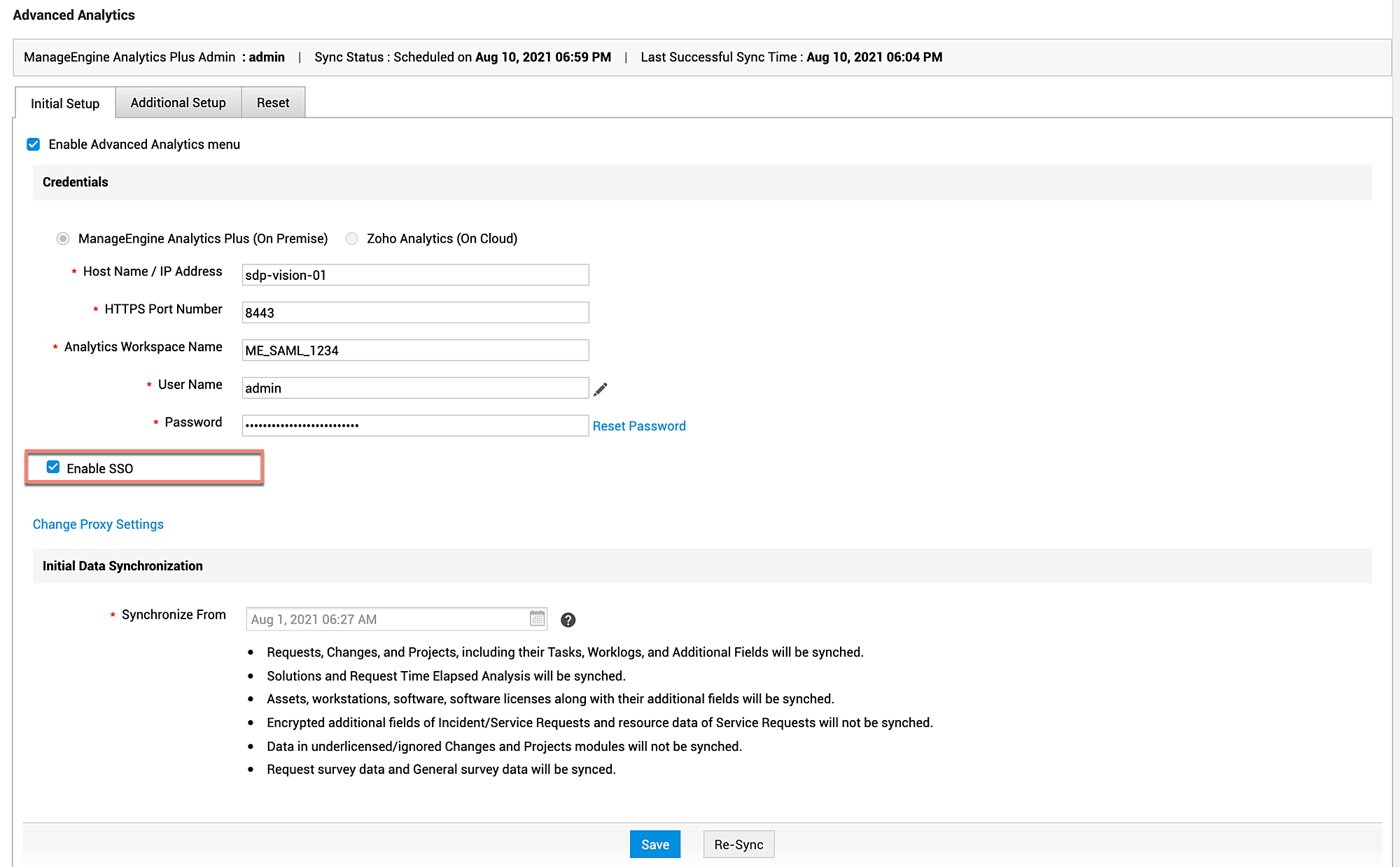
同步成功后,您可以使用单点登录,让用户无需重新登录即可访问 Analytics Plus。为此,请选择启用 SSO,然后 点击保存。
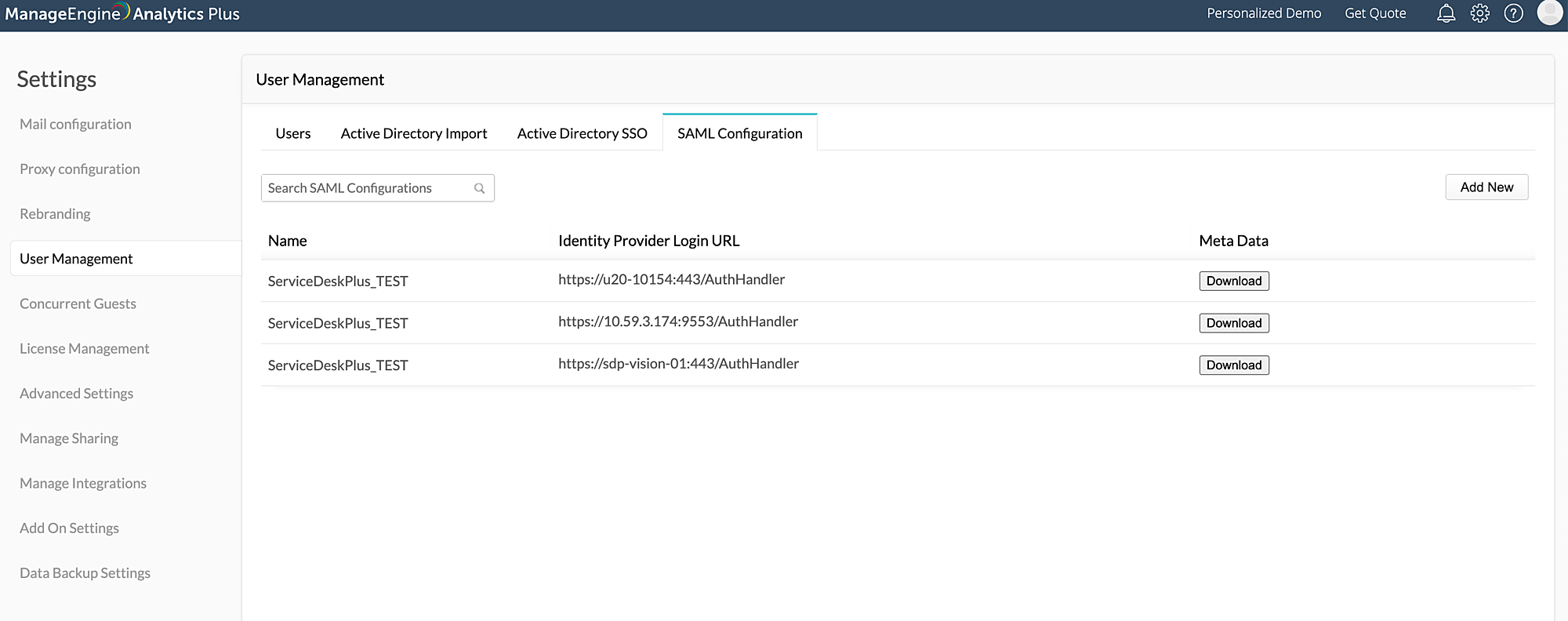
与 Analytics Plus 的单点登录将自动配置。您可以在 Analytics Plus 的设置 > 用户管理 > SAML 配置下查看基于 SSO 集成的详细信息,例如登录和注销 URL。
附加设置
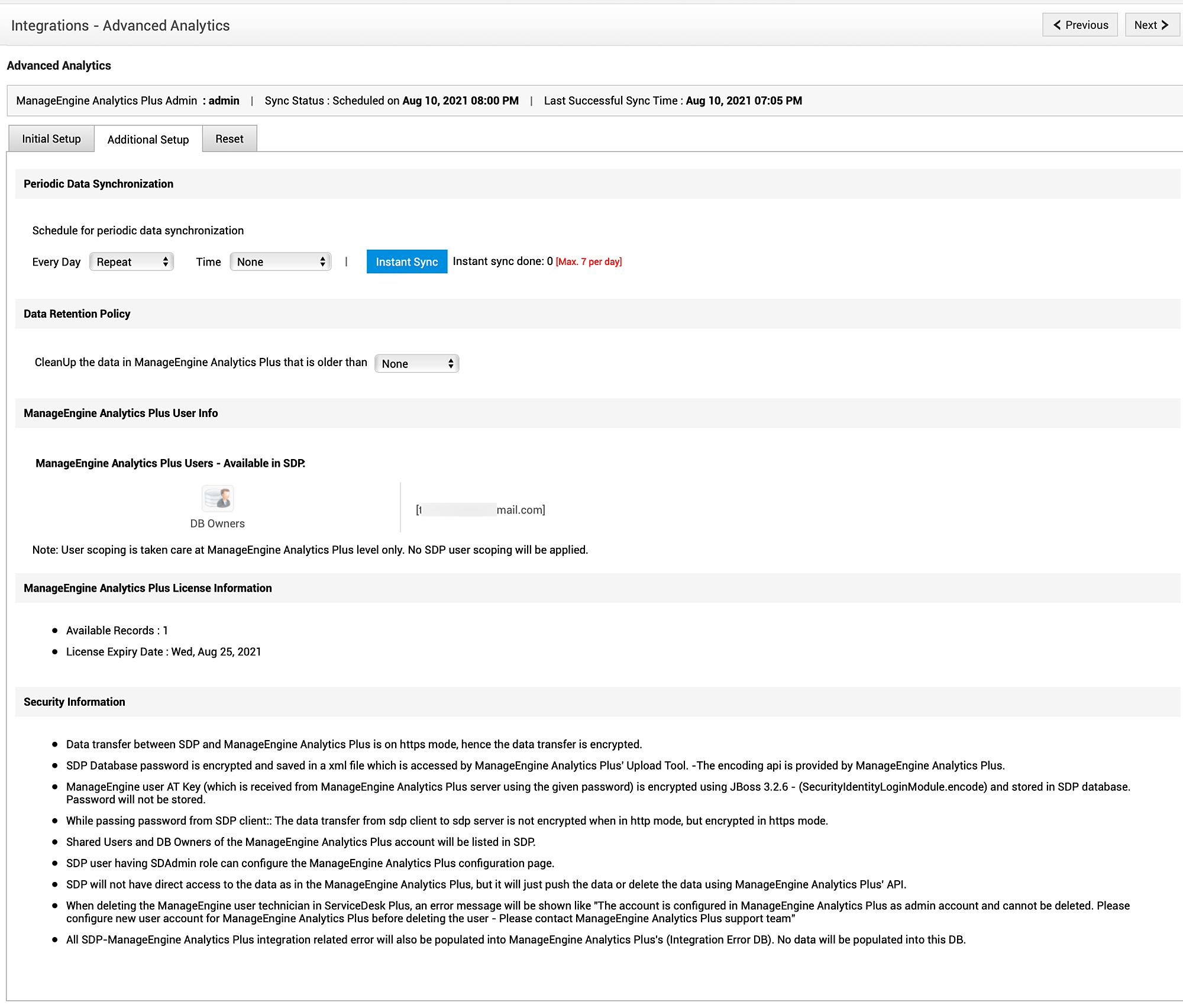
在附加设置选项卡下,您可以配置定期数据同步、数据保留策略,并查看 Analytics Plus 信息,例如用户信息、许可证信息和安全信息。
定期同步
要配置定期同步,请设置同步频率。您可以选择每天每隔指定小时重复同步,或者每天按特定时间间隔同步。您还可以点击即时同步执行立即同步。
数据保留
您可以为 Analytics Plus 配置数据保留策略。为此,请选择 Analytics Plus 中的数据应在多少个月后被清理。
重置
在重置选项卡下,您可以重新填充所有配置,或删除 Analytics Plus 中所有已配置的设置和数据库。
从 ServiceDesk Plus 访问 Analytics Plus
您可以通过以下方式访问 Analytics Plus:
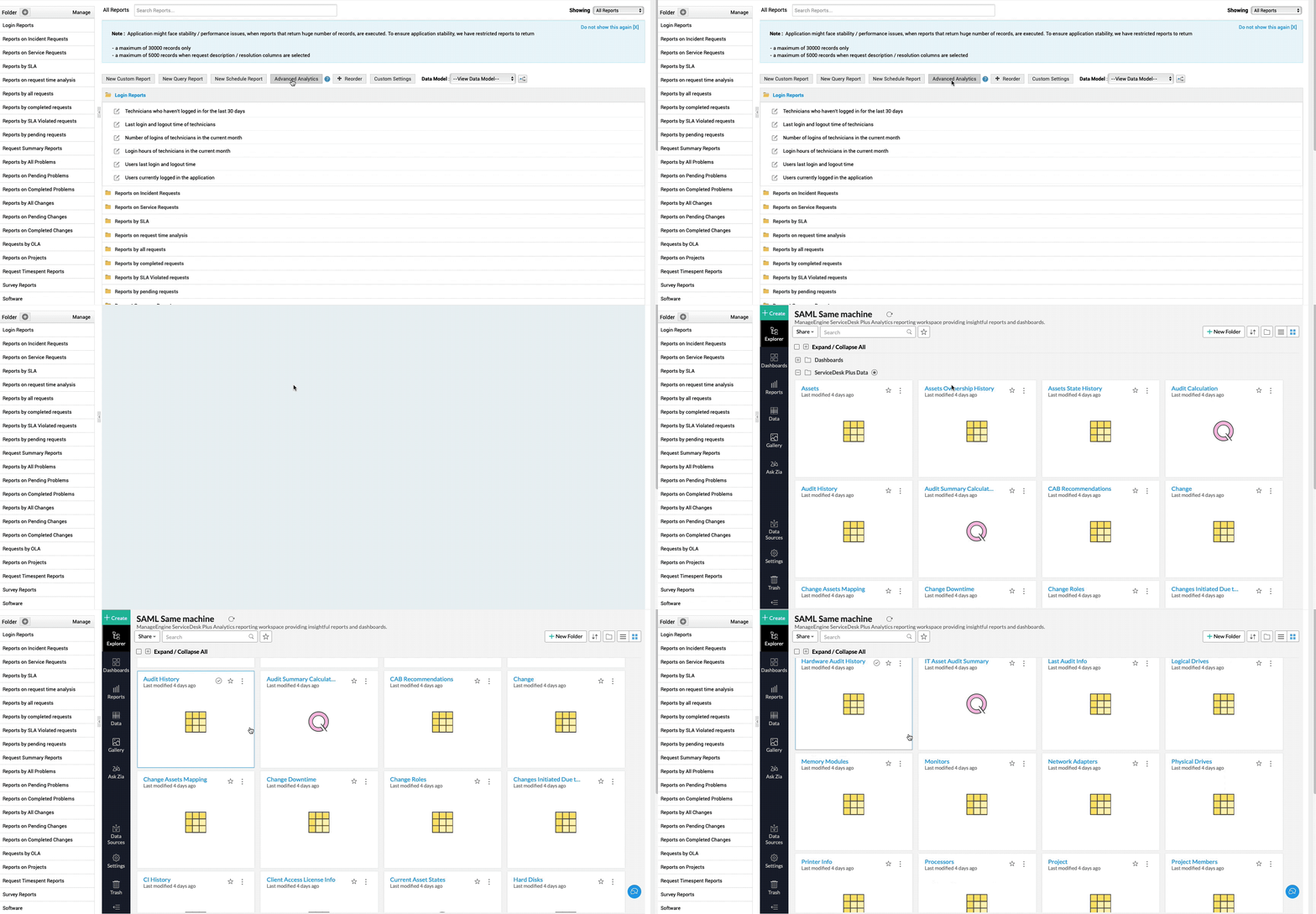
- 在报表下访问 Analytics Plus 仪表板
- 前往报表并点击高级分析。
如果在 ServiceDesk Plus 中启用了 SSO,并且该用户在 Analytics Plus 中也启用了 SSO,则该用户将被自动验证身份并显示仪表板。在所有其他情况下,用户必须使用其 Analytics Plus 凭据登录才能查看仪表板。