Remove the licenses of inactive Microsoft 365 user accounts in a few clicks
Licenses are a costly affair when managed ineffectively. One sure shot way of efficient license management is to keep a check on unused licenses. Identify inactive user accounts in your Microsoft 365 setup, revoke their license, and give it to those who need it. This way, you can also keep your license cost under control. M365 Manager Plus can do this task in a jiffy. Let's see how.
Steps to identify inactive user accounts
- Go to Reports tab.
- Select User Reports under Azure Active Directory in the left pane.
- Choose Inactive Exchange Users under Account Status Reports
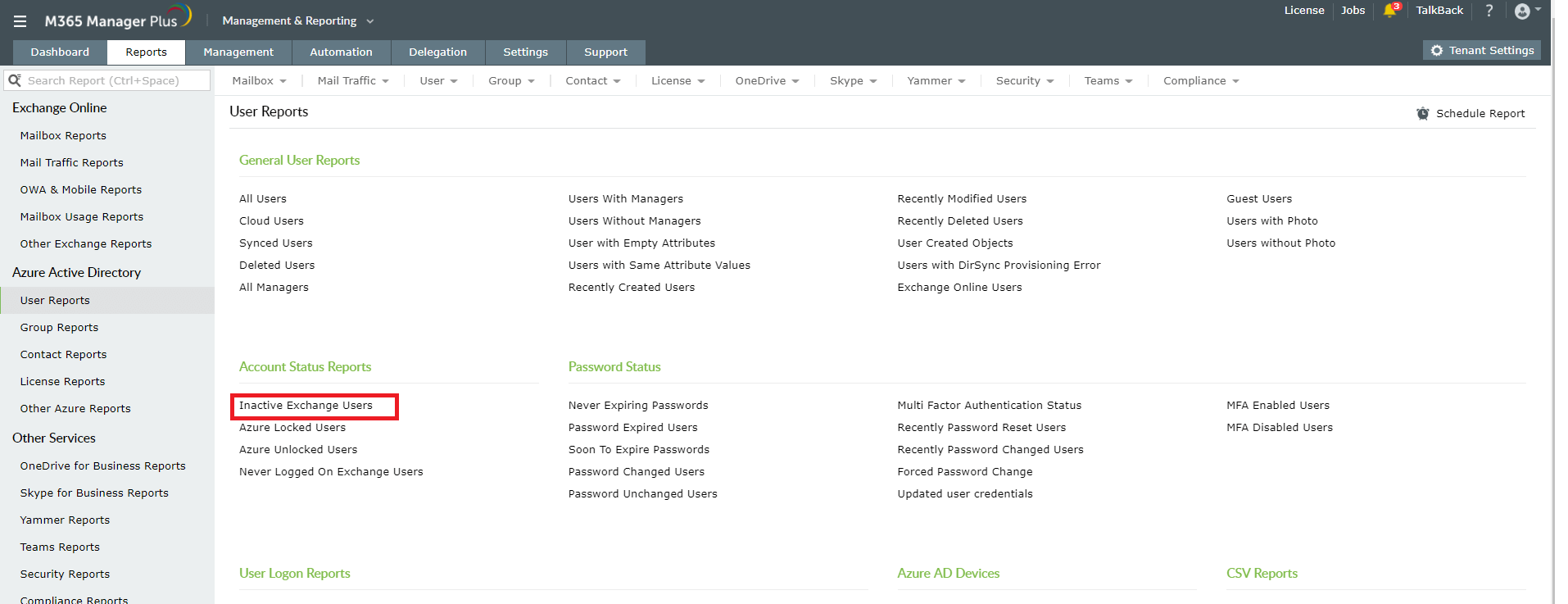
- By default, the report generated will show you the list of user accounts which have been inactive for the past 30 days.
- You can change the time period in the Inactive for the last 'n' days field.
- Use the Export As option found at the top right corner, to export the report to CSV, PDF, XLS, or HTML format. You can use the exported CSV file to remove the licenses.
Steps to remove licenses
- Go to Management tab.
- Select License Management under Azure Active Directory in the left pane.
- Choose License Modification.
- In the License Modification page, choose your Microsoft 365 Tenant, and select Remove all licenses in Add/Remove Licenses drop-down.
- In Find Users to Modify section, you can either choose the inactive users manually using Enter name(s) to search option or modify the CSV file you had exported earlier, in accordance with the sample CSV file and upload it using the CSV Import option.
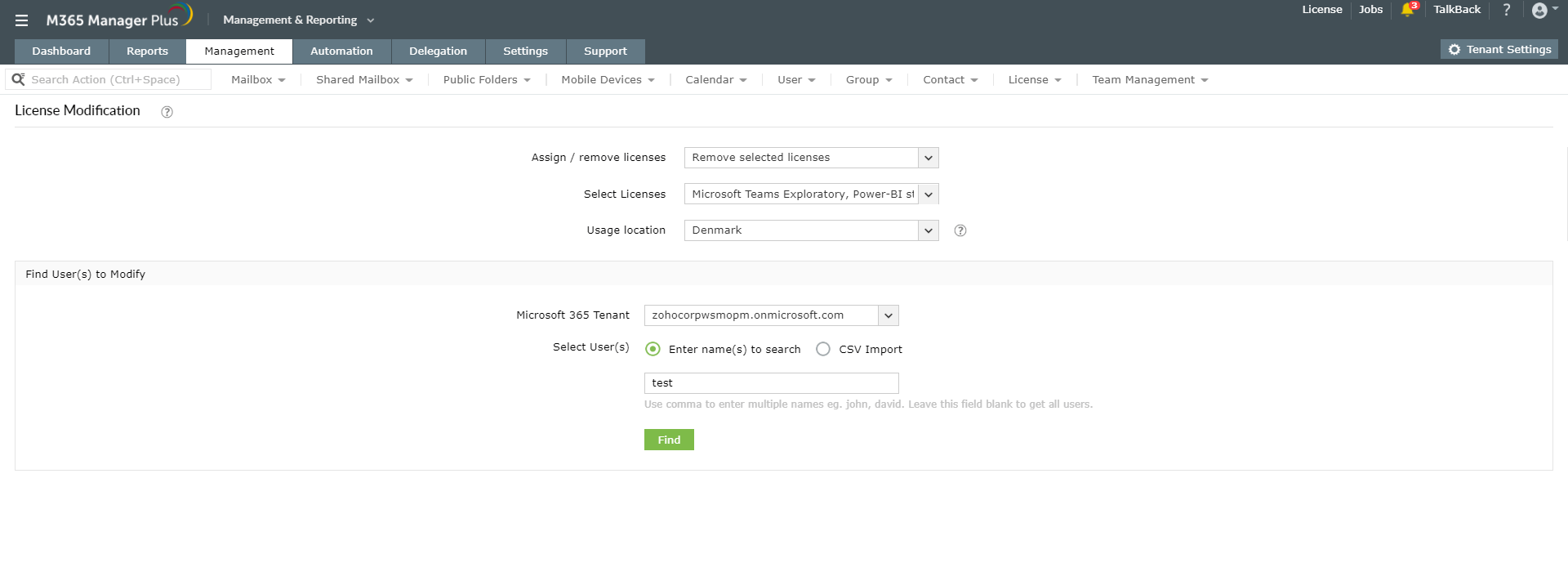
- Click Import Users.
You have now successfully removed the licenses of inactive user accounts. Next week, I'll explain how to assign licenses to users in bulk.

 免费版
免费版