
 免费版
免费版Outbound mails are different from outgoing mails in that, these mails are transferred to a different domain or tenant altogether. It is important to monitor both outgoing and outbound mails closely in order to prevent theft of confidential information.
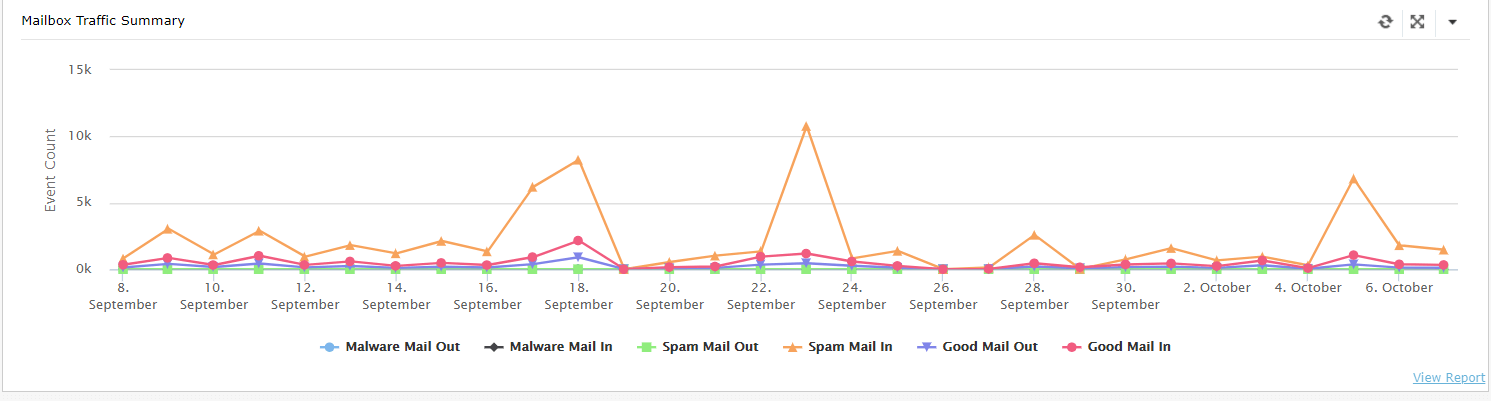
M365 Manager Plus makes monitoring of outbound mails simple, for starters, by displaying the nature of the mails sent (eg. Spam mail out, Malware mail out) under the Mailbox Traffic Summary in the Home page.
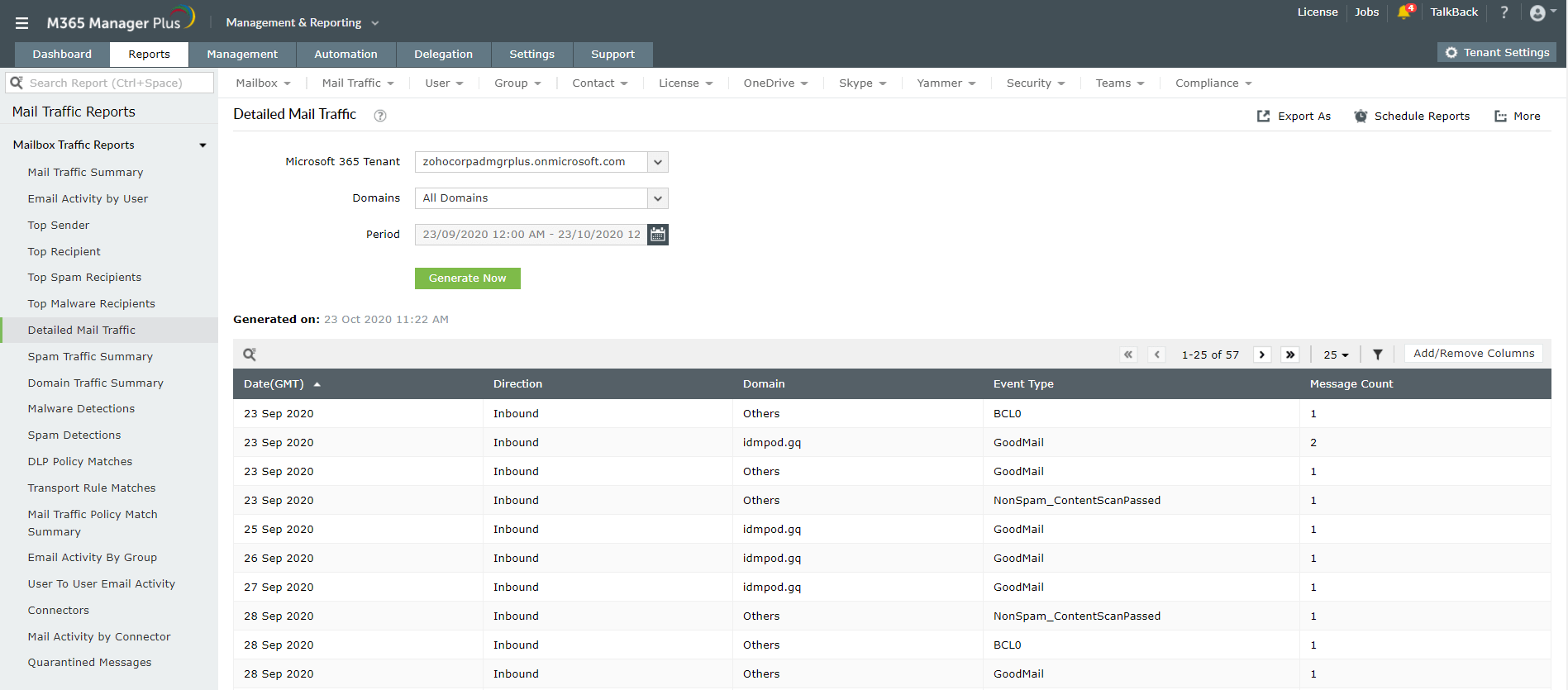
For a more detailed analysis, you can schedule reports to be automatically generated and sent to the admin or the users via email at configured intervals. Follow the given steps to schedule outbound mail related reports such as the Detailed Mail Traffic Report or the Mailboxes with External Mail Forwarding report:

This is how you can monitor outbound mails easily using M365 Manager Plus. Want to know more about the features offered by M365 Manager Plus?, click here.