Frequently asked questions
| » Request Module | » Admin Module | » General Module |
| » Asset Module | » Licensing & Others | » Service Catalog & Others |
General Module
Backup and Restore
- What are the steps to perform a manual backup in ServiceDesk Plus - MSP?
- How can I perform a backup of the database alone without the file attachments in ServiceDesk Plus - MSP?
- How do I restore the backup data?
- How do I schedule ServiceDesk Plus - MSP to perform automatic backup?
- How do I schedule a backup over a network share?
LINUX
- How do I install ServiceDesk Plus - MSP on a Linux machine?
- How do I install ServiceDesk Plus - MSP on a Linux machine without GUI?
- How do I install ServiceDesk Plus - MSP as Linux Service?
- Is it possible to scan windows workstation if ServiceDesk Plus - MSP is installed on a Linux machine?
- Does ServiceDesk Plus - MSP scan the softwares installed in a Linux machines?
- How can I connect to MYSQL database on a Linux machine?
Database
- What are the Databases supported by ServiceDesk Plus - MSP?
- How can I connect to MYSQL database of ServiceDesk Plus - MSP?
- By default, MYSQL database of ServiceDesk Plus - MSP can be connected only from the server machine. But how can I connect to MYSQL database of ServiceDesk Plus - MSP from another machine in the network?
- By default, ServiceDesk Plus - MSP installs a MYSQL database on the server during the product installation. But I require the application and database to reside on different servers. Is it possible for ServiceDesk Plus - MSP to use a different MYSQL database on a separate server instead of the default server installed?
- Is it possible to integrate Crystal reports XI to the MYSQL database of ServiceDesk?
- Is the database schema of ServiceDesk Plus - MSP available?
- How do I convert the database from MYSQL to MSSQ?
HTTPS and SSL support for ServiceDesk Plus - MSP
- How do I make ServiceDesk Plus - MSP run on https?
- How do I install SSL certificate for ServiceDesk Plus - MSP?
Moving ServiceDesk Plus - MSP
- How do I move ServiceDesk Plus - MSP from one server to another server?
- If I am using MSSQL as database how should I go about moving the application from one server to another but using the same database?
- How do I move ServiceDesk Plus - MSP installation to a different drive on the same server?
- How can I move ServiceDesk Plus - MSP Windows server to Linux server?
Customizations
- How do I modify the login screen of ServiceDesk Plus - MSP?
- How can I integrate ServiceDesk Plus - MSP to a personal homepage?
- How do I bind ServiceDesk Plus - MSP to a single IP address?
- How do I host ServiceDesk Plus - MSP on the internet?
- How do I change the URL on which ServiceDesk Plus - MSP is running?
- How do I modify the ServiceDesk Plus - MSP Logo?
- How can I change the port number on which ServiceDesk Plus - MSP runs?
Backup and Restore
- What are the steps to perform a manual backup in ServiceDesk Plus - MSP?The following instructions is to perform a manual backup in ServiceDesk Plus - MSP,
Step 1: Stop ManageEngine ServiceDesk Plus - MSP service.
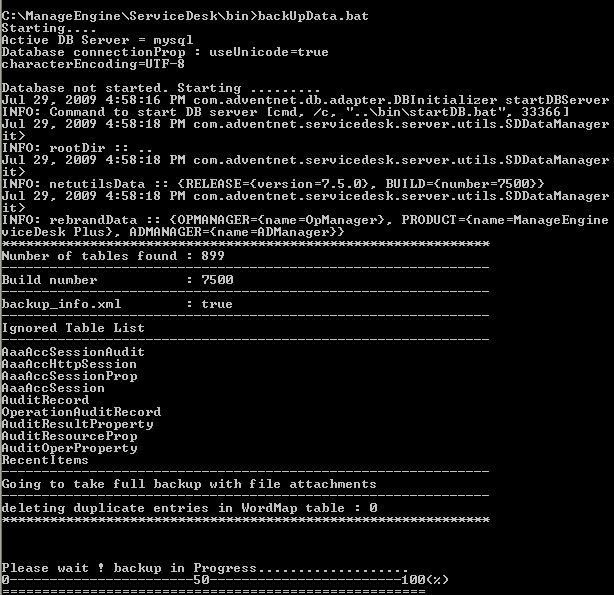
Step 2: From the command prompt, go to [ServiceDesk Plus-Home]\bin directory and execute backUpData.bat command to start the backup.
Where, ServiceDesk Plus-Home -> C:\ManageEngine\ServiceDeskPlus-MSP [ Screenshot ]
Once the backup is complete, a backup file with .data extension is placed in the Backup folder under ServiceDesk Plus - MSP Home directory. This backup file contains information such as, the Build number of ServiceDesk Plus - MSP, and also the date and time when the backup was performed.
The format of the backup file is shown below,
Backup_ ServiceDesk_ [Build number] _Month _date _ Year _ Hour _Minutes
For example, a backup taken in Version 7 and Build 7500 of ServiceDesk Plus - MSP looks like this
backup_servicedesk_7500_fullbackup_02_24_2009_07_51.data Back to Questions - How can I perform a backup of the database alone without the file attachments in ServiceDesk Plus - MSP?ServiceDesk Plus - MSP is designed in such a way that the file attachments are not stored in the database. The attachments are stored in the file attachments folder of the installation directory (C:\ManageEngine\ServiceDeskPlus-MSP). If there are lots of attachments in your ServiceDesk installation you can save time by performing a backup without file attachments (i.e.) backup of the database alone.
Step 1: Stop ManageEngine ServiceDesk Plus - MSP service.
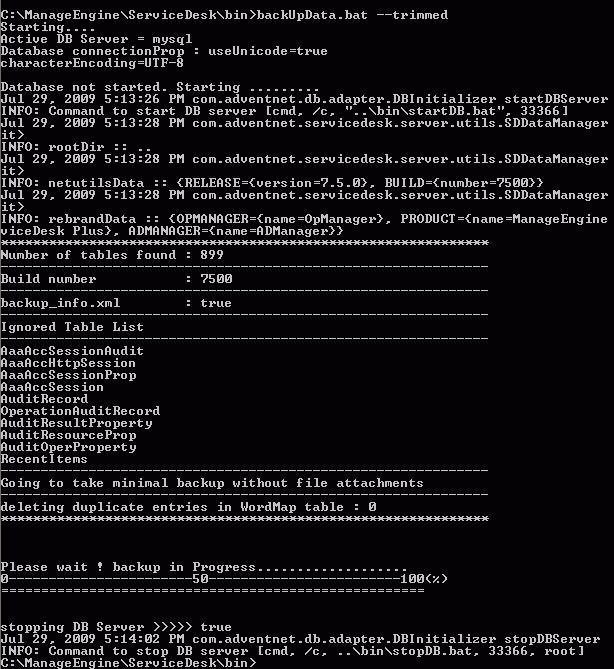
Step 2: From command prompt, go to [ServiceDesk Plus-Home]\bin directory and execute backUpData.bat --trimmed command to start the database backup.
where, ServiceDesk Plus - MSP Home -> C:\ManageEngine\ServiceDeskPlus-MSP [ Screenshot ]
Once the backup is complete, a backup file with .data extension is placed in the Trimmed Backup folder under ServiceDesk Plus - MSP Home directory. This backup file contains information such as, the Build number of ServiceDesk Plus - MSP, and date and time when the backup was performed. Here is the format of the backup file.
Backup_ ServiceDesk_ [Build number] _Month _date _ Year _ Hour _Minutes
For example, a trimmed backup taken in Version 7 and Build 7500 of ServiceDesk Plus - MSP looks like this
backup_servicedesk_7500_database_02_24_2009_08_30.data Back to Questions - How do I restore the backup data?The following instructions is to restore the backup data.
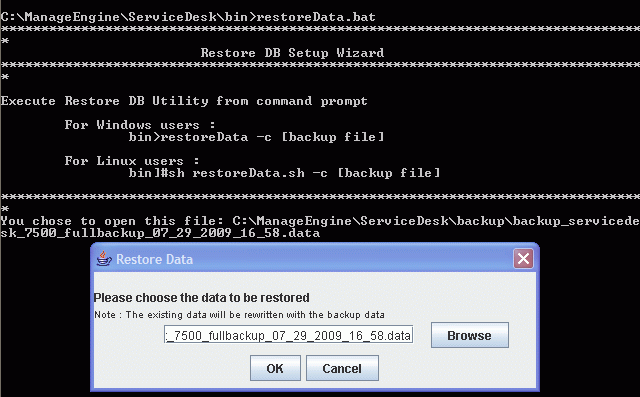
Step 1: From the command prompt, go to [ServiceDesk Plus-Home]\bin directory and execute the command restoreData.bat. Choose the backup file while prompted and select OK. [ Screenshot ]
NOTE: Please note that when you perform a restore, the existing data will be overwritten with the data in the backup file (i.e.) the restore process is not incremental and will not add information over the existing data.
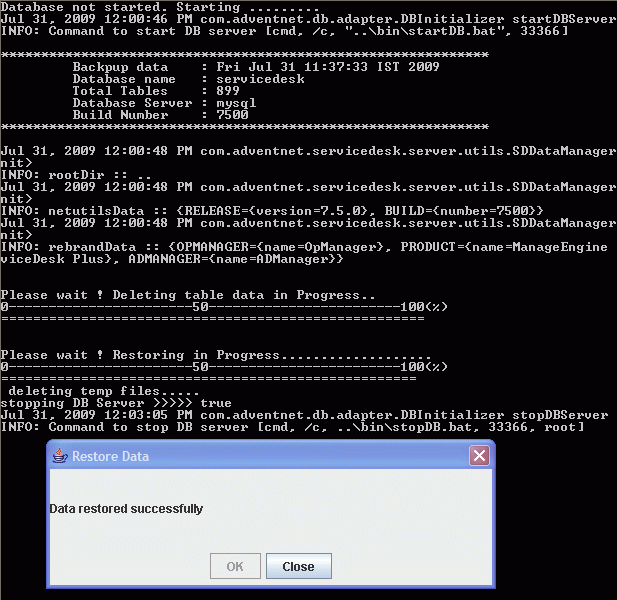
Step 2: Once the restore is complete, a Java UI pops up saying the data restore is successful as shown below. You can click Close and start the application. [ Screenshot ] Back to Questions How do I schedule ServiceDesk Plus - MSP to perform automatic backup?You can configure backup scheduling, to perform backup of all the files on a regular interval.
- Click Admin -> Backup Scheduling under General block -> Edit Scheduling link on the right hand side of the page.
- Enable backup scheduling by clicking the enable button.
- Select the number of days from the combo box to schedule the backup process. For every n number of selected days the backup will be taken for the available data.
- Specify the Start Backup date using the calendar and also select the time in hrs and mins from the combo box. This is a mandatory field.
- In case of backup failure specify the notify email address in the given text field. This is a mandatory field.
- Select either or both the Attachment Files and Database option to take the back up. This is a mandatory field.
- Specify the Backup location in the given text field to store the backup data.
- Save the changes.
How do I schedule a backup over a network share?You can configure a backup scheduling over a network share,
- Click Admin -> Backup Scheduling under General block -> Edit Scheduling link on the right hand side of the page.
- Set the Backup location as \\Network server name\backup.
NOTE: Please provide full access rights to the folder where you want to copy the backup.Back to Questions
 Screenshot
 Screenshot
 Screenshot
 Screenshot
LINUX
- How do I install ServiceDesk Plus - MSP on a Linux machine?Following are the steps given below to install and setup ManageEngine ServiceDesk Plus on a Linux machine.
Step 1: Download the ManageEngine_ServiceDeskPlus_MSP.bin file.
Step 2: Execute ManageEngine_ServiceDeskPlus_MSP.bin from the console and follow the on screen instructions.
./ManageEngine_ServiceDeskPlus_MSP.bin
NOTE: You require execute permissions for executing the .bin type files.
Manually start ServiceDesk Plus - MSP application after the installation process:
Step 1: Go to/bin directory and execute run.sh file as given below, Back to Questions
$ sh run.sh
Step 2: To start the web client, open a web browser and type the following in the address field,
https://localhost:8080
Here, you need to replace the localhost with the corresponding server name where the ServiceDesk Plus - MSP web server is running and the port number 8080 should be replaced with the actual port where the server is running. - How do I install ServiceDesk Plus - MSP on a Linux machine without GUI?Follow the steps given below to install ServiceDesk Plus - MSP on a Linux machine without GUI or on a Linux machine from windows desktop,
# chmod 755 ManageEngine_ServiceDeskPlus_MSP.bin
# ./ManageEngine_ServiceDeskPlus_MSP.bin consoleBack to Questions - How do I install ServiceDesk Plus - MSP as Linux Service?Follow the steps given below to run ServiceDesk Plus - MSP as a start up service.
Step 1: Copy the attached servicedesk.txt to /etc/init.d/
# cp servicedesk.txt /etc/init.d/servicedesk
Step 2: Edit the servicedesk file to modify the MDIR Variable. MDIR refers to/bin. Typically, if you have installed ServiceDesk Plus - MSP as a guest user, then MDIR will be, Note:If the above command does not work, use
MDIR=/home/guest/ManageEngine/ServiceDesk-MSP/bin
Step 3: Give executable permissions for servicedesk startup script.
# chmod 755 /etc/init.d/servicedesk
Step 4: Create a blank file under /var/log for logging purposes.
# touch /var/log/servicedesk-plus.log
Step 5: Use update-rc.d command to add the script as a startup process.
# update-rc.d servicedesk defaults
# chkconfig --add servicedesk
Back to Questions Is it possible to scan windows workstation if ServiceDesk Plus - MSP is installed on a Linux machine?No, it is not possible to scan windows workstation if ServiceDesk Plus - MSP is installed on a Linux machine. When ServiceDesk Plus - MSP is installed on Linux, it scans only Linux workstations.
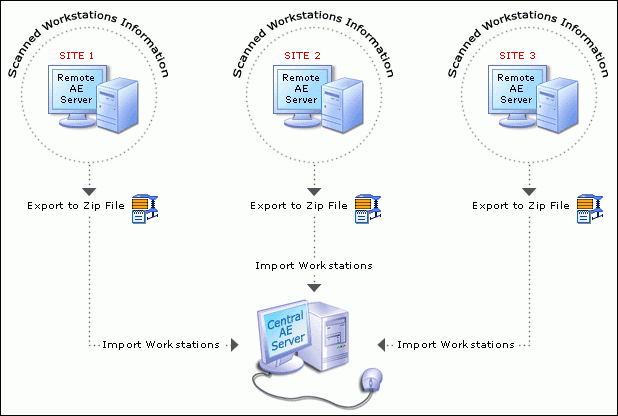
But by using the Distributed Asset scan functionality of ServiceDesk Plus - MSP, you can install the Probe in a windows machine using which you can scan windows workstations, export the information in a zip format and import the information into ServiceDesk Plus Linux server.
Here is how Distributed Asset scan functionality works.
ServiceDesk Plus - MSP helps you scan assets distributed across multiple sites (i.e.) assets which are not connected to the network (or) assets which are not reachable from the central ServiceDesk Plus - MSP server. This can be done with the help of Asset Explorer Probe which can be installed in the remote network which helps to scan the assets in the remote network, export the asset information into a zip file and then import the information into the Central ServiceDesk Plus - MSP server. [ Screenshot ]
In order to use Distributed Asset Scan feature we have to understand the following terms.- Central Server: Your ServiceDesk Plus - MSP installation is the Central server where you have the Central Asset database.
- Remote server (or) Asset explorer Probe: You can install Asset explorer Probe as Remote server in your remote network where you would like to scan assets. You will be able to scan and export the Asset information from the Remote server and import it in your Central ServiceDesk Plus - MSP server.
You can download and Install Asset Explorer Probe in the remote network by downloading the exe file from the website below.
https://www.manageengine.com/products/asset-explorer/download.html
After installation when you start the application and connect to the client for the first time, it will prompt you to run either as a Central server or Probe (Remote server). Choose Remote server. You will be able to scan assets and perform scan configuration in Remote server as you do in ServiceDesk Plus - MSP.
You can then export scanned Asset information from the Remote server under Admin -> Distributed Asset Scan. This will export the scanned Asset information as a zip file. These exported assets can be imported into your central ServiceDesk Plus - MSP server under Admin --> Distributed Asset Scan.
By doing this we have a track of all our Assets in the organization in one place which makes it easier for us the manage them. Also Distributed asset scan functionality helps to reduce the load in ServiceDesk Plus - MSP server.
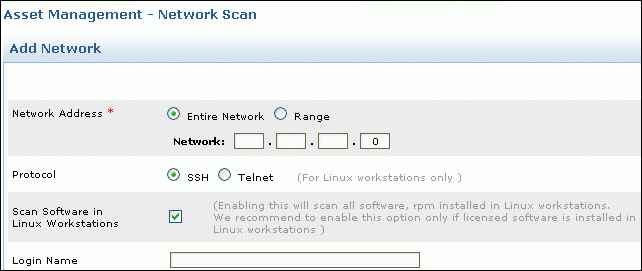
Customers interested in using the Distributed scan feature can get the Asset Explorer Probe (Remote server) license from our licensing team (This license will be equivalent to the number of nodes purchased for ServiceDesk Plus - MSP) which can be applied in the Asset explorer Remote server installations.Back to Questions- Does ServiceDesk Plus - MSP scan the softwares installed in a Linux machines?ServiceDesk Plus - MSP scans softwares installed in Linux machine. Enable the check box which says Scan Software in Linux Workstations under Admin -> Network scan. [ Screenshot ]Back to Questions
- How can I connect to MYSQL database on a Linux machine?Install the MYSQL client which supports your Linux version. Once this is accomplished, make sure that the command "mysql" is in path. (Most often, mysql should be under path, if not, you may add the complete path to mysql command under PATH variable in the bashrc file.
Once this is done, you may try the following:
# cd [ServiceDesk-Home]/mysql/bin
# mysql -u root -S ../tmp/mysql.sock servicedesk ABack to Questions
 Screenshot
 Screenshot
Database
- What are the Databases supported by ServiceDesk Plus - MSP?MYSQL and MSSQL are the supported databases.Back to Questions
- How can I connect to MYSQL database of ServiceDesk Plus - MSP?ServiceDesk Plus - MSP uses MYSQL as its default database. You can connect to the database through the following commands,
cmd> cd C:\ManageEngine\ServiceDeskPlus-MSP\mysql\bin
cmd> mysql.exe -u root -P 33366 servicedesk
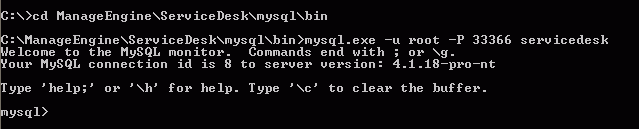
"ServiceDesk" is the name of the database. 33366 is the port on which ServiceDesk Plus database runs. ServiceDesk Plus - MSP uses root account to connect to the database and does not use any password. You can connect to MYSQL database only from the server console. [ Screenshot ]Back to Questions - By default, MYSQL database of ServiceDesk Plus - MSP can be connected only from the server machine. But how can I connect to MYSQL database of ServiceDesk Plus - MSP from another machine in the network?The instructions given below is to connect to MYSQL database from another machine in the network.
Execute the following commands from ServiceDesk Plus - MSP server console,
cmd> cd C:\ManageEngine\ServiceDeskPlus-MSP\mysql\bin
cmd> mysql.exe -u root -P 33366 servicedesk
mysql> grant usage on servicedesk.* to root@'hostname-or-ipaddress';
mysql> grant ALL on servicedesk.* to root@'hostname-or-ipaddress';
mysql> flush privileges;
The hostname-or-ipaddress is the machine from where you wish to connect to ServiceDesk Plus database.
To access the database from another machine, use the commands,
cmd> mysql.exe -u root -P 33366 servicedesk -h[servername-or-ipaddress-of-Servicedesk-server]Back to Questions - By default, ServiceDesk Plus - MSP installs a MYSQL database on the server during the product installation. But I require the application and database to reside on different servers. Is it possible for ServiceDesk Plus - MSP to use a different MYSQL database on a separate server instead of the default server installed?This is a scenario applicable only if you do not want to use the default MYSQL database which ServiceDesk Plus - MSP installs during the product installation, and you have a separate server having MYSQL version 4.1.18 installed on it.
NOTE: MYSQL version has to be v 4.1.18. as other versions are not supported at this point of time.
Make the following changes on the product installation
Step 1: Edit the [SDP-Home]\bin\startdb.bat file and change "33366" to the port on which the default MySQL runs.
Step 2: Edit the [SDP-Home]\bin\stopdb.bat file and change "33366" to the port on which the default MySQL runs.
Step 3: a) Edit the [SDP-Home]\server\default\deploy\mysql-ds.xml file and change "33366" to the port on which the default MySQL runs.
b) Change "localhost" to the ipaddress or hostname of the server on which MySQL runs, if you want to change the host.
Step 4: Edit the [SDP-Home]\server\default\conf\nms-service.xml file and change the StartDBServer attribute to "false".
<attribute name="StartDBServer">false/<attribute>
Step 5: Create a database "servicedesk" which can be accessed from the port on which the default MySQL runs.
mysql\> create database servicedesk;
NOTE: Service Desk Home -> C:\ManageEngine\ServiceDeskPlus-MSP Back to Questions - Is it possible to integrate Crystal reports XI to the MYSQL database of ServiceDesk?Yes it is possible to integrate Crystal reports with ServiceDesk Plus - MSP. Refer the link provided below which will help you with the integration.
https://forums.manageengine.com/topic/is-it-possible-generate-report-using-excel-or-crystal-report#25138Back to Questions - Is the database schema of ServiceDesk Plus - MSP available?The database schema is accessible from within the ServiceDesk Plus - MSP application.
Go to Reports -> New Query report -> Select the module you want to report on, from the Table Schema drop down list and press the Get button which will give you the Schema.Back to Questions - How do I convert the database from MYSQL to MSSQL?The following is the procedure to migrate your ServiceDesk Plus - MSP database from MYSQL to MSSQL.
Step 1: Stop ManageEngine ServiceDesk Plus - MSP service.
Step 2: Take a backup of the existing data and configuration under MYSQL database.
From command prompt, go to [ServiceDesk Plus-Home]\bin directory and execute backUpData.bat command to start the data backup.
cmd> [ServiceDesk Plus Home]\bin
cmd> backUpData.bat
where, ServiceDesk Plus - MSP Home -> C:\ManageEngine\ServiceDeskPlus-MSP. This backup will be stored under the Backup folder in ServiceDesk Plus - MSP Home directory.
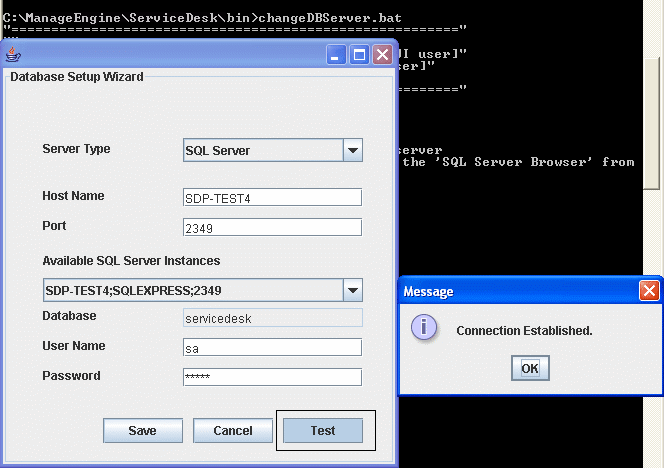
Step 3: Invoke ChangeDBServer.bat under [Service Desk-Home]\bin folder. [ Screenshot ]
Step 4: Provide the details of the SQL server (i.e.) Host name, username and password and click Test, By doing this, we will be able to check the connectivity with the SQL server. The message should say connection established as displayed above. Then click Save.
Step 5: Start and stop the ServiceDesk Plus - MSP server once.
NOTE: A database called ServiceDesk would be created in the SQL server.
Step 6: Now invoke restoreData.bat under [Service Desk-Home]\bin folder. The data should now be restored under your MSSQL server instance. Follow the on screen instructions to restore the latest backup data performed in step 2. [ Screenshot ]
Step 7: Start ManageEngine ServiceDesk Plus - MSP service once the restore process is complete. Back to Questions
 Screenshot
 Screenshot
HTTPS and SSL support for ServiceDesk Plus - MSP
- How do I make ServiceDesk Plus - MSP run on https?From a command prompt, execute the file changeWebServerPort.bat from [Service Desk Home]\bin folder as in
C:\ManageEngine\ServiceDeskPlus-MSP\bin> changeWebServerPort.bat[port number] https
By doing so ServiceDesk Plus - MSP uses the default certificate but this default certificate is not a trusted one. In order to make it trusted you would have to purchase and install third-party SSL certificates with ServiceDesk Plus - MSP.Back to Questions How do I install SSL certificate for ServiceDesk Plus - MSP?Follow the instructions given below for SSL Installation
Step 1: Create a new Keystore
- You will be using the keytool command to create and manage your new Keystore file. When you are ready to create your keystore go to the directory where you plan to manage your Keystore and certificates (C:\ManageEngine\ServiceDeskPlus-MSP\jre\bin). Enter the following command,
keytool -genkey -alias <our_alias_name> or [Domain Name] -keyalg RSA -keystore sdp.keystore - You will be prompted to choose a password for your keystore. You will then be prompted to enter your Organization information. When it asks for first and last name, DO NOT mention your first and last name, but rather it is your Fully Qualified Domain Name for the site you are securing say, helpdesk.yourdomain.com. If you are ordering a Wildcard Certificate this must begin with the * character say, *.yourdomain.com)
- After you have completed the required information confirm that the information is correct by entering 'y' or 'yes' when prompted. Next, you will be asked for your password to confirm. Make sure to remember the password you choose. Your keystore file named sdp.keystore is now created in your current working directory.
Step 2: Generate a CSR from your new keystore
- Next, you will use keytool to create the Certificate Signing Request (CSR) from your Keystore. Enter the following command
keytool -certreq -alias <your_alias_name*gt; or [Domain Name] -file csr.txt -keystore sdp.keystore - Type the keystore password that you chose earlier and hit Enter.
- Your CSR file named csr.txt is now created in your current directory. Open the CSR with a text editor, and copy and paste the text (including the BEGIN and END tags) into the CA web order form. Be careful to save the keystore file (sdp.keystore) as your certificates will be installed to it later.
Step 3: How to install your SSL Certificate
- Download your Certificate files from the email from CA to the directory where your keystore (sdp.keystore) was saved during the CSR creation process. The certificate must be installed to this exact keystore. If you try to install it to a different keystore it will not work. The certificates you downloaded must be installed to your keystore in the correct order for your certificate to be trusted. If the certificates are not installed in the correct order, then the certificate will not authenticate properly.
- Install the Root Certificate file:
Each time you install a certificate to your keystore you will be prompted for the keystore password, which you chose when generating your CSR. Type the following command to install the Root certificate file:
keytool -import -trustcacerts -alias root -file TrustedRoot.crt -keystore sdp.keystore
NOTE: Choose 'Yes' if you get prompted with a message that says "Certificate already exists in system-wide CA keystore under alias <entrustsslca> Do you still want to add it to your own keystore? [no]:" You will get a confirmation stating that the "Certificate was added to keystore". - Install the intermediate certificates if any. (Follow the instructions provided by the CA)
- Install the Primary Certificate file:
Type the following command to install the Primary certificate file,
keytool -import -trustcacerts -alias tomcat -file your_domain_name.crt -keystore sdp.keystore
This time you should get a slightly different confirmation stating that the "Certificate reply was installed in keystore" If it asks if you want to trust the certificate. Choose y or yes. Your Certificates are now installed to your keystore file (keystore.key) and you just need to configure your server to use the keystore file.
Step 4: Configuration of the server
- Copy the sdp.keystore file from <ServiceDesk_Home>\jre\bin to [ServiceDesk_Home]\server\default\conf.
- Execute the changeWebServerPort.bat script to change the connection mode to HTTPS as follows.
cmd> cd <ServiceDesk Plus - MSP Home>\bin
cmd changeWebServerPort.bat <WEBSERVER_PORT> https - Set the password, you gave in Step1 while generating sdp.keystore to "keystorepass" parameter in the file server.xml present under <ServiceDesk_Home>\server\default\deploy\jbossweb-tomcat50.sar
- Restart the ServiceDesk Plus - MSP server for the changes made.
- You will be using the keytool command to create and manage your new Keystore file. When you are ready to create your keystore go to the directory where you plan to manage your Keystore and certificates (C:\ManageEngine\ServiceDeskPlus-MSP\jre\bin). Enter the following command,
Moving ServiceDesk Plus - MSP
How do I move ServiceDesk Plus - MSP from one server to another server?Following are the steps to move data from the existing server to a new server,
Step 1: Stop ManageEngine ServiceDesk Plus - MSP service.
Step 2: From command prompt, go to [ServiceDesk Plus-Home]\bin directory and execute backUpData.bat command to start the data backup.
Once the backup is complete, a backup file with .data extension is placed in the Backup folder under ServiceDesk Plus - MSP Home directory. This backup file contains information about the Build number of ServiceDesk Plus - MSP, and the date and time of when the backup was performed. Here is the format of the backup file.
Backup_ ServiceDesk_ [Build number] _Month _date _ Year _ Hour _Minutes
For example, a backup taken in Version 7 and Build 7500 of ServiceDesk Plus - MSP looks like this
backup_servicedesk_7500_fullbackup_02_24_2009_07_51.data
Step 3: Install ServiceDesk Plus - MSP on the new server.
Step 4: Copy the backup folder from the old server to [ServiceDesk Plus-Home] in the new server.
Step 5: To restore the backed up data, Go to [ServiceDesk Plus-Home]\bin directory and execute restoreData.bat. Choose the backup file while prompted. See example below:
cmd> [ServiceDesk Plus Home]\bin
cmd> restoreData.bat
where, Service Desk Home -> C:\ManageEngine\ServiceDeskPlus-MSP [ Screenshot ]
Step 6: Start the ServiceDesk Plus - MSP server once after restoring the data in the new server.
Step 7: Set the new server name under Admin -> Self Service Portal Settings -> Alias url.
NOTE: Data can be restored only across same builds of ServiceDesk Plus - MSP version. i.e. data backed up in 7500 build of ServiceDesk Plus - MSP can be restored only in 7500 build. Please check if the old build and new build are of same build versions.
Build version can be checked- By clicking on the About link in the application [OR]
- From buildInfo.xml file under <Service Desk Home>/server/default/conf directory.
If I'm using MSSQL as database, how should I go about moving the application from one server to another but using the same database?Since you are using MSSQL, the database remains on the SQL server. So all you have to do is install the same version and build of ServiceDesk Plus - MSP on the new server and point the database to the SQL server while installing the product.
You can check your current version and build of ServiceDesk Plus - MSP by- Clicking on the About link in the application [OR]
- Build version can be checked from buildInfo.xml file under <servicedesk_home>/server/default/conf directory where, Service Desk Home -> C:\ManageEngine\ServiceDeskPlus-MSP
The way ServiceDesk Plus - MSP is designed is that it does not store attachments in the database. They are stored in the file attachments folder of the installation directory (C:\ManageEngine\ServiceDeskPlus-MSP)
You would have to copy the following folders to the new server from the existing server in order to retain the file attachments.
- Custom
- Inline images
- File attachments
- How do I move ServiceDesk Plus - MSP installation to a different drive on the same server?Follow the instructions below to move ServiceDesk Plus - MSP installation to a different drive on the same server.
Step 1: Stop ManageEngine ServiceDesk Plus - MSP service.
Step 2: De-Register Service: C:\ManageEngine\ServiceDeskPlus-MSP\bin> sd_service.bat -r ..\server\default\conf\wrapper.conf
Step 3: Copy installation folder [ManageEngine\Servicedesk] to another drive say D:
Step 4: Re-Register service: D:\ManageEngine\ServiceDesk\bin> sd_service.bat -i ..\server\default\conf\wrapper.conf
Step 5: Start the service.
NOTE:Make sure you have taken the backup first using backUpData.bat in ManageEngine\Service Desk\bin before you perform the procedure.Back to Questions - How can I move ServiceDesk Plus - MSP Windows server to Linux server?Following are the steps to move ServiceDesk Plus - MSP Windows server to Linux server.
Step 1: Take a trimmed backup using the commands below,
cmd> cd [ServiceDesk-Home]\bin
cmd> backupdata.bat --trimmed
The backup will now be created under [ServiceDesk-Home]\trimmedbackup
Step 2: Copy the following folders and replace it in the same location of the another server.
Fileattachments,inlineimages,customimagesunder Servicedesk[home].
Step 3: To restore the backed up data, Go to [ServiceDeskPlus-Home]\bin directory and execute sh restoredata.sh. Choose the backup file while prompted.
Step 4: Start the ServiceDesk Plus - MSP server once after restoring the data in the new server.
Step 5: Connect to the database and execute the query below.
update sdeskattachment set ATTACHMENTPATH = replace(ATTACHMENTPATH, '\\', '/');Back to Questions
Customizations
- How do I modify the login screen of ServiceDesk Plus - MSP?Follow the procedure below to customize the login and logout screens as per your requirement.
Step 1: Save the page served under https://[servername-or-ipaddress:port-number] as index.html and copy this file onto
C:\ManageEngine\ServiceDeskPlus-MSP\applications\extracted\AdventNetServiceDesk.eear\AdventNetServiceDeskWC.ear\
AdventNetServiceDesk.war
Step 2: Modify the index.html page as per your needs and the save the file under the same location.
Step 3: Keep the FORM Submit and Action options as they are.
Step 4: Edit the Web.xml file present under C:\ManageEngine\ServiceDeskPlus-MSP\applications\extracted\AdventNetServiceDesk.eear\AdventNetServiceDeskWC.ear\
AdventNetServiceDesk.war\WEB-INF and change <form-login-page>/Login.jsp</form-login-page>
to
<form-login-page>/index.html</form-login-page>
AND
<form-error-page>/Login.jsp?error=true</form-error-page<
to
<form-error-page>/index.html</form-error-page<
Step 5: Restart ServiceDesk Plus - MSP service.
Step 6: You can now access the modified index page as https://[servername-or-ipaddress:port-number]/
NOTE: This file is common across accounts. Also, this file will change every time a service pack or hot fix is released. Hence, when you apply the hot fix or service pack, you must redo the changes.Back to Questions - How can I integrate ServiceDesk Plus - MSP to a personal homepage?You can integrate ServiceDesk Plus - MSP to your personnel homepage by using 2 methods:
First method: If service desk plus is hosted in the internet then in your personal webpage you can create a hyperlink of ServiceDesk Plus - MSP url.
To use this method,
Add <a href="https://www.theurl.com">servicedesk </a> to the body of your personal web page.
Second method: You can log into ServiceDesk Plus - MSP from your personal webpage. That is UserName and password for ServiceDesk Plus - MSP can be entered from your personal Web page.
To use the second method add the following tags to the body,
<form action="https://www.theurl.com/HomePage.do" method="post">
<input type="text field"
name="username"/>
<br><input type="password"
name="password"/>
<br><input type="submit" value="Go"/>
</form> Back to Questions How do I bind ServiceDesk Plus - MSP to a single IP Address?For Windows Users:
Step 1: Goto [SDP-Home]\server\default\conf\TrayIconInfo.xml and add "ipToBind" parameter to the following line:
<SDP-PROPERTIES RequestScheme="http" WebPort="8080"/>
Now the line would look like,
<SDP-PROPERTIES RequestScheme="http" WebPort="8080" ipToBind="xxx.yyy.www.zzz"/>
[ xxx.yyy.www.zzz is the ip address of the server on which you intend to run ServiceDesk Plus - MSP]
Step 2: Uncomment the following line in the same file:
<!--ADDITIONALPARAMS ParamName="ipToBind" ParamValue="-bxxx.yyy.zzz.www"/-->
Now the line would look like,
<ADDITIONALPARAMS ParamName="ipToBind" ParamValue="-bxxx.yyy.zzz.www"/> Step 3: Save the changes and Restart the Service.
In case, you want to start it from the command prompt, you can edit the run.bat file and add an argument to the AdventNetDeploymentSystem.jar as follows
set ARGS=%ARGS% -LAdventNetDeploymentSystem.jar -b <hostname/IP>
Save the file and stop the application to effect the changes and start the application again.
Step 4: Change the URL in mssql-ds.xml/mysql-ds.xml like,
jdbc:mysql:// <host/IP:33366/servicedesk
Step 5: In case of mysql Configure the startDB.bat to append
--bind-address=<host/IP>
For Linux Users:
IP Binding on the Linux machine.- Stop the server.
- Open the <ServiceDesk Plus_Home>/bin/run.sh file
- Modify the line : org.jboss.Main "-LAdventNetDeploymentSystem.jar" to org.jboss.Main "-LAdventNetDeploymentSystem.jar" -b <hostname/IP>
- Start the server and you will find that ServiceDesk Plus - MSP binds to the specified IP.
- Change the URL in mssql-ds.xml/mysql-ds.xml like, jdbc:mysql:// <hostname/IP>:33366/servicedesk
- In case of mysql Configure the startDB.sh to append --bind-address=<hostname/IP>
How do I host ServiceDesk Plus - MSP on the internet?In order to make ServiceDesk Plus - MSP available for users in Internet, let us assume the following scenarios.
Scenario 1: ServiceDesk Plus - MSP is installed in LAN and should be available in LAN and WAN:
Assume ServiceDesk Plus - MSP is installed on a server in the LAN with IP address 192.168.200.254 on port 80, and the hostname of the server is "servicedesk-lan".
For users within the LAN, the url will be https://servicedesk-lan/ or (https://192.168.200.254)
If ServiceDesk Plus - MSP has to be accessed in WAN, you should do the following:
Step 1: Register an IP address (say, 64.12.13.11) and a public hostname (like servicedesk.yourdomain.com) with your Service Provider.
Step 2: The IP address for "servicedesk.yourdomain.com"�should resolve to "64.12.13.11". (This will be predominantly handled by the Service Provider).
Step 3: Configure Firewall rules (or access-list in router) redirecting "http" requests on IP address "64.12.13.11" to the LAN ipaddress "192.168.200.254".
Step 4: Configure the alias URL settings in ServiceDesk Plus - MSP. [One point to note is that all notifications will now be sent with the Public URL. It is understood that the Public URL will also be reachable within the LAN].
Scenario 2: ServiceDesk Plus - MSP is installed in DMZ and should be available in LAN and WAN:
Installing ServiceDesk Plus - MSP on a server within the DMZ should help prevent the security risks in installing ServiceDesk Plus - MSP on a server in LAN/WAN.
Assume SDP is installed on a server within DMZ with a IP address 192.168.225.254 and the hostname is "servicedesk-dmz" on port 8080.
MSSQL is the database and the database server is in LAN: You have to configure firewall rules in such a way that the application can reach the Database server in LAN on the MSSQL port ( Default Port : 1433 )
MSSQL is the database and the database server is in DMZ: Port 1433 should be reachable from the ServiceDesk Plus - MSP server in DMZ.
MySQL is the database: It is recommended that you use the MySQL bundled with the software. In such a case, there are no additional configurations required.Step 1: You have to configure firewall rules in such a way that users in LAN are able to access the application as https://servicedesk-dmz:80/ [ Note that the application is installed on port 8080, but users have to access it through port 80]. In such a case, you have to redirect "http" requests on port 80 to port 8080 on the ipaddress 192.168.225.254.
Step 2: Register an IP address (say, 64.12.13.11) and a public hostname (like servicedesk.yourdomain.com) with your Service Provider.
Step 3: The IP address for "servicedesk.yourdomain.com"�should resolve to "64.12.13.11". (This will be predominantly handled by the Service Provider).
Step 4: Configure Firewall rules (or access-list in router) redirecting "http" requests on IP address "64.12.13.11" on port 80 to the LAN ipaddress "192.168.225.254" on port 8080.
Step 5: Configure Alias URL settings in the Application.
Scenario 3: ServiceDesk Plus - MSP is installed in a server in WAN without firewall rules:
This is highly not recommended due to security risks on Tomcat, JBOSS application server, MySQL (or) MSSQL, even though the hardware box may be hardened.Back to Questions- How do I change the URL on which ServiceDesk Plus - MSP is running?Click Admin --> Self Service Portal Settings and provide the URL in the Alias URL section. Please make the corresponding configuration in the Firewall/Router also.Back to Questions
How do I modify the ServiceDesk Plus - MSP Logo?You can customize the application by choosing to display your custom logo. You need to add the logo in two dimensions, one for the login page and the other for the header image that you see on the top left corner of the pages once you login. The login page image should be of the dimensions 252 px x 61 px (W x H), while the header image needs to be 166 px x 46 px.
- Click Admin -> MSP Details.
- Under 'Customize' section
- Click Import image ... button.
- Click Browse button.
- In the file chooser window, select the file that you wish to import and click Open.
- Click Import. The image that you just imported will be replaced instead of the login page image. Follow the same process for header image also.
- Click Save, to save the changes made in the settings.
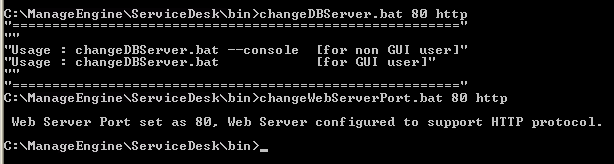
- How can I change the port number on which ServiceDesk Plus - MSP runs?For changing the Web Server port, you need to run the file "changeWebServerPort.bat" from C:\ManageEngine\ServiceDeskPlus-MSP\bin folder as in
# changeWebServerPort.bat [newportnumber] [Protocol http or https][ Screenshot ]Back to Questions
 Screenshot
Was your question answered here?
Check the other FAQ modules or you can contact our support team at