Azure AD Password Protection
Why Microsoft released its Azure AD Password Protection feature
When it comes to securing access to critical business resources and data, passwords remain the most preferred form of authentication by organizations across the globe. However, people often use easy-to-remember passwords with common terms or names, and they use the same password across multiple accounts.
This is problematic, as Verizon's 2019 Data Breach Investigation Report claims that stolen credentials are one of the major factors in data breaches. It’s not that passwords are inherently a bad defense mechanism, but the human factor makes them a particularly easy target for attackers. To prevent password attacks, IT admins need to prevent employees from setting weak passwords, which is easier said than done.
Microsoft Windows Active Directory (AD) serves as the main source of authentication for many organizations around the world. However, the Group Policy Password Policy Settings available in AD, which dictate how strong a user password should be, haven’t changed much since the year 2000. That’s more than a decade of time for hackers to figure out how to crack passwords governed by these settings.
Even when Azure AD was released, Microsoft didn’t have a built-in solution to prevent leaked passwords, and many organizations continued to put themselves at a huge risk by using obsolete password policy settings. In early 2019, Microsoft finally provided the general public with an important security gap fix with the release of AD Password Protection.
Azure AD Password Protection: What it is and how it works
Azure AD Password Protection is a feature that aims to help organizations mitigate the risk of weak and commonly used passwords. Basically, it acts as a password filter that rejects frequently used, easily hackable passwords, such as Password123, Qwerty11, 123456, etc. It can be extended to on-premises AD as well by installing an agent in domain controllers (DCs) and a proxy service across your internal network. However, there are some drawbacks to Azure AD Password Protection, which we’ll discuss later.
How to enable Azure AD Password Protection
Azure AD Password Protection is enabled by default for all users. However, only approximately 1,000 words are included in the banned list. To add your own list of words, you need to enable the Enforce custom list option as shown below:
- Go to Azure AD Active Directory settings.
- Click Authentication Methods located under the Security section.
- Click Yes for the Enable Custom List option.
- Enter your own list of common passwords in the Custom banned password box.
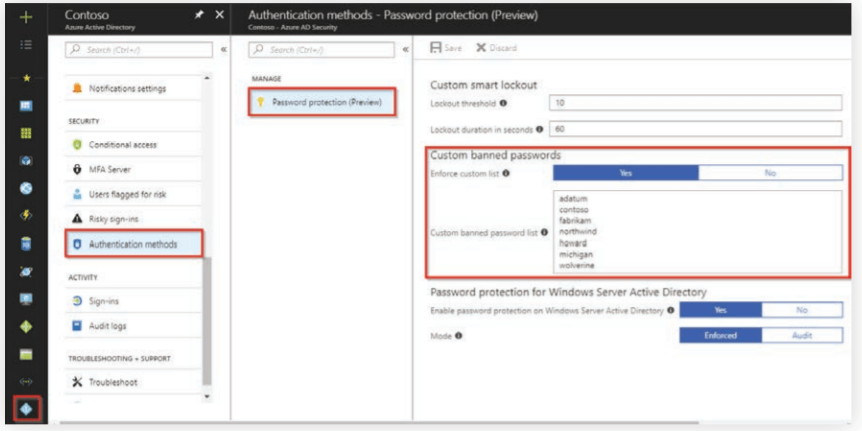
To extend the password protection feature to on-premises AD, you need to install a DC agent and a proxy service provided by Microsoft in the domain controllers and member servers respectively. This is covered in detail by Microsoft in their documentation here.
How it works
Before we discuss what works and what doesn’t, let’s first see how this feature works:
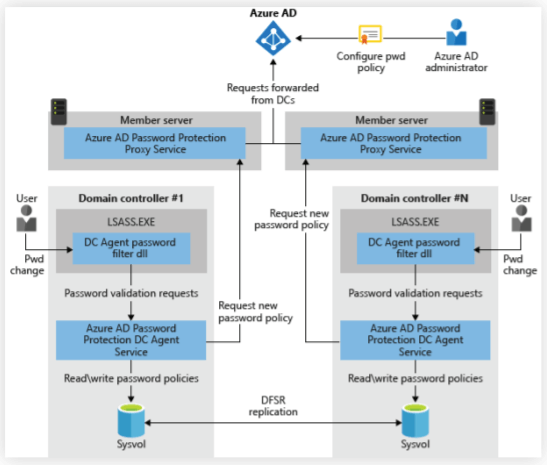
Figure 2: Azure AD Password Protection architecture (as shown in Microsoft documentation).
- In Azure AD, whenever a password change or reset is initiated, the password is checked in the banned password list. If there's a match, the password will be rejected.
- In on-premises AD:
- The DC agent downloads the new password policy from Azure AD through the proxy service and stores it at the root of its domain system volume (sysvol) folder share.
- The agent continuously communicates with Azure AD through the proxy service and checks for updates to the policy every hour.
- When a user password is changed or reset, the DC agent uses the most recent locally available password policy to evaluate the new password.
- Based on the banned password list, the password will either be accepted or rejected
For a more detailed look at how this feature works, refer to the Microsoft documentation here
What works and what doesn’t
The good
- Global banned password list
Microsoft compiles a list of passwords that are deemed too common in a global banned password list. It is a list of around 1,000 passwords that are not publicly disclosed. By default, this list applies to everyone using Azure AD.
- Custom banned password list
For organizations that want to have control over which words or terms are banned, Microsoft provides an option to add custom values to the banned list. This helps organizations block variants of their own brand names, company-specific terms, etc. The custom list augments the global banned password list.
- Password evaluation method
Microsoft employs a variety of processes to make sure even a variant of a banned password doesn’t pass through its filters. These processes are listed below in order of execution:
- Normalization: A user password is first put through the two-step normalization process. First, all uppercase letters are substituted with their lowercase variants. Second, common character substitutions are performed. For example, assume that the use of Welcome is banned. When a user tries to use We1C0me, the password will still be rejected.
- Fuzzy matching behavior: In this process, the normalized password is matched against the banned list based on an edit distance of one comparison, i.e., removing or addding one more character to the banned password will still make the passwod invalid. Take the same example of Welcome. If a user tries to use, Welcom, Welcome@, or Welcome1, the password will still be rejected.
- Substring matching: In this process, that password is matched against a user’s first and last name. For example, if an employee named John sets his password to John#123, it will be rejected.
- Score calculation: In this step, the password is assigned a score based on the number of banned passwords (1 point) and remaining unique characters (1 point). If the total is at least 5 points, then the password will be accepted. For example, let's say someone creates the password "P@ssword*1." This will be first normalized to Password*1 before the score is calculated.
Password*1 = Password (1 point) + * (1 point) + 1 (1 point) = 3 points.
This password will be rejected.
Now, let's imagine this user creates the password "P@ssw0rd*1#2; this too will be normalized to Password*1#2 before the score is calculated.
= Password (1 point) + * (1 point) + 1 (1 point) + # (1 point) + 2 (1 point) = 5 points.
This password will be accepted.
For more information on how the passwords will be evaluated, refer to the Microsoft documentation here.
- Can be extended to on-premises AD
As discussed before, the Azure AD Password Protection feature can be extended to on-premises AD by installing an agent and proxy services.
- Audit mode
If you want to test the feature or simply determine how many users have created weak passwords in your organization, you can enable the audit mode in Azure AD. When enabled, users will be allowed to use passwords from the banned password list, but the password change event will be logged with all the information. The audit mode only works for on-premises AD.
The bad
- If you don't have Azure AD, you can't use Password Protection.
If you are an on-premises AD-only IT shop, you cannot use Azure AD Password Protection. You need an Azure AD subscription and to enable sync through Azure AD Connect to make use of this feature.
- P1 license requirement
To extend Azure AD Password Protection to on-premises AD, not only do you need Azure AD, but you need an Azure AD Premium 1 (P1) subscription at least, which costs $6 per user, per month.
- A DC reboot is required to install or upgrade the agent
Installing and configuring the DC agent in domain controllers is a complex process. Even if you manage to successfully install it, you need to reboot all the domain controllers after installation and during every upgrade.
The ugly
- Lack of customization and visibility
The global password list is not publicly available and is subject to change at any time and without prior notice. Even the password evaluation methods are subject to change in the future. Moreover, other than adding your own banned list of passwords, you cannot customize any of the options, such as changing the minimum password score to 6 or 8 points.
- No OU or group-based enforcement
The password protection feature cannot be applied to a particular subset of users. When enabled, it applies to everyone in the AD domain. If you want to enforce password protection for privileged users only, you’re out of luck. For example, if you’re an educational institution, you cannot enforce password protection for teaching sta without it aecting the students’ accounts too.
- Confusing error messages might increase help desk calls
When users change their passwords from the Windows logon screen or use other native options, they receive a generic “Your password does not match complexity requirements” message. Users can try entering uppercase and lowercase letters, numbers, and special characters; however, if their password score remains less than 5 points, there's no way for them to know why their password choice was rejected. Since the global banned password list is not publicly available, even the IT admins might not be able to determine the reason behind a password rejection.
As a result, even a simple password change operation can lead to help desk calls and affect employee productivity.
ManageEngine ADSelfService Plus: A better alternative to Azure AD Password Protection
ADSelfService Plus is an integrated Active Directory self-service password management and single sign-on (SSO) solution. The Password Policy Enforcer feature in ADSelfService Plus accomplishes everything that Azure AD Password Protection does and more.
The table below provides a detailed comparison between ADSelfService Plus’ Password Policy Enforcer and Azure AD Password Protection.
| Features | ADSelfService Plus’ Password Policy Enforcer | Azure AD Password Protection |
| Prevents banned passwords |  | |
| Enables you to add custom values to the banned password list | | |
| Provides visibility into all banned passwords | |  |
| Enforces banned passwords based on OU and group | | |
| Enables customization of error message displayed in Windows logon screen during password change | | |
| Password cannot contain part of the username | | |
| Applies to on-premises AD | | (requires Azure AD P1 subscription) |
| Applies to Azure AD | (through password sync) | |
| Pricing | Just over $2 per user, per year | $12 per user, per year (only for Azure AD with ability to add custom banned passwords) $72 per user, per year (for on-premises AD) |
ADSelfService Plus versus AD Group Policy Password Policy Settings
Beyond banned passwords, ADSelfService Plus also provides other advanced password policy settings that are not available in AD. These settings help organizations improve password security and comply with regulations such as the National Institute of Standards and Technology (NIST). The following table compares ADSelfService Plus to AD Password Policy Settings.
| Features | ManageEngine ADSelfService Plus | Active Directory Password Policy Settings |
| Blocks users from using patterns such as qwerty, asdf, 1234, etc. | | |
| Blocks the use of palindromes (characters that read the same backward as forward, such as racecar or the number 10801) | | |
| Password must contain at least one Unicode character | | |
| Password cannot repeat a character more than two times in a row | | |
| Password cannot contain five consecutive characters from an old password | | |
| Password must begin with a letter | | |
| Users can bypass complexity requirements when the password length exceeds a predefined limit (say, 20 characters) | | |
| Maximum password length | | |
| Minimum password length | | |
| Password cannot contain five consecutive characters that are in the username | | |
Option to force any or all of these character group requirements:
| (All four can be enforced) | (Only three are enforced) |
ADSelfService Plus is a powerful alternative to Azure AD Password Protection for several reasons. It compensates for the lack of advanced policies and customization options in Azure AD Password Protection and AD Password Policy Settings, and with pricing starting at just over $2 per user, per year, it's a lot more aordable. With ADSelfService Plus, organizations can reduce help desk calls, improve password security and the end-user experience, and comply with password requirements mandated by IT best practices, government, and industry regulations.
Apply AD password policies granularly for specific OUs and groups ADSelfService Plus
Thanks!
Your download is in progress and it will be completed in just a few seconds!
If you face any issues, download manually here
Password self-service
Free Active Directory users from attending lengthy help desk calls by allowing them to self-service their password resets/ account unlock tasks. Hassle-free password change for Active Directory users with ADSelfService Plus ‘Change Password’ console.
One identity with Single sign-on
Get seamless one-click access to 100+ cloud applications. With enterprise single sign-on, users can access all their cloud applications with their Active Directory credentials. Thanks to ADSelfService Plus!
Password/Account Expiry Notification
Intimate Active Directory users of their impending password/account expiry by mailing them these password/account expiry notifications.
Password Synchronizer
Synchronize Windows Active Directory user password/account changes across multiple systems, automatically, including Office 365, G Suite, IBM iSeries and more.
Password Policy Enforcer
Ensure strong user passwords that resist various hacking threats with ADSelfService Plus by enforcing Active Directory users to adhere to compliant passwords via displaying password complexity requirements.
Directory Self-Update & Corporate Search
Portal that lets Active Directory users update their latest information and a quick search facility to scout for information about peers by using search keys, like contact number, of the personality being searched.
