Troubleshooting Mail Server Settings
Troubleshooting Mail fetching problems
After you configure the mail server, test the settings by fetching a sample mail. To do so, click the Fetch a sample mail button.
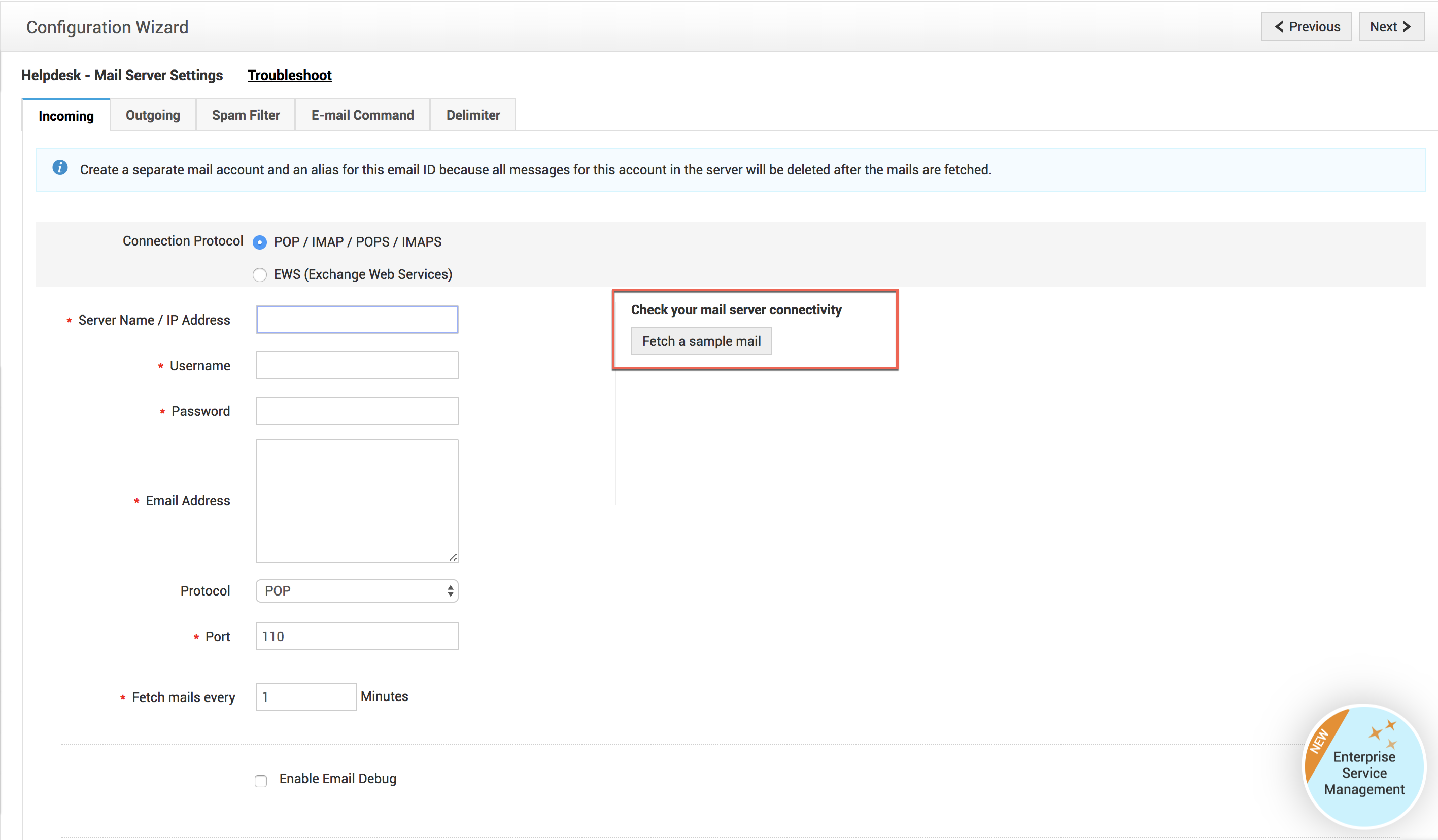
If the settings are configured right and the connection is successful, the oldest mail from your mailbox will be fetched, along with its properties. If not, an error message will be displayed on the screen.
In ServiceDesk Plus, mail fetching problems can be categorized as follows:
- Incorrect username or password.
- Unable to reach host.
- Unable to connect to the mail server. Check the configurations and try again.
- Invalid certification path to target. Configure trusted or self-signed certificate and try again.
- Unable to open mailbox in READ/WRITE mode.
- Unable to connect to the mail server. Check Server URL and try again.
- Unable to save settings
Authentication failed for the given username and password
- Check whether the configured username and password are correct.
- If the username and password are correct, check whether the mail server configurations are correct.
- If the configured protocol is IMAP, the open concurrent IMAP connections could get exhausted sometimes. In such cases, an authentication exception is thrown intermittently (whenever the connection gets exhausted). Mail fetching will resume once an open IMAP connection becomes available. To know more, go to the link: Intermittent AuthenticationFailedException in IMAP protocol in SDP
If there are no connectivity issues with third-party apps, and there are authentication issues only with ServiceDesk Plus, go here.
Configured mail host name is unknown or not reachable (or) Unable to connect to the mail server with the provided configurations
- Check whether as mentioned, the configured server name is correct.
- If the server name is correct, check whether the protocol configurations are correct.
- The software/hardware firewall might be blocking the POP/IMAP port. If this is the case, please try after unblocking the port/try EWS (Exchange Web Services).
If you are able to connect to other third-party apps and unable to connect the mailbox through ServiceDesk Plus server, go here.
Could not find valid certification path to requested target, kindly configure to apply Trusted/Self Signed Certificate
- You are trying to establish a secure connection to your mail server (say POPS or IMAPS), but the certificate for connecting to that mail server is not present in the application (Java key store).
Download the file from the link given below and extract it to the Service Desk Plus Home directory:
For Linux:
For Windows:
- Run the extracted batch file (Windows / Linux based on your server's operating system) from the command prompt using the syntax given below:
- Syntax :
For Windows - gencert.bat <hostname>:<port>
E.g. cmd> gencert.bat sdpexchange.com:995
For Linux - sh gencert.sh <hostname>:<port>
E.g. sh gencert.sh sdpexchange.com:995
- The server will send the available certificates in the command prompt. You will be asked to enter the certificate number to proceed further. On supplying the certificate number, a file called jssecacerts is generated in the ServiceDesk Plus Home Directory (if the file is already present, this certificate will be appended to it).
- Copy the jssecacerts file to jre\lib\security folder and restart ServiceDesk Plus application.
- Save the settings and test the mail connection.
If you still face the issue after applying the certificate, click here.
Unable to open mailbox in READ/WRITE mode
- The user might not have write access to the mailbox.
- Please get the appropriate write access for the mailbox from your Administrator. The write access is necessary to delete the mails from your mailbox after it is fetched.
Unable to connect to the mail server. Check server URL and try again.
- The connect URL for EWS might be incorrect. Correct the connect URL. To know the EWS URL for your Exchange Server go to the link below:
Get to know your Exchange Web Services URL (Connect URL)
Troubleshooting Mail Sending problems
To check the mail server connectivity, send a sample email by entering a mail address and clicking on the Send a sample mail button in the outgoing tab.
.png)
If the settings are configured right and the connection is successful, a sample mail will be sent to given the email address. If not, an error message will be displayed on the screen.
The common exceptions that occur in ServiceDesk Plus while sending mails can be categorized as follows:
- Incorrect username or password.
- Unable to reach host.
- Unable to connect to the mail server. Check Connect URL and try again.
- Unknown error occurred.
Incorrect username or password
- Verify if the configured username and password are correct.
- Check your mail server configurations (protocol, TLS, port).
- Configure the account using a third-party mail client and send a sample email to the same account. If the credentials are correct, you will be taken to the welcome page. If not, the alert prompt will be displayed repeatedly.
Note: If you are using SMTP/STMPS, do not check your account configurations using Outlook Web Access as it works with the MAPI protocol. If you are using Exchange Web Services, open the connect URL in an incognito window.
If you are still unable to login with your credentials, click here to debug your email and send a log report for analysis.
- Check if the configured server name is correct.
- If the server name is correct, check if the protocol configurations are correct. If you are using Exchange Web Services, ensure the connect URL is correct. To find your Exchange Server URL, go to this link.
- If you are using SMTP/SMTPS, the software/hardware firewall might be blocking the SMTP/SMTPS port. If this is the case, unblock the port or try EWS (Exchange Web Services).
If the error persists, click here to enable email debugging and send a log report for analysis.
Unable to connect to the mail server. Check connect URL and try again.
- The connect URL for EWS might be incorrect. Correct the connect URL. To know the EWS URL for your Exchange Server, go to the link below:
Get to know your Exchange Web Services URL (Connect URL)
- If you are using Exchange Server and SMTP protocol (SMTP+TLS), ensure that your Exchange Server's certificate is updated in ServiceDesk Plus. To apply for the Exchange Server certificate, go here. If you are using EWS, you need to apply certificate in ServiceDesk Plus unless you are using Self-Signed Certificate in your Exchange Server. To apply EWS certificate in ServiceDesk Plus, go here. If you are using Office 365, you need not apply certificate.
- If you are using SMTP/SMTPS, check if you are allowed to send mail to the entered address. To relay outside your Mail server domain, you will need permission. Contact your IT Administrator on this.
If there are no connectivity issues with third-party apps, and there are authentication issues only with ServiceDesk Plus, enable email debugging and mail the logs for analysis:
- To debug your emails, check the Enable Email Debug box and save the settings.
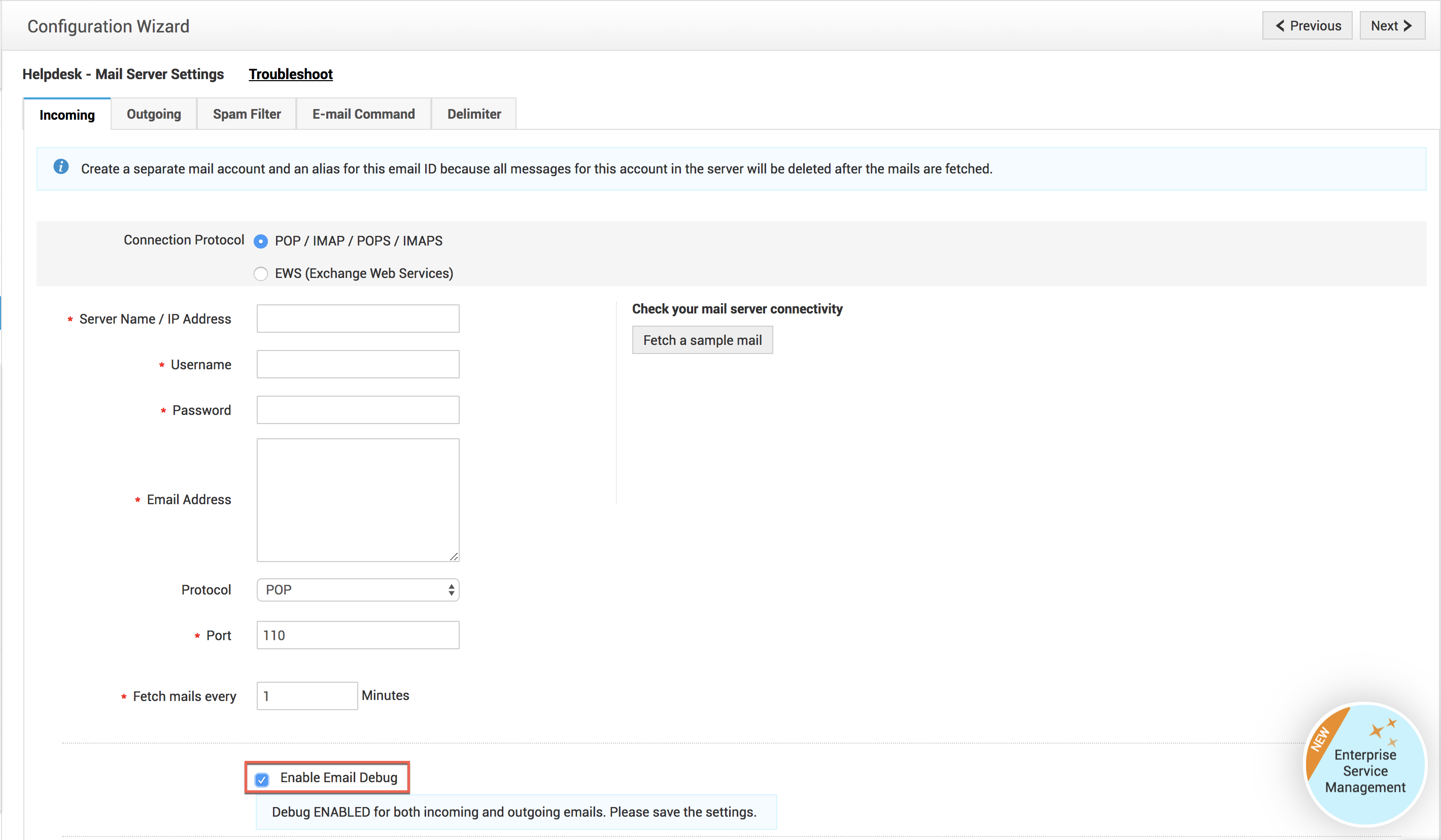
- Re-create the issue to populate the debug prints in the logs.
- The debug prints will be saved in the logs folder in the application server. For e.g. In Windows, the logs folder will be present in C→ManageEngine→ServiceDesk→logs.
- Zip the logs folder.
- Mail the zipped folder to support@servicedeskplus.com for analysis.
Mail throttling limits are evaluated for each application ID and mailbox combination. ServiceDesk Plus prevents users from configuring the same Client ID and Reply Email for both Incoming and Outgoing Mail Server Settings in the same service desk instance or across instances.
To use the same mailbox in both Incoming and Outgoing Mail Server Settings, create a separate application (with different client ID).
Refer to microsoft documents for more details about throttling limits in Microsoft Graph API.

You may notice that emails in your Inbox are not being processed by ServiceDesk Plus (SDP) and instead keep accumulating. This happens when certain conditions prevent email processing, even though mail fetching itself does not stop.
Once the underlying issue is resolved, email processing will automatically resume.
Below are the common reasons for this issue and how to fix them.
1. Unsupported Email Encoding
Why this happens
Some emails may use unsupported encoding formats (for example, UTF-7). SDP cannot process such emails, which causes them to remain in the Inbox and block the processing of subsequent emails.
How to resolve
Check your Inbox for emails with unsupported encoding.
Remove these emails or move them to another folder.
In most cases, the oldest emails in the Inbox are affected.
If possible, configure your mail server to prevent such emails from reaching the Inbox.
2. Oversized Emails
Why this happens
Emails that exceed the configured processing size limit are not processed.
The default maximum email size (including attachments) is 30 MB.
Emails larger than this limit will remain unprocessed in the Inbox.
How to resolve
Remove oversized emails or move them to another folder.
Typically, the oldest emails in the Inbox are the affected ones.
Changing the email size limit (Advanced)
You can modify the maximum allowed email size using the following SQL query:
update mailconfig set paramvalue = <maximum allowed mail size in mb> where parameter = 'MAX_MAIL_SIZE' and helpdeskid = <helpdeskid of the portal>;
Example: Set the limit to 50 MB for helpdesk portal ID 1:
update mailconfig set paramvalue = 50 where parameter = 'MAX_MAIL_SIZE' and helpdeskid = 1;
To find out how to connect to the database, click here.
3. Recoverable Items Folder Quota Exceeded (Exchange Online)
Applicable only when an Exchange Online mailbox is configured in SDP’s Incoming Mail Settings.
Why this happens
When SDP processes emails, they are soft deleted and moved to the Recoverable Items folder in Exchange Online.
This folder has a default quota of 30 GB (can be increased up to 100 GB).
If the folder reaches its storage limit, SDP cannot delete processed emails.
As a result:
Processed emails remain in the Inbox
New emails are not fetched
Emails continue to accumulate in the Inbox
Once storage is freed, SDP will automatically resume email processing.
How to check Recoverable Items folder size
Step 1: Connect to Exchange Online
Connect-ExchangeOnline -UserPrincipalName <admin_account_login_name>
Step 2: Get Recoverable Items folder statistics
Get-EXOMailboxFolderStatistics -Identity "<helpdesk_mailbox_email>" -FolderScope RecoverableItems |
Format-Table Name, FolderPath, ItemsInFolder, FolderAndSubfolderSize
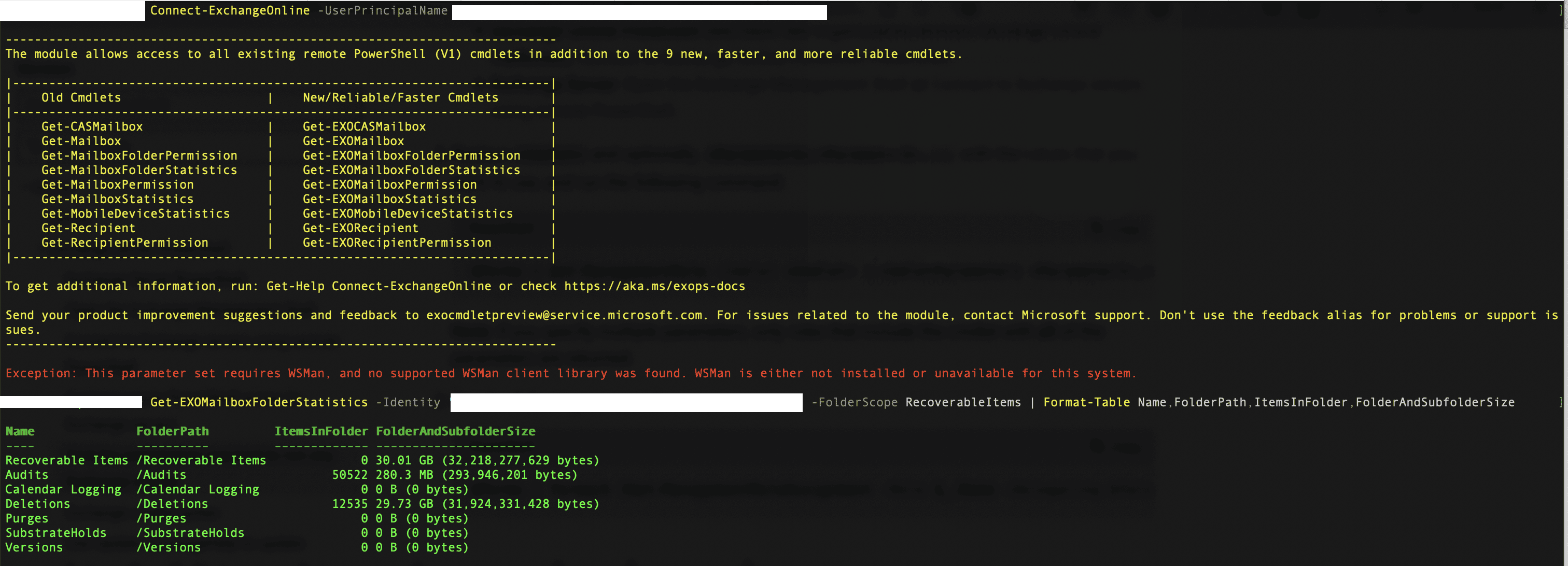
If the Recoverable Items folder exceeds the quota, free up space or increase the quota as required.
Notifications and Alerts
When any of the above conditions are detected:
An error message is displayed on the Incoming Mail Server Configuration page.
A bell notification is sent to all SDAdmins.
Email alerts are sent to technicians configured under the Application Error Notification rule.
Both the in-app notification and email alert are sent every 30 minutes until the issue is resolved.