如何在 Windows 上设置 syslog 服务器:分步指南
最后更新于:本页内容
为什么要在 Windows 上部署 syslog 服务器?
在 Windows 服务器上设置专用 syslog 服务器可以实现日志的集中收集和分析。尽管 Windows 自带强大的事件日志系统,部署 syslog 服务器似乎有些反直觉,但许多组织选择在 Windows 环境中实现syslog 服务器,是有充分理由的。
企业选择在 Windows 上部署 syslog 服务器的原因
- 对于主要使用 Windows 的组织,拥有大量现有的 Windows 服务器、Active Directory 和受过 Windows 培训的员工,部署基于 Windows 的 syslog 服务器是自然而然的选择。他们的最小 syslog 环境将日志发送到中央 Windows 服务器进行分析。
- 仅为了 syslog 服务器引入新的操作系统,如 Linux,将需要额外的培训、新的管理工具和不同的技能。在这种情况下,组织可能会决定利用现有的 Windows 环境进行集中日志管理。
- 许多为 Windows 设计的商业syslog 服务器解决方案提供了与其他 Microsoft 技术(如用于用户认证的 AD、用于数据库存储的 SQL Server 或用于自动化的 PowerShell)的更好集成。
- 如果组织已经使用基于 Windows 的工具进行 IT 管理的其他方面(例如系统监控、补丁管理、备份),在 Windows 上运行 syslog 服务器可以促成更统一的管理控制台和工作流程。这减少了 IT 员工每天需要交互的不同系统和界面数量。
- 虽然 Windows 有自己的事件日志,但将它们导入集中式 syslog 系统通常需要转发器(如 NXLog 或特定厂商代理)。当收集器基于 Windows 时,这些 Windows 到 syslog 转发代理的集成和管理有时会更简化,或者由基于 Windows 的 syslog 服务器应用程序提供更好的支持。这为收集 Windows 事件日志与其他 syslog 来源并存创造了原生体验。

了解更多关于 syslog 的信息
如何将 Windows 服务器配置为 syslog 服务器
通过安装专用 syslog 服务器软件,Windows 服务器即可成为syslog 服务器。该软件可以作为监听器,接收通常通过 UDP 514 端口或用于安全传输的其他端口上的 TCP/TLS 发送的 syslog 消息,处理这些消息,然后以结构化方式存储以供分析。
市面上有各种适用于 Windows 的商业 syslog 服务器。如果您想试用免费的 Windows syslog 服务器,请探索 ManageEngine EventLog Analyzer。
配置 Windows 机器上的 syslog 服务器的先决条件
- 一台 Windows 服务器机器: A dedicated server is recommended for production environments (e.g., Windows Server 2019, 2022). Ensure it has:
- 足够的 RAM 和 CPU(取决于预期的日志量)。
- 充足的磁盘空间:日志可能占用大量存储空间。请规划增长和保留策略。
- 网络连接:服务器需要能被所有发送日志的设备访问。
- 管理员权限: 您需要管理员账户来安装和配置软件。
- 防火墙访问: The Windows Firewall (or any other network firewall) must allow inbound connections on the syslog port(s).
- 配置 Windows 防火墙: Even if the installer adds rules, it's good practice to verify or manually create them.
- Open Windows Defender 防火墙和高级安全 (search for it in the Start Menu).
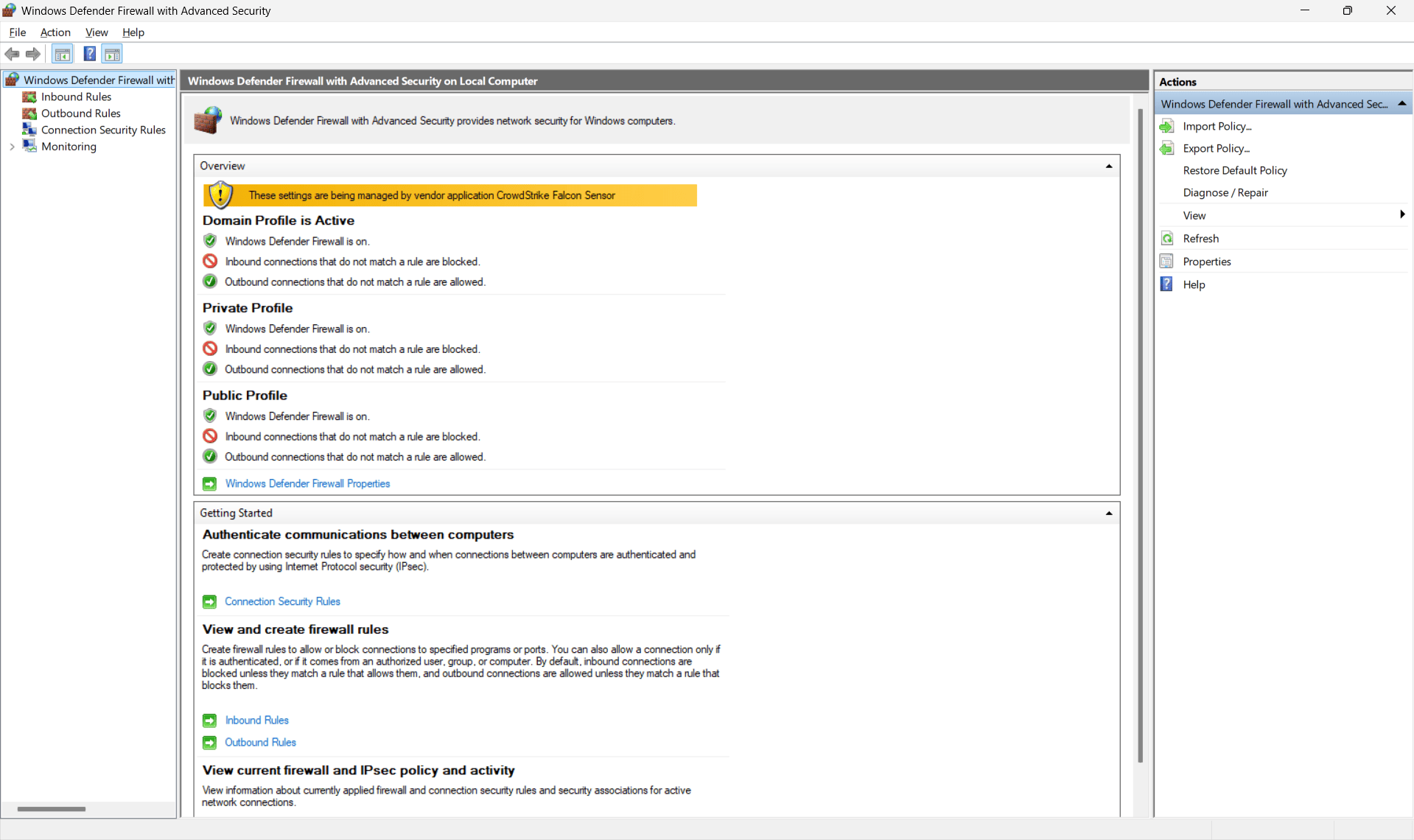
- In the left pane, select 入站规则.
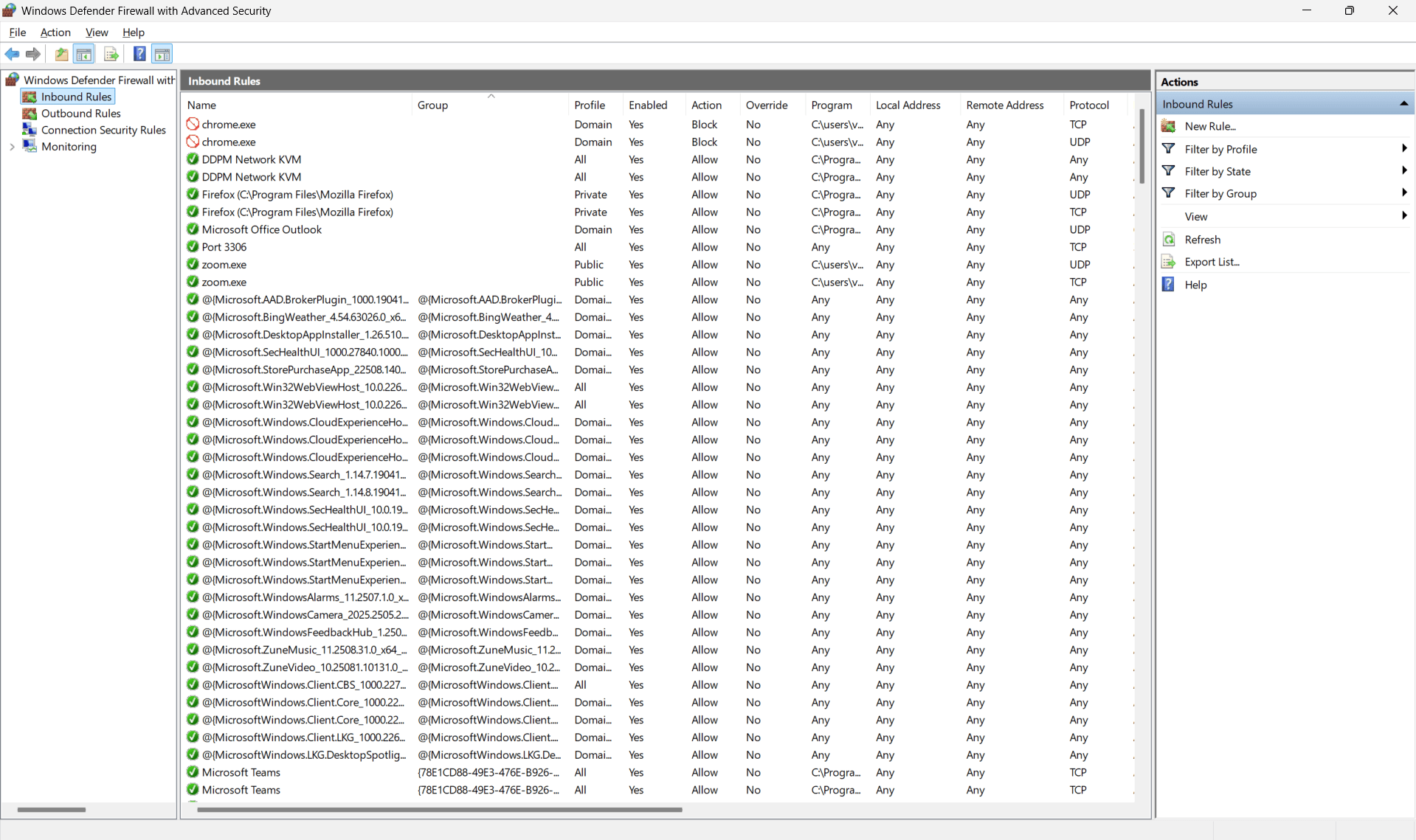
- In the right pane, click 新建规则....
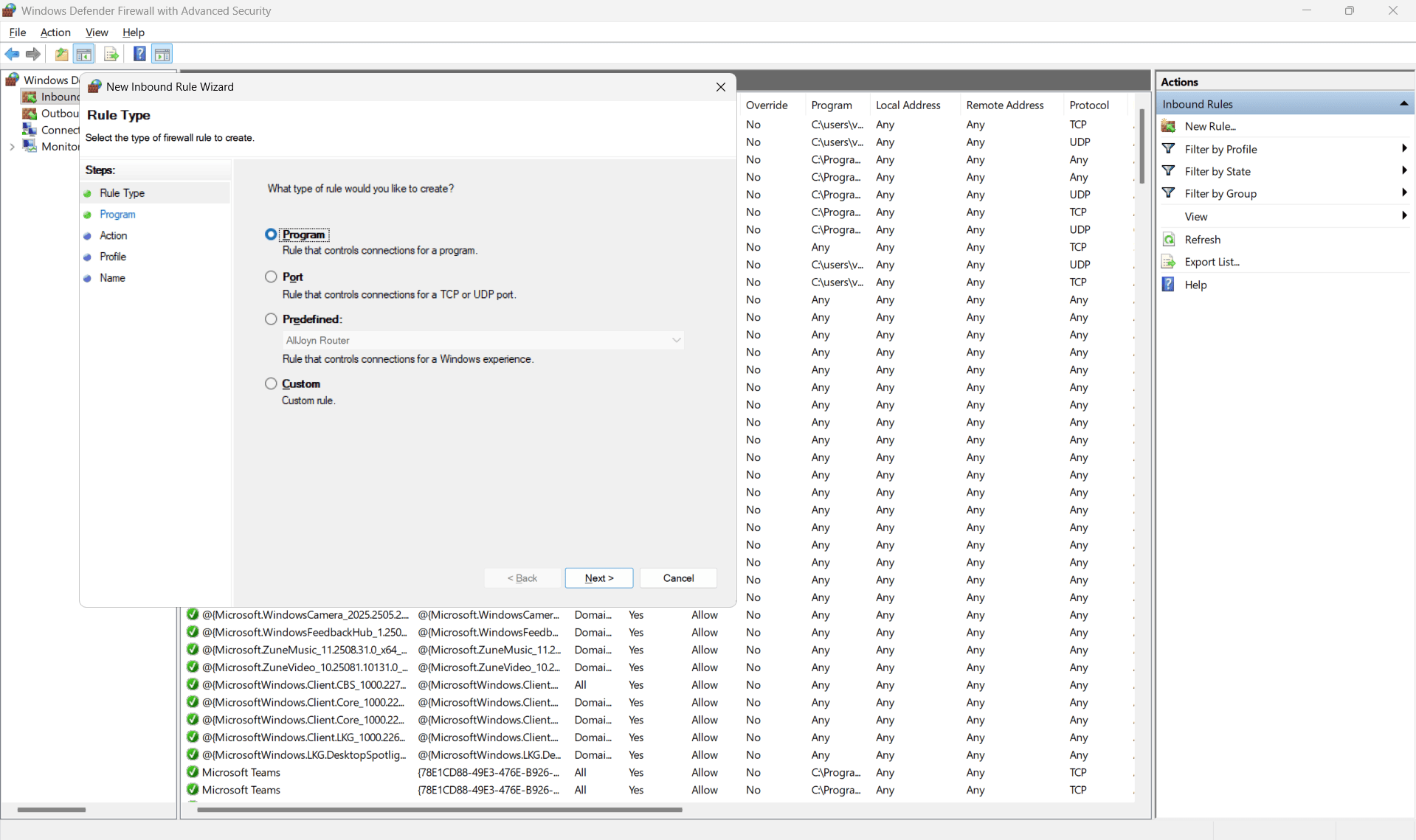
- 规则类型: Select 端口 and click 下一页.
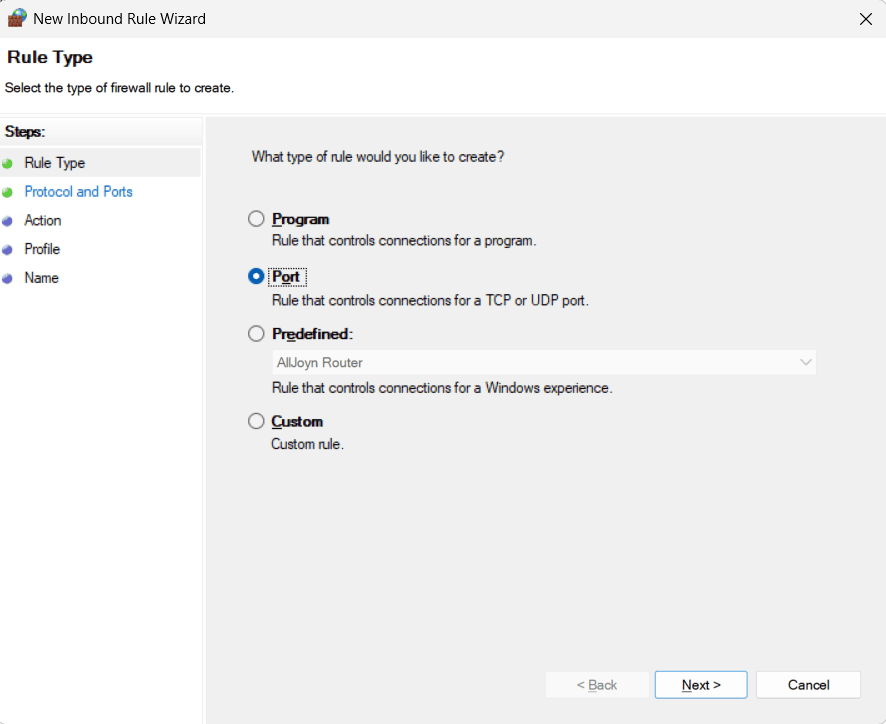
- 协议和端口:
- Choose UDP and enter 514 for Specific local ports. UDP 514 is the standard, unencrypted syslog port.
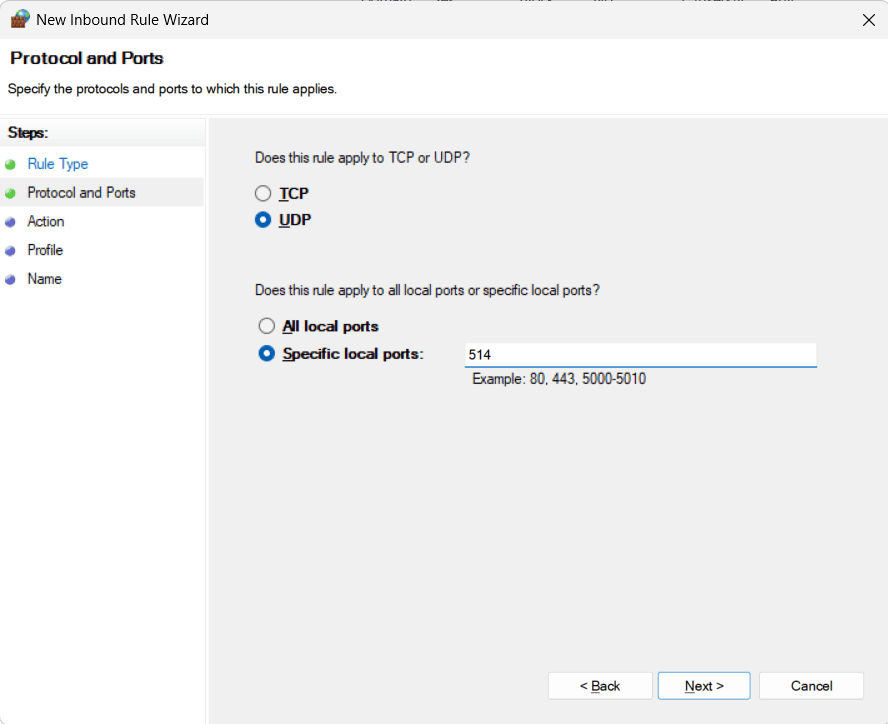
- If you plan to send logs over TCP or secure TLS, you'll need to create additional rules for TCP on port 514 (for standard TCP syslog) or 6514 (for secure syslog over TLS, if supported by your software).
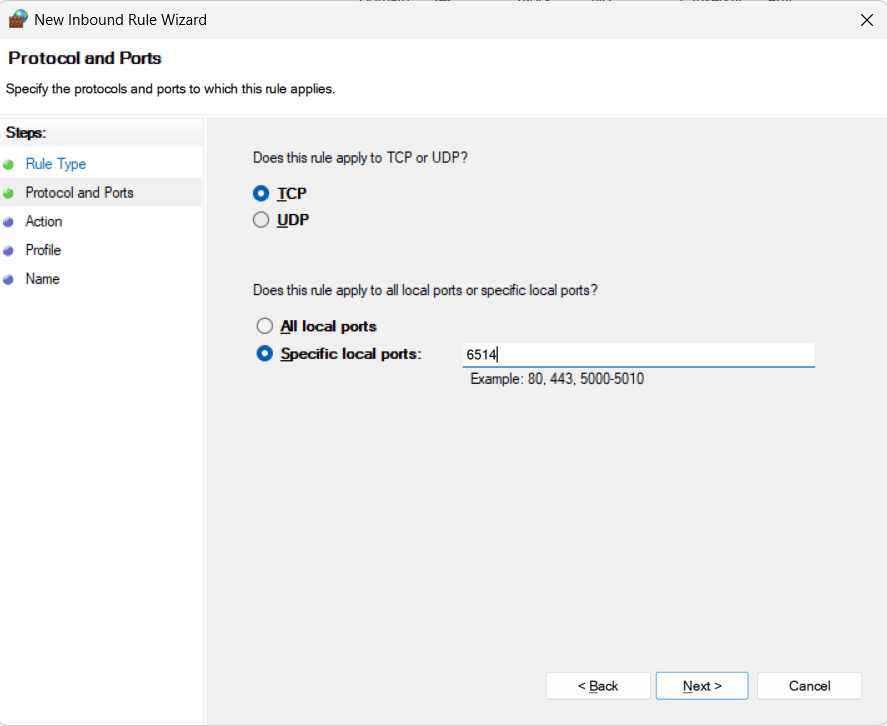
- Choose UDP and enter 514 for Specific local ports. UDP 514 is the standard, unencrypted syslog port.
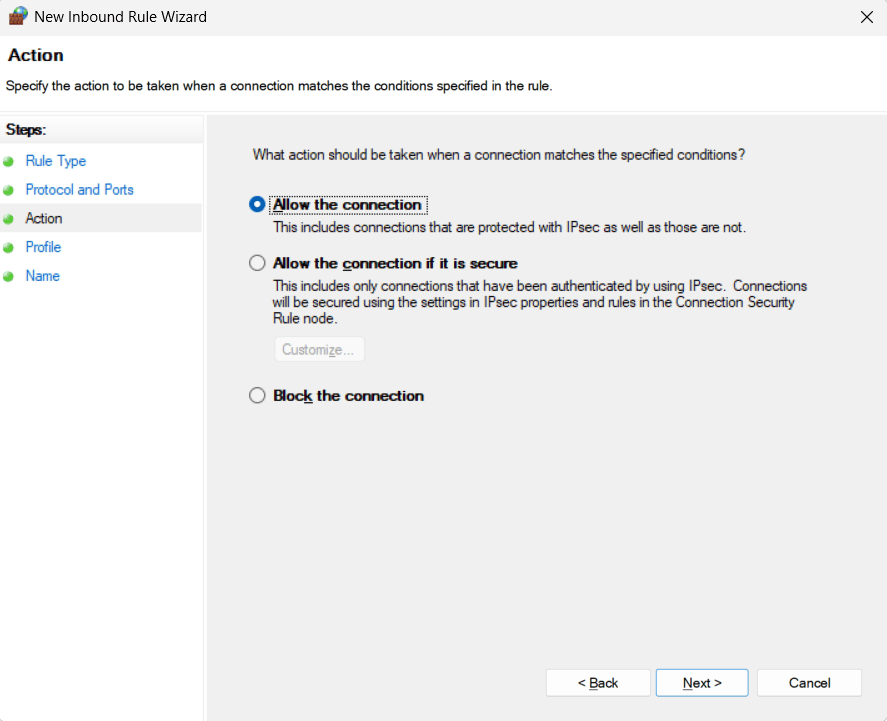
- 操作: Select 允许连接 and click 下一页.
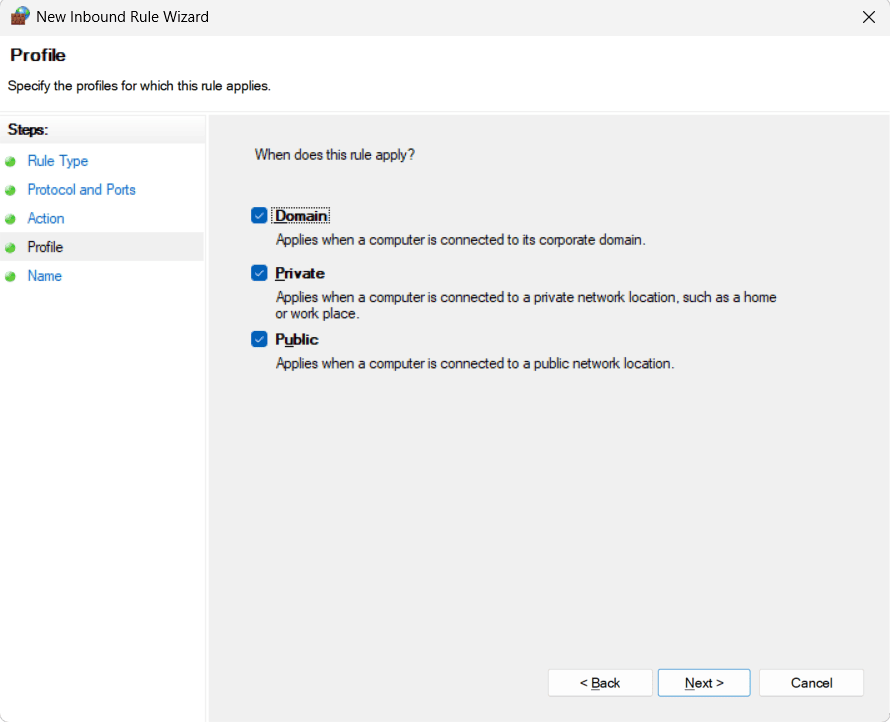
- 配置文件: Select the network profiles where the rule should apply (e.g., Domain, Private, Public). For most internal syslog servers, Domain and Private are sufficient. Click 下一页.
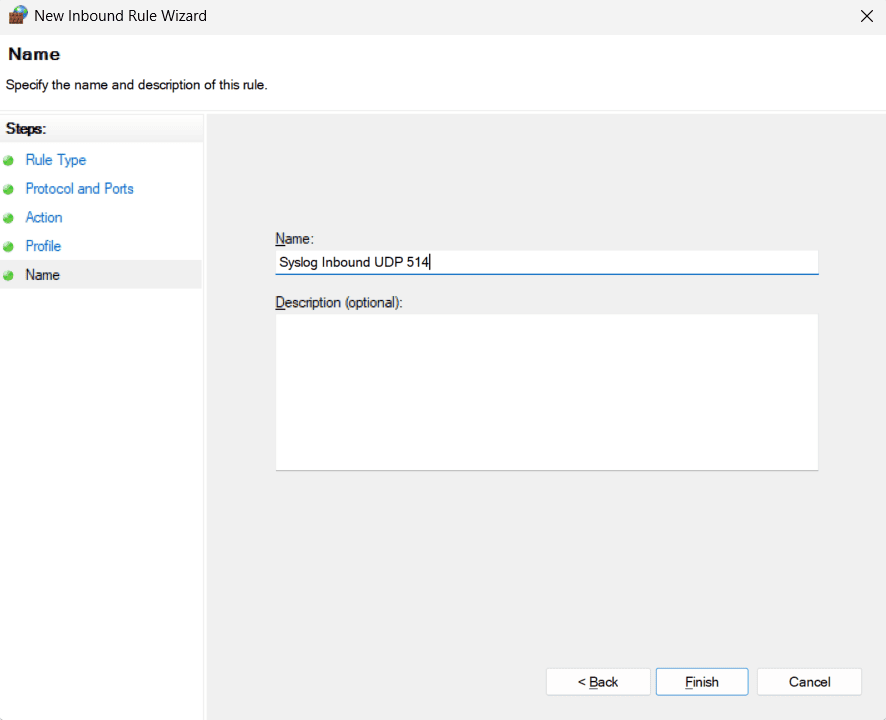
- 名称: Give the rule a descriptive name (e.g., Syslog Inbound UDP 514). Click 完成.
- 对任何其他必要的端口或协议重复操作。
- Open Windows Defender 防火墙和高级安全 (search for it in the Start Menu).
- 配置 Windows 防火墙: Even if the installer adds rules, it's good practice to verify or manually create them.
开始之前
选择syslog服务器软件是最关键的一步,因为Windows服务器没有内置选项。流行的选择包括:
- ManageEngine EventLog Analyzer: 提供免费和付费版本,EventLog Analyzer是一款全面且易于使用的日志管理解决方案,内置syslog服务器。该解决方案开箱即用支持700多种日志格式,提供安全审计报告、警报、仪表板和自定义日志保留。此syslog服务器工具可部署在Linux和Windows机器上,配备关联功能、预定义报告和警报,用于监控关键的安全和运营事件。
- Syslog Watcher: 专为Windows设计的专用syslog服务器。
- NXLog: 主要是日志转发器或收集器,NXLog也可以配置为syslog接收器。
- Kiwi Syslog Server: 提供免费和付费版本,是一款易于使用的syslog服务器工具。
选择适合 Windows 的 syslog 服务器的注意事项
- 日志量: 您预计每秒或每天会接收多少日志数据?所选的syslog服务器工具能否处理峰值事件?
- 功能: 服务器是否提供实时警报、报告、仪表板、归档和关联功能?
- 可扩展性: 该工具能否随着您的网络增长实现横向扩展?
- 成本: 权衡免费与付费许可及免费试用版的限制。
- 易用性: 考虑GUI与命令行配置在搜索、查看日志和生成报告等基本操作中的优劣。
使用 EventLog Analyzer 配置 Windows 服务器作为 syslog 服务器的步骤
- 下载并安装EventLog Analyzer in the Windows server of your choice. Check the prerequisites for installation 此处.
EventLog Analyzer提供30天全功能免费试用,并提供部署技术支持。该解决方案还提供免费版,可收集、处理、分析和保留最多五个日志源的日志。
- 以管理员身份运行安装程序。按照屏幕提示操作。建议选择将EventLog Analyzer安装为Windows服务,这样可以确保syslog服务器随操作系统自动启动,并在无用户登录的情况下后台运行。
- Configure syslog listener ports. EventLog Analyzer allows you to listen and receive syslogs via both TCP and UDP ports. By default, this syslog server tool listens to the ports 513 and 514. The solution also lets you 配置额外的监听端口 to collect syslogs across your network.
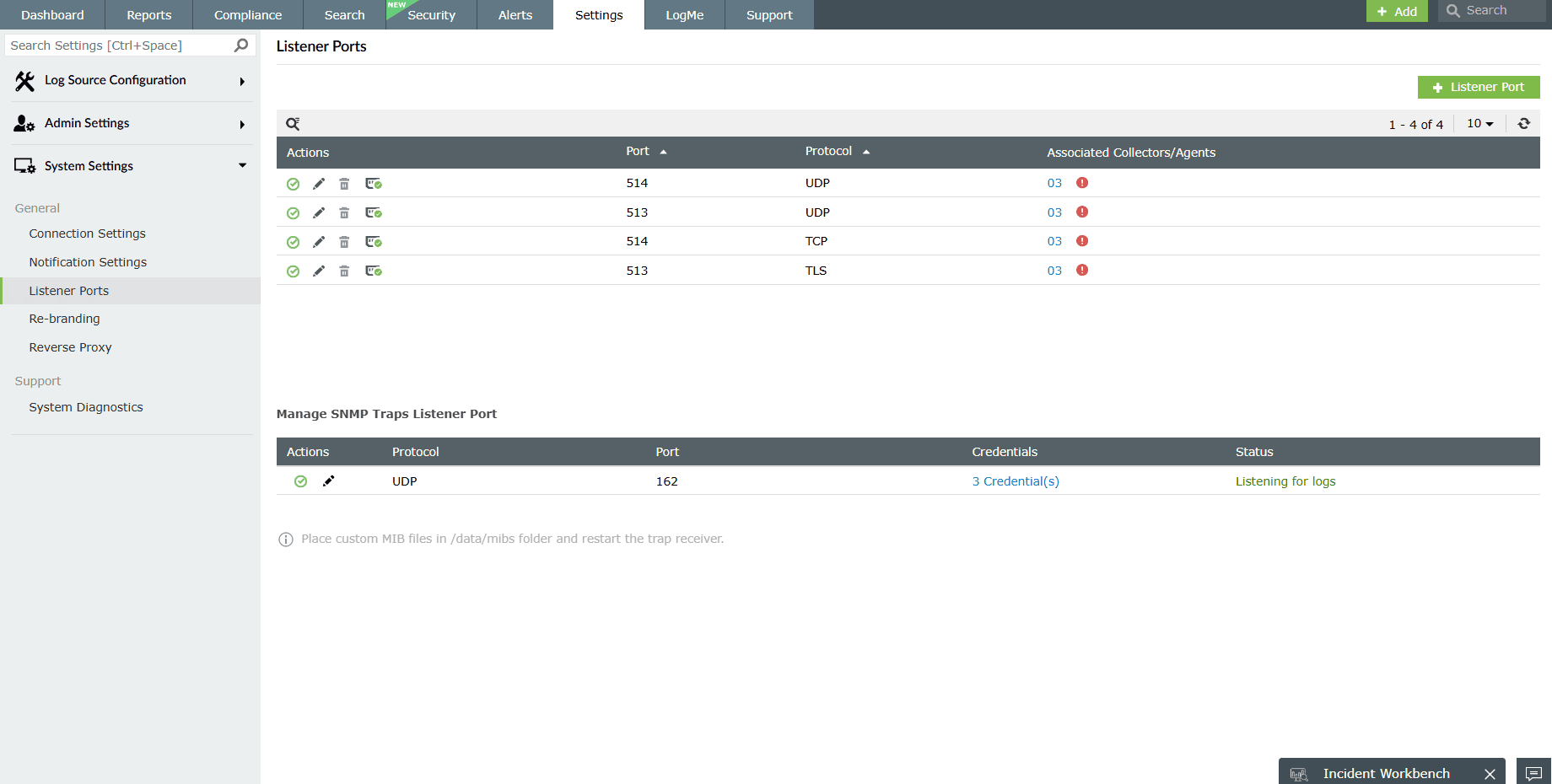
- 验证监听端口配置后,确保配置您的syslog设备将日志发送到EventLog Analyzer。
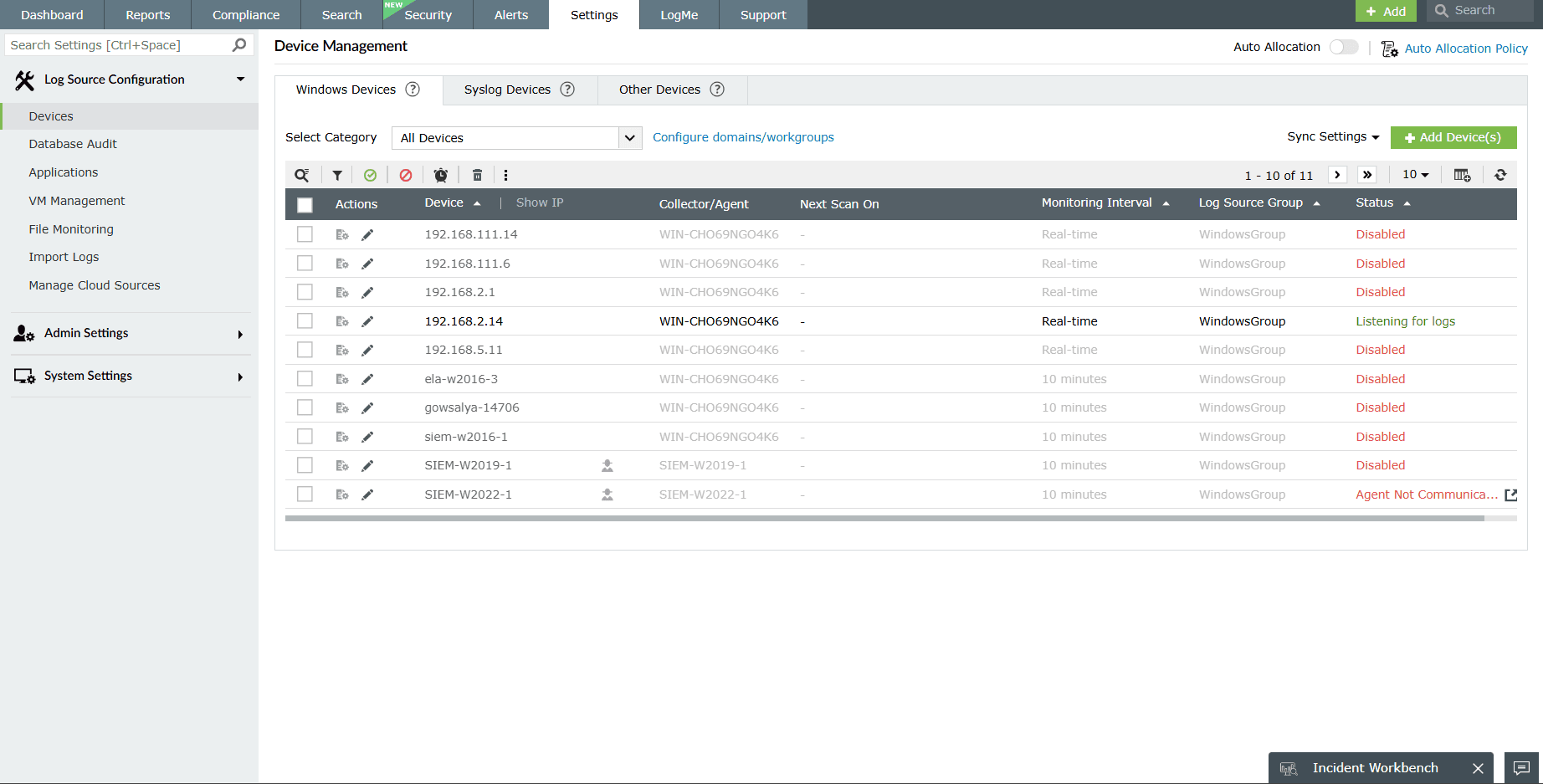
- EventLog Analyzer's built-in syslog server receives the syslog packets and attempts to determine the source IP address, resolve it to its corresponding name, and automatically add the device for monitoring. This ensures that multiple syslog devices are monitored from the Windows server without requiring manual involvement.
- Configure devices to send logs to EventLog Analyzer, your Windows-based syslog server. Once you set up the listener ports in EventLog Analyzer, you can configure the syslog devices to send logs to this Windows-based syslog server. This will make your Windows server a central syslog server.
- 针对网络设备(路由器、交换机、防火墙): 访问设备的管理界面(CLI或Web GUI),查找日志、syslog或诊断设置。指定配置了EventLog Analyzer的Windows服务器的IP地址。有关如何设置设备将syslog发送到EventLog Analyzer的详细信息,请参阅Syslog配置指南。
- For 收集Windows日志, EventLog Analyzer provides you both agentless and agent-based options. Automatically discover the Windows devices and add them for monitoring. To learn more about adding devices for monitoring in EventLog Analyzer, see the Windows设备配置指南.
- Application logs are collected and monitored by EventLog Analyzer through one-time or scheduled imports. The solution supports different business-critical applications like 数据库, Web服务器, and SaaS by default and also has a custom log parser that will parse any human-readable log format.
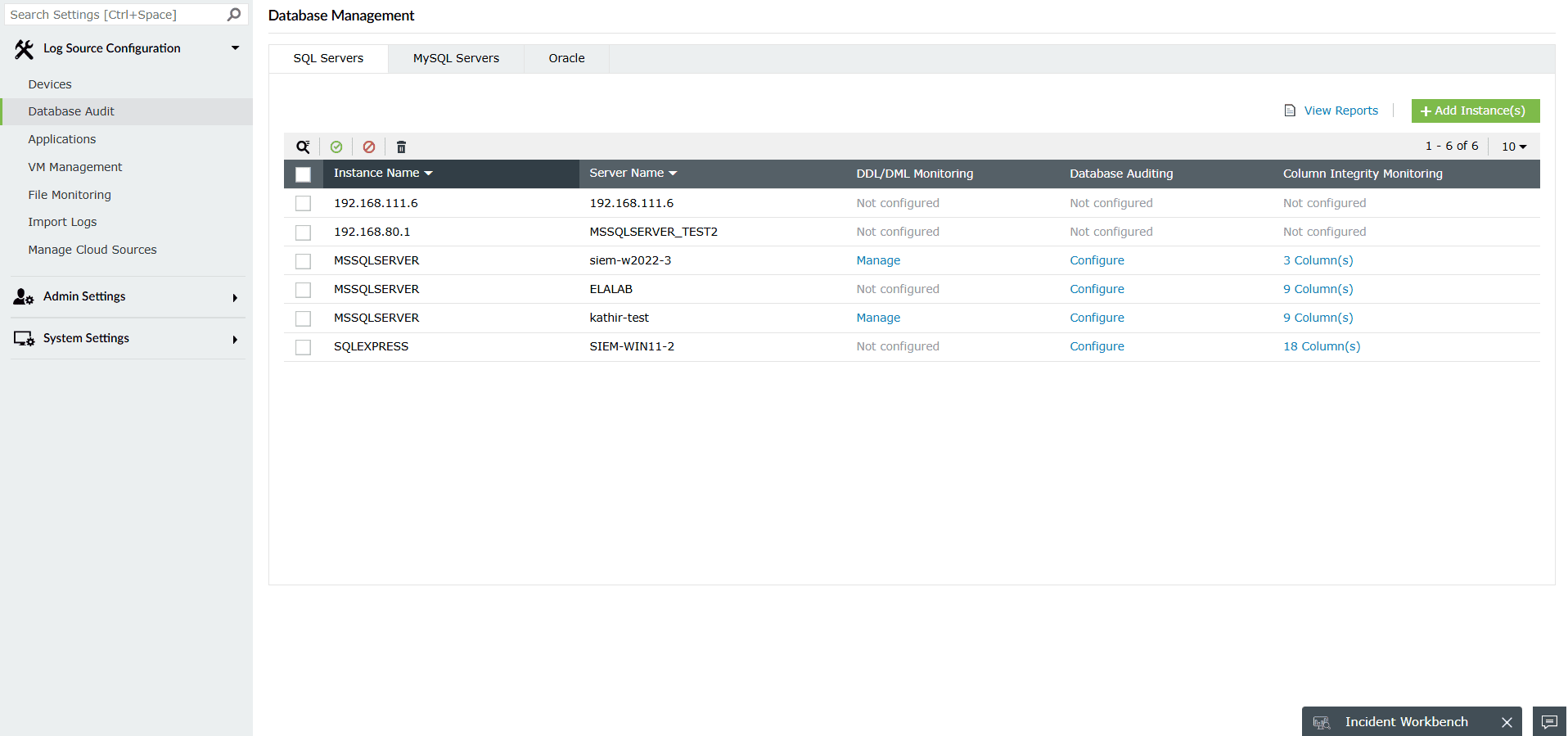
了解更多支持的日志格式及如何在EventLog Analyzer中配置不同日志。
优化基于 Windows 的 syslog 服务器性能的最佳实践
- 日志文件位置: 指定一个具有充足空间的驱动器目录用于存储日志。
- 日志轮换: 配置新日志文件的创建频率,以防单个日志文件过大难以管理。
- 保留策略: 定义日志在归档、压缩或删除前的保留时间。这对于管理磁盘空间和满足合规要求至关重要。如果空间有限,您也可以将日志存储在云端或二级存储设备上。
- 消息过滤器: 设置过滤器,根据源IP、主机名、syslog设施、严重级别或消息中的关键字等条件对消息进行分类、丢弃或高亮显示。
- 监控与维护: 定期检查Windows syslog服务器的CPU、内存和磁盘使用情况。保持syslog服务器软件更新最新补丁和版本,以确保安全和性能。
- 日志审查: 定期审查收集的日志,以识别潜在的安全事件、运营问题或合规风险。根据需求变化调整过滤、警报和保留策略。
- 备份: 实施稳健的备份策略,备份syslog服务器的配置,更重要的是备份存储的日志数据。