Important :
Kindly identify your build number and follow the sequence as given in the table below to move to the latest version: (How can I find my Build number?)
If you are a new user, download AssetExplorer directly.
| Current Build | Next Build | ServicePacks/Hotfix |
| 5000 - 5005, 5100 - 5102 | 5103 |  Service Pack Service Pack |
| 5103 | 5500 | Service Pack |
| 5500 , 5501, 5502, 5503 | 5504 | Service Pack |
| 5504 | 5600 | Service Pack |
| 5600 | 5606 | Service Pack |
| 5606 | 5607 | Service Pack |
| 5607-5613 | 5614 | Service Pack |
| 5614-5617 | 5618 | Service Pack |
| 5618 | 6000 | Service Pack |
| Migrate from Build 6000 to Build 6100 | Migrate from Build 6100, 6101, 6102, 6103 to Build 6104 | Migrate from Build 6104, 6105, 6106, 6107, 6108 to Build 6109 |
| Customers using build 6000 can install this Upgrade pack to migrate to Build 6100. | Customers using build 6100, 6101, 6102, 6103 can install this Upgrade pack to migrate to Build 6104. | Customers using build 6104, 6105, 6106, 6107, 6108 can install this Upgrade pack to migrate to Build 6109. |
| Hotfix | Hotfix | Hotfix |
| How to Install | README | ||
Instructions to apply the Service Pack/Hotfix
- Shut down AssetExplorer. (If AssetExplorer is running as a service, stop the service from Control Panel > Services window)
- Take a backup of the existing build for security reasons. From command prompt, move to\bin directory and execute backUpData.bat. This will start the backup. cmd>[assetexplorer home]\bin cmd>backUpData.bat where, assetexplorer home -> C:\ManageEngine\assetexplorer
NOTE: Taking a backup is essential to revert to the existing build without any loss of data if the upgrade fails due to unexpected reasons. The backup is stored under Backup folder in Assetexplorer Home directory.
- Run the script 'UpdateManager.bat (UpdateManager.sh for Linux) in the/bin folder. This opens the Update Manager tool.
- Click "Browse" to select the Upgrade Pack file (the .ppm file that you'd downloaded) and then click "Install"
- Follow the on-screen instructions to apply the Service/Upgrade Pack.
- Once the upgrade is complete, start AssetExplorer Server.
If you need any assistance or clarifications, please contact assetexplorer-support@manageengine.com
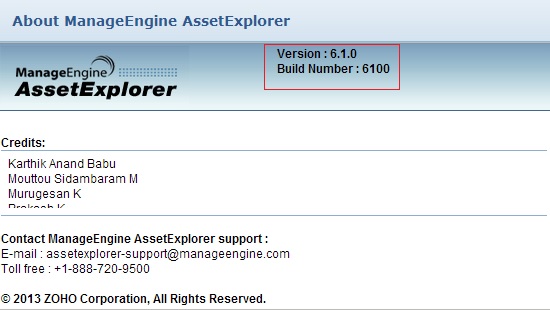
How can I find the Build Number of AssetExplorer?
In the AssetExplorer web client, click the "About" link at top right of the page.You should see the Build number mentioned on the top right of the page.
Check the below image to locate the build number.
Need help ?
Want help with upgrading AssetExplorer to the latest version? Contact AssetExplorer Support


