How to create or delete a team using Microsoft Graph
Creating a Team
- PUT /groups/{groupid}/team
This request is used to create a team from an existing Microsoft 365 group which must have at least one owner. Ensure that the group has been created at least fifteen minutes ahead of the team creation time to prevent failure of the call.
Supply a JSON representation of the team object in the request body.
Example:
- PUT https://graph.microsoft.com/v1.0/groups/{groupid}/team
- Content-type: application/json
- {
- "memberSettings": {
- "allowCreateUpdateChannels": true
- },
- "messagingSettings": {
- "allowUserEditMessages": true,
- "allowUserDeleteMessages": true
- },
- "funSettings": {
- "allowGiphy": true,
- "giphyContentRating": "strict"
- }
- }
If successful, it will return a 201 Created response code and a team object in the response body.
Deleting a Team
- DELETE /groups/{groupid}
This request will delete the team and the group associated with it. The deleted Microsoft 365 group can be restored within 30 days, after which it will be permanently deleted.
Do not supply a request body, and if the call is successful, you will get the following response.
- HTTP/1.1 204 No Content
Using Microsoft Graph to manage Microsoft Teams requires you to have appropriate permissions. It can also be complex, time-consuming and error-prone. M365 Manager Plus helps simplify Teams management with its bulk management feature.
How can M365 Manager Plus help?
The user-friendly interface helps you easily create, update and delete teams in bulk by simply importing a CSV file. You can also create automated workflows in the tool to manage Teams. This will help save time and reduce your workload.
Creating Microsoft teams in bulk using M365 Manager Plus:
- Navigate to the Management tab.
- Go to Microsoft Teams in the left pane.
- Select Team Tasks → Create Team or Create Team from Group
- Select the required Microsoft 365 Tenant from the drop-down box.
- Import the required CSV file.
- Click Import Team(s)
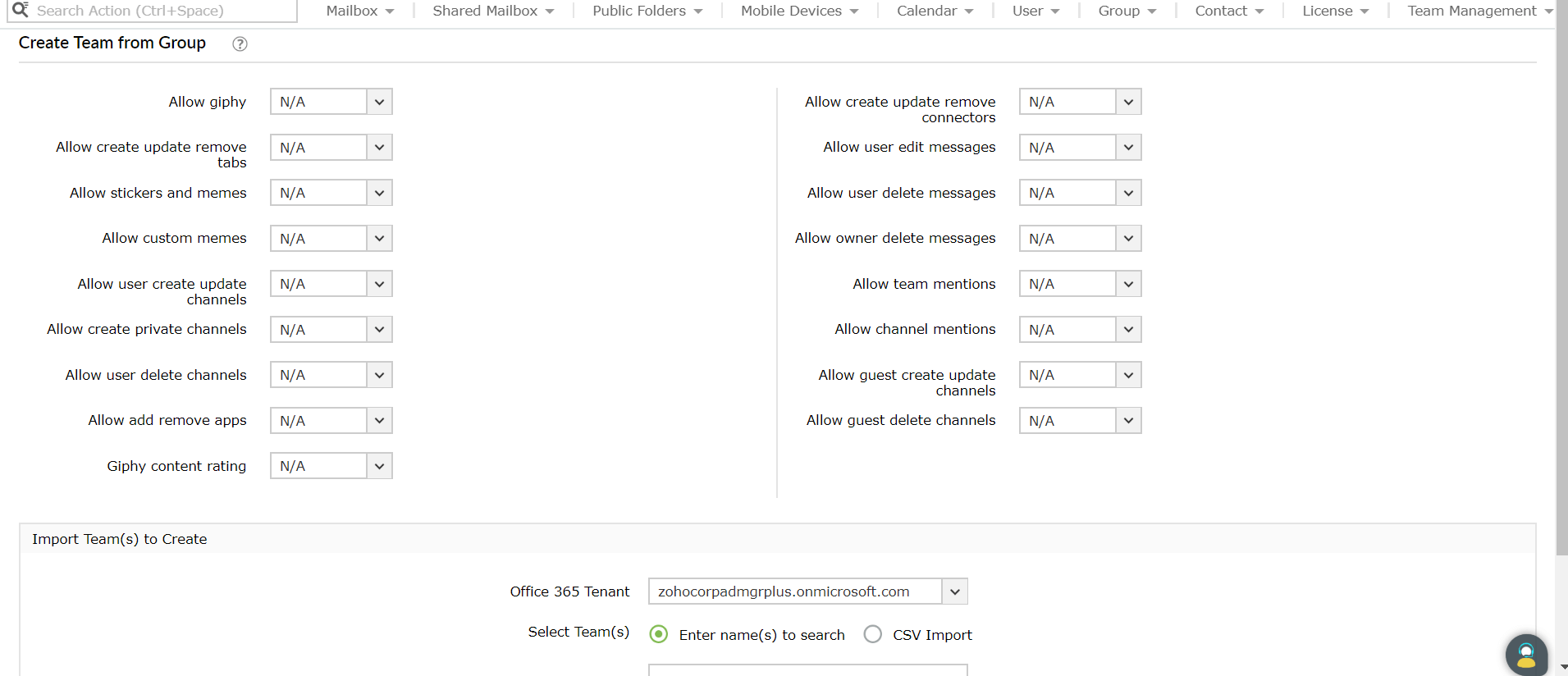
The imported CSV file must consist of details such as DisplayName, Description, Visibility, Owner, and rules that help manage user permissions in Microsoft Teams.
To learn more about managing Microsoft Teams using M365 Manager Plus, click here.