Active Directory
- Configure Windows servers in ADAudit Plus
- Configure audit policies in your domain
- Automatic configuration
- Manual configuration
- Manual configuration
- Configure event log settings in your domain
- FAQ
Windows server auditing guide
Document summary
A Windows member server is a computer that runs on Windows Server, belongs to a domain, and is not a domain controller. Windows member servers typically run different services and can act like a file server, print server, etc. For the sake of convenience, Windows member servers will be referred to as Windows servers in this guide.
ADAudit Plus is a real-time change auditing and user behavior analytics solution that helps keep your Windows servers secure and compliant. With ADAudit Plus, you can:
- Monitor file integrity.
- Audit local logon and account management.
- Track printer, removable storage, AD FS, AD LDS, and LAPS activities.
- Keep tabs on scheduled tasks and processes.
ADAudit Plus enables you to audit the following versions of Windows Server:
- Windows Server 2003/2003 R2
- Windows Server 2008/2008 R2
- Windows Server 2012/2012 R2
- Windows Server 2016
- Windows Server 2019
This guide takes you through the process of setting up ADAudit Plus and your Windows servers for real-time change auditing and user behavior analytics.
1. Configure Windows servers in ADAudit Plus
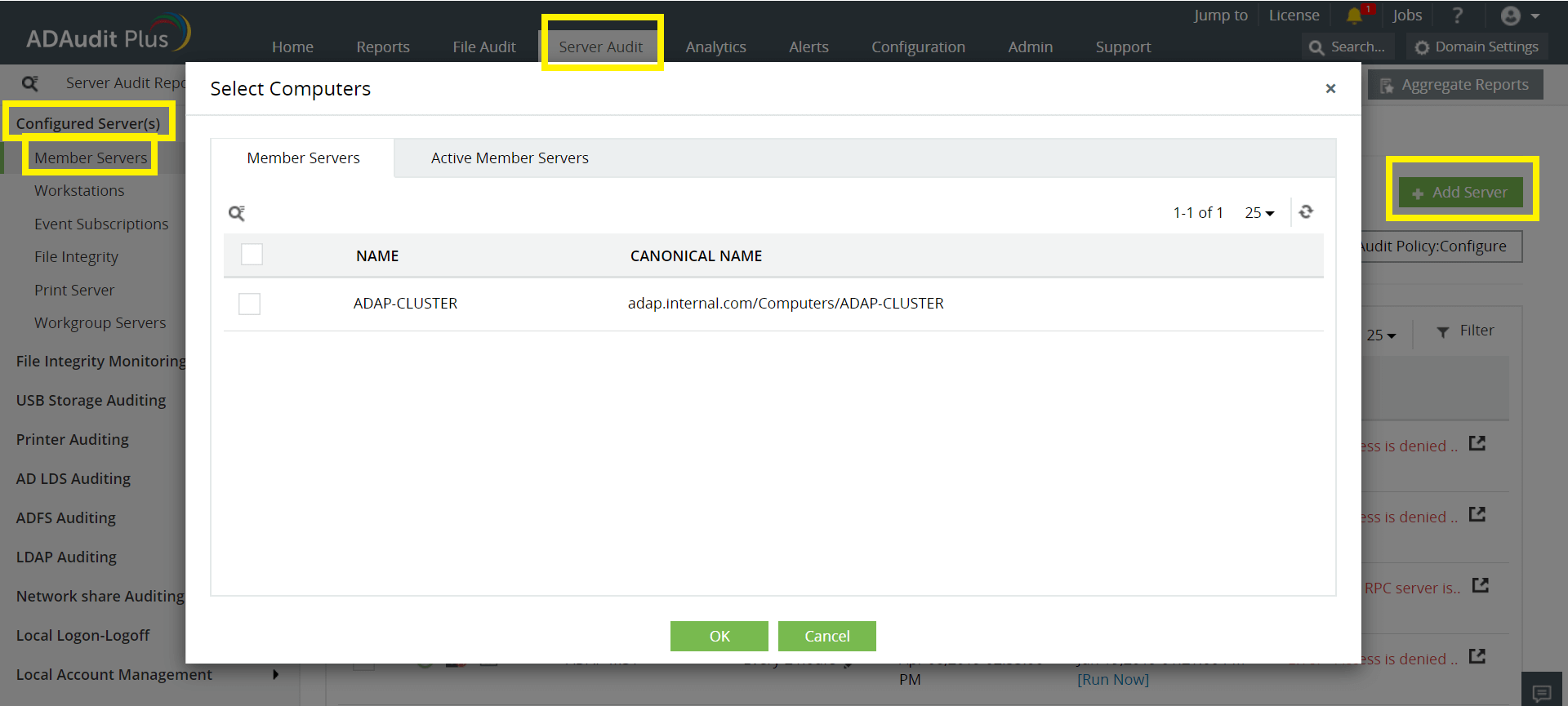
Log in to the ADAudit Plus web console. Go to the Server Audit tab → Configured Servers → Member Servers → Add Server. Enter the details needed to complete the configuration.
Note: ADAudit Plus can automatically configure the required audit policies for Windows server auditing. In the final step, you can either choose Yes to let ADAudit Plus automatically configure the required audit policies, or choose No to manually configure the required audit policies.
2. Configure audit policies in your domain
Audit policies must be configured to ensure that events are logged whenever any activity occurs.
2.1 Automatic configuration
Log in to the ADAudit Plus web console. Go to the Server Audit tab → Configured Servers → Member Servers → Audit Policy: Configure.
Note: ADAudit Plus can automatically configure the required audit policies for Windows server auditing. After clicking Audit Policy: Configure in the above step, you can either choose Yes to let ADAudit Plus automatically configure the required audit policies, or choose No to manually configure the required audit policies.

2.2 Manual configuration
- Log in to any computer that has the Group Policy Management Console (GPMC) with Domain Admin credentials, then open the GPMC.
- Create a new domain-level GPO: Right-click your domain, select Create a GPO in this domain and Link it here, then name the GPO "ADAuditPlusMSPolicy”.
Note: Since configuring audit policies on individual computers is an elaborate process, a domain-level GPO is created and applied on all monitored computers.
2.2.1 Uncheck Apply Group Policy privilege for Authenticated Users in the ADAuditPlusMSPolicy GPO
Click ADAudit PlusMSPolicy, navigate to the right panel, and then select the Delegation tab → Advanced → Authenticated Users. Remove the Apply Group Policy permission.
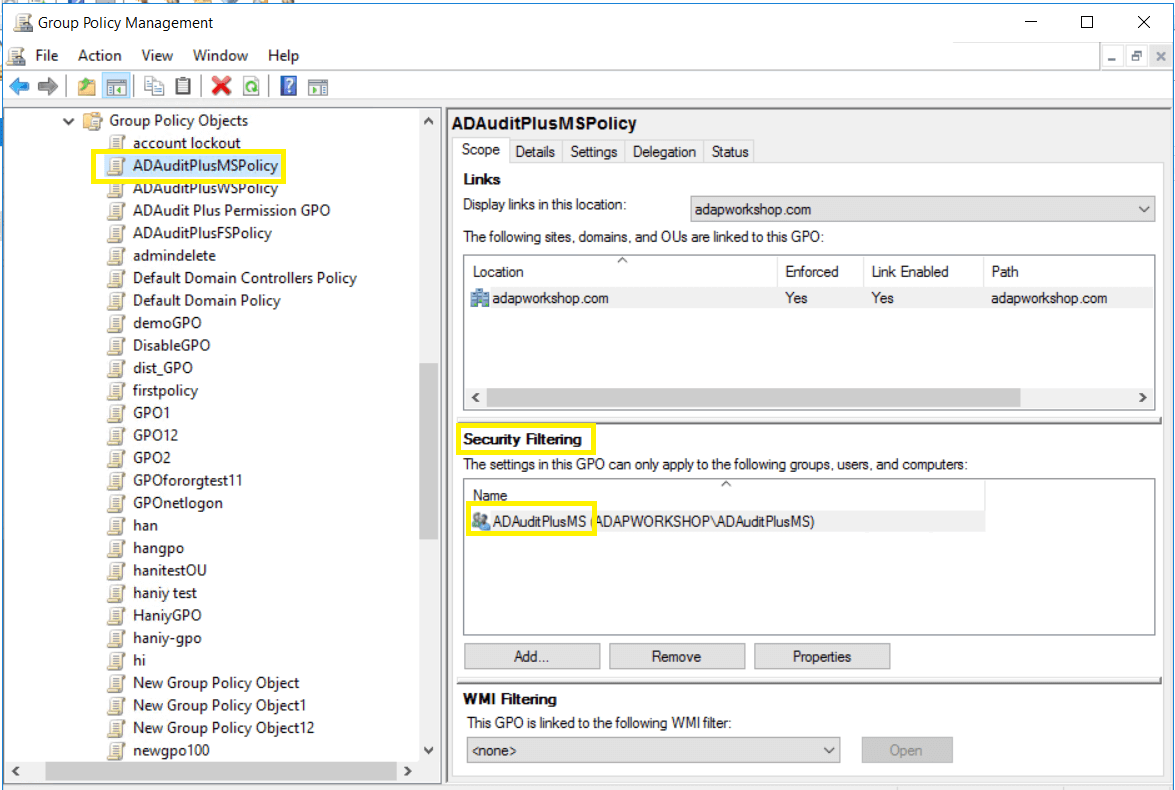
2.2.2 Create a new group, add all Windows servers that need to be audited to the group, and link the ADAuditPlusMSPolicy GPO to the group:
- Log in to your domain controller with Domain Admin privileges. Open Active Directory Users and Computers, right-click on your domain, then select New → Group. Name the group "ADAuditPlusMS”.
- Add all the audited computers as members of the ADAuditPlusMS group: Right-click the ADAuditPlusMSPolicy GPO, then select Properties → Members. Add all the Windows servers that you wish to audit.
- Add the ADAuditPlusMS group to the security filter settings of the ADAuditPlusMSPolicy GPO: Open the GPMC, then select Domain. Select the ADAuditPlusMSPolicy GPO, navigate to the right panel, and click on the Delegation tab. Select Advanced, then add the ADAuditPlusMS group.
2.2.3 Configure advanced audit policies
Advanced audit policies help administrators exercise granular control over which activities get recorded in the logs, helping cut down on event noise. We recommend configuring advanced audit policies on Windows Server 2008 and above.
- Log in to any computer that has the GPMC with Domain Admin credentials. Open the GPMC, then right-click ADAuditPlusMSPolicy and select Edit.
- In the Group Policy Management Editor, go to Computer Configuration → Policies → Windows Settings → Security Settings → Advanced Audit Policy Configuration → Audit Policy. Double-click on the relevant policy setting.
- Navigate to the right pane and right-click on the relevant Subcategory. Select Properties, then choose Success, Failure, or both, as directed in the table below.
Category Subcategory Audit Events Account Logon Audit Kerberos Authentication Service Success and Failure Account Management - Audit Computer Account Management
- Audit Distribution Group Management
- Audit Security Group Management
- Audit User Account Management
SuccessSuccess and FailureDetailed Tracking - Audit Process Creation
- Audit Process Termination
Success DS Access - Audit Directory Service Changes
- Audit Directory Service Access
Success Logon/Logoff - Audit Logon
- Audit Network Policy Server
- Audit Other Logon/Logoff Events
- Audit Logoff
Success and FailureSuccessObject Access - Audit File System
- Audit Handle Manipulation
- Audit File Share
Success and Failure Policy Change - Audit Authentication Policy Change
- Audit Authorization Policy Change
Success System - Audit Security State Change
Success 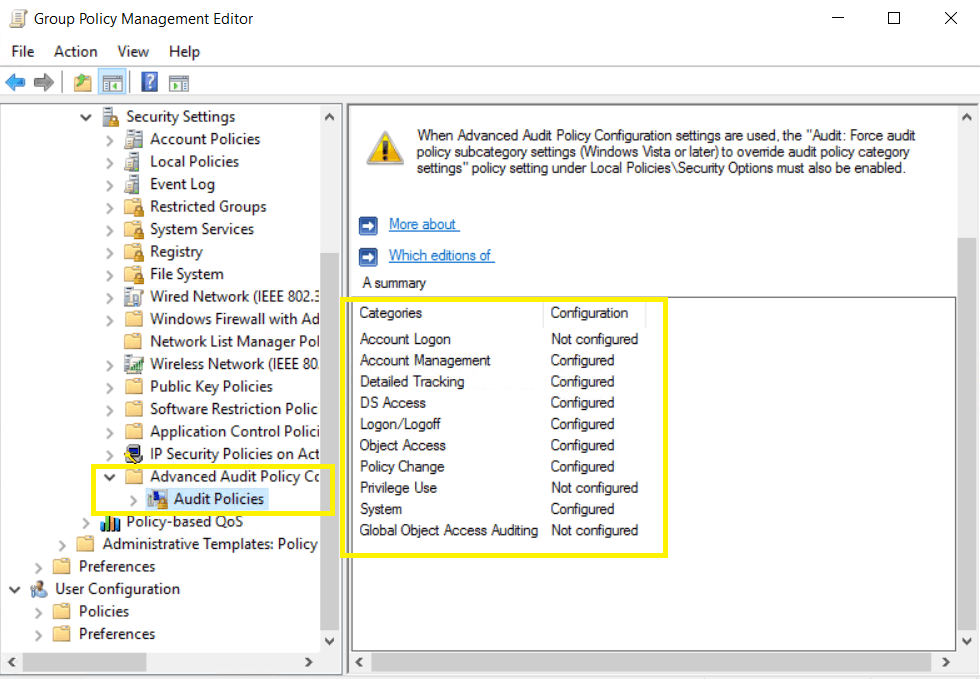
Image showing: Account Logon category → Audit Kerberos Authentication Service subcategory → Both Success and Failure configured.
2.2.4 Force advanced audit policies
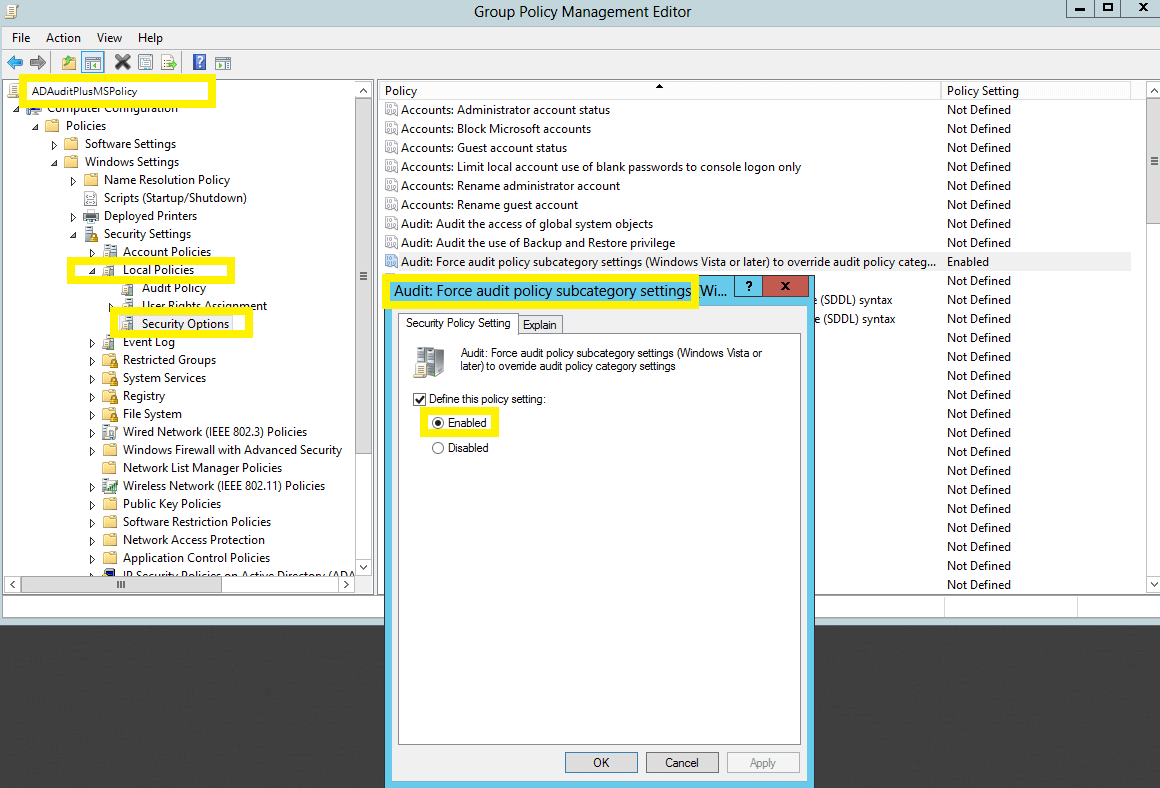
When using advanced audit policies, ensure that they are forced over legacy audit policies.
- Log in to any computer that has the GPMC with Domain Admin credentials. Open the GPMC, right-click ADAuditPlusMSPolicy, then select Edit.
- In the Group Policy Management Editor, go to Computer Configuration → Policies → Windows Settings → Security Settings → Local Policies → Security Options.
- Navigate to the right pane, then right-click Audit: Force audit policy subcategory settings. Select Properties, then Enable.
2.2.5 Configure legacy audit policies
Due to the unavailability of advanced audit policies in Windows Server 2003 and earlier versions, legacy audit policies need to be configured for these types of servers.
- Log in to any computer that has the GPMC with Domain Admin credentials. Open the GPMC, right-click ADAuditPlusMSPolicy, then select Edit.
- In the Group Policy Management Editor, go to Computer Configuration → Policies → Windows Settings → Security Settings → Local Policies, and double-click Audit Policy.
- Navigate to the right pane and right-click on the relevant policy. Select Properties, then choose Success, Failure, or both, as directed in the table below:
Category Audit Events Account Logon Success and Failure Audit Logon/Logoff Success and Failure Account Management Success Directory Service Access Success Process Tracking Success Object Access Success System Events Success 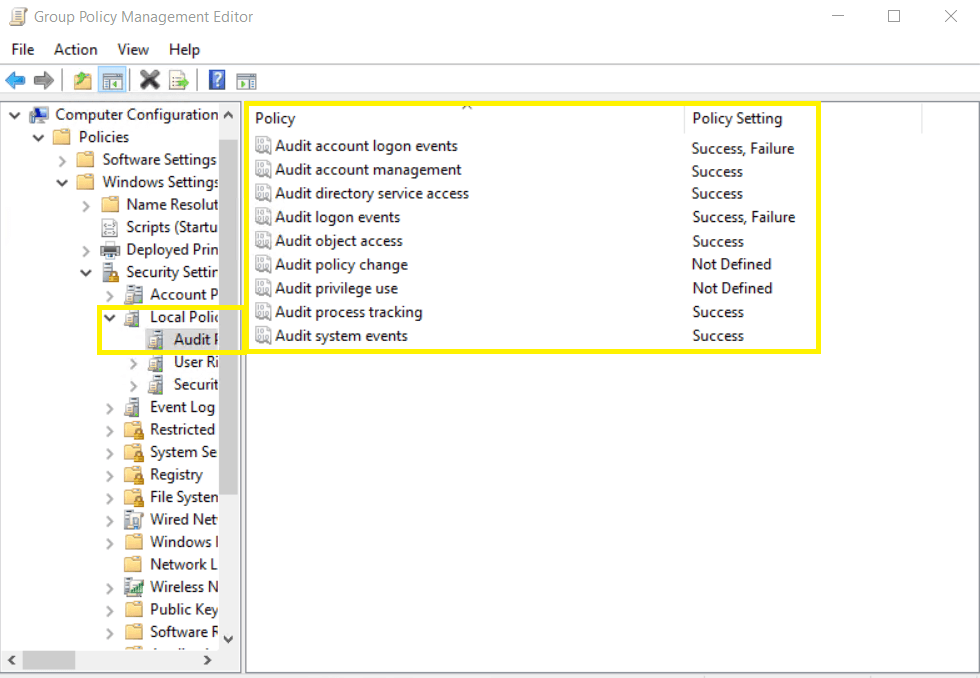
Image showing: Audit account logon events category → Both Success and Failure configured.
3. Configure event log settings in your domain
Event log size needs to be defined to prevent loss of audit data due to overwriting of events. To configure event log size and retention settings, follow the steps outlined below:
- Log in to any computer that has the GPMC with Domain Admin credentials. Open the GPMC, right-click ADAuditPlusMSPolicy, then select Edit.
- In the Group Policy Management Editor, select Computer Configuration → Policies → Windows Settings → Security Settings → Event Log.
- Navigate to the right pane and right-click on Retention method for security log. Select Properties → Overwrite events as needed.
- Navigate to the right pane, then right-click Maximum security log size and define the size as directed in the table below.
Role Operating System Size Windows file server Windows Server 2003 512MB Windows file server Windows Server 2008 and above 4,096MB 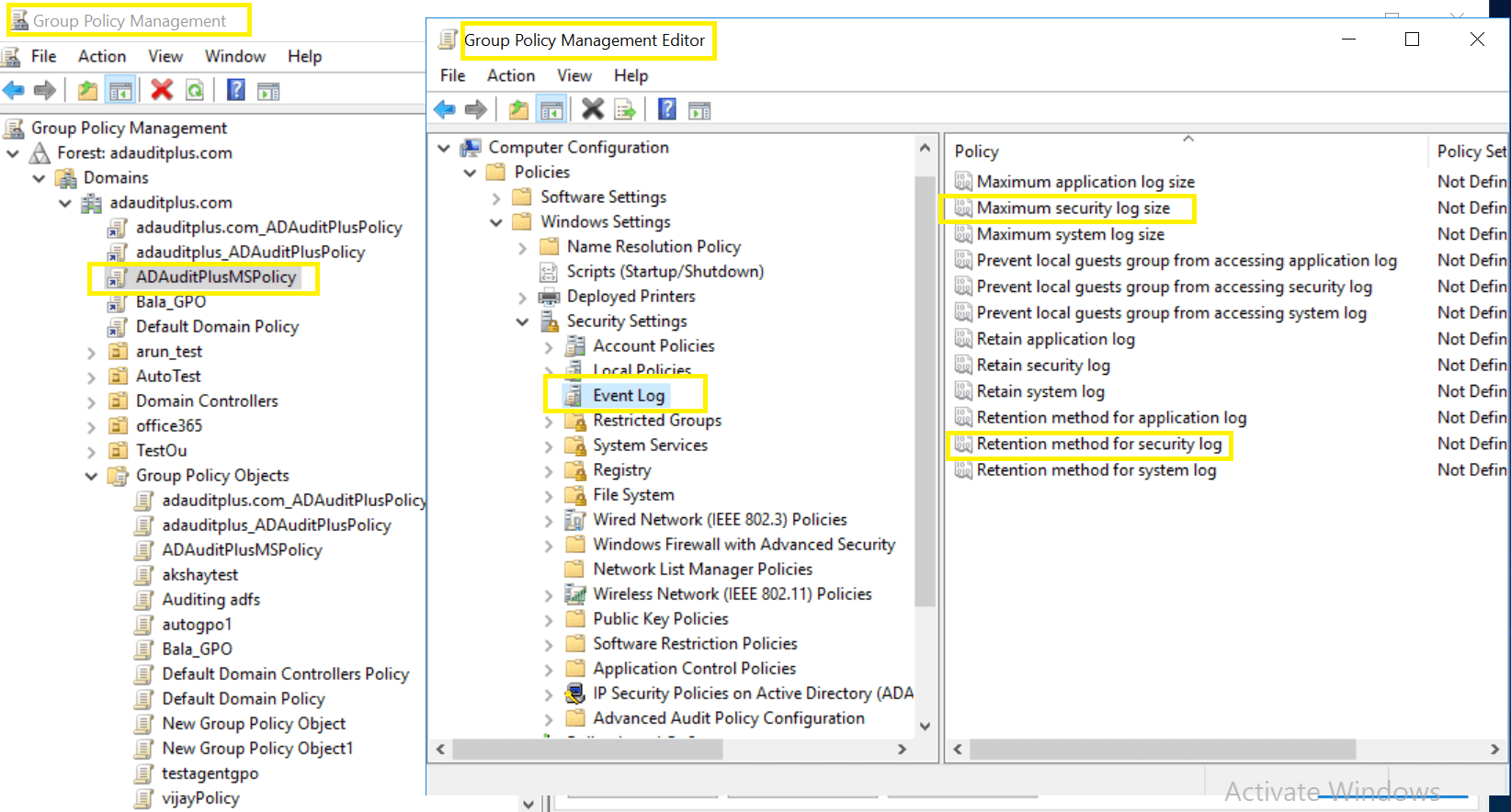
4. FAQ
To verify if the desired audit policies and security log settings are configured:
Log in to any computer that has the GPMC with Domain Admin credentials. Open the GPMC, right-click Group Policy Results, and open the Group Policy Results Wizard. Select the computer and user (current user), then verify if the desired settings as defined in step 2.2 are configured.
To verify if the desired events are getting logged:
Log in to any computer with Domain Admin credentials. Open Run, then type “eventvwr.msc”. Right-click on Event Viewer. Connect to the target computer, then verify if events corresponding to the configured audit policies are getting logged. For example, event ID 4768 should get logged when Success audit events is configured under the Audit Kerberos Authentication Service Subcategory, under the Account Logon Category (refer to step 2.2.1).
