
- How do I find out my Build number?
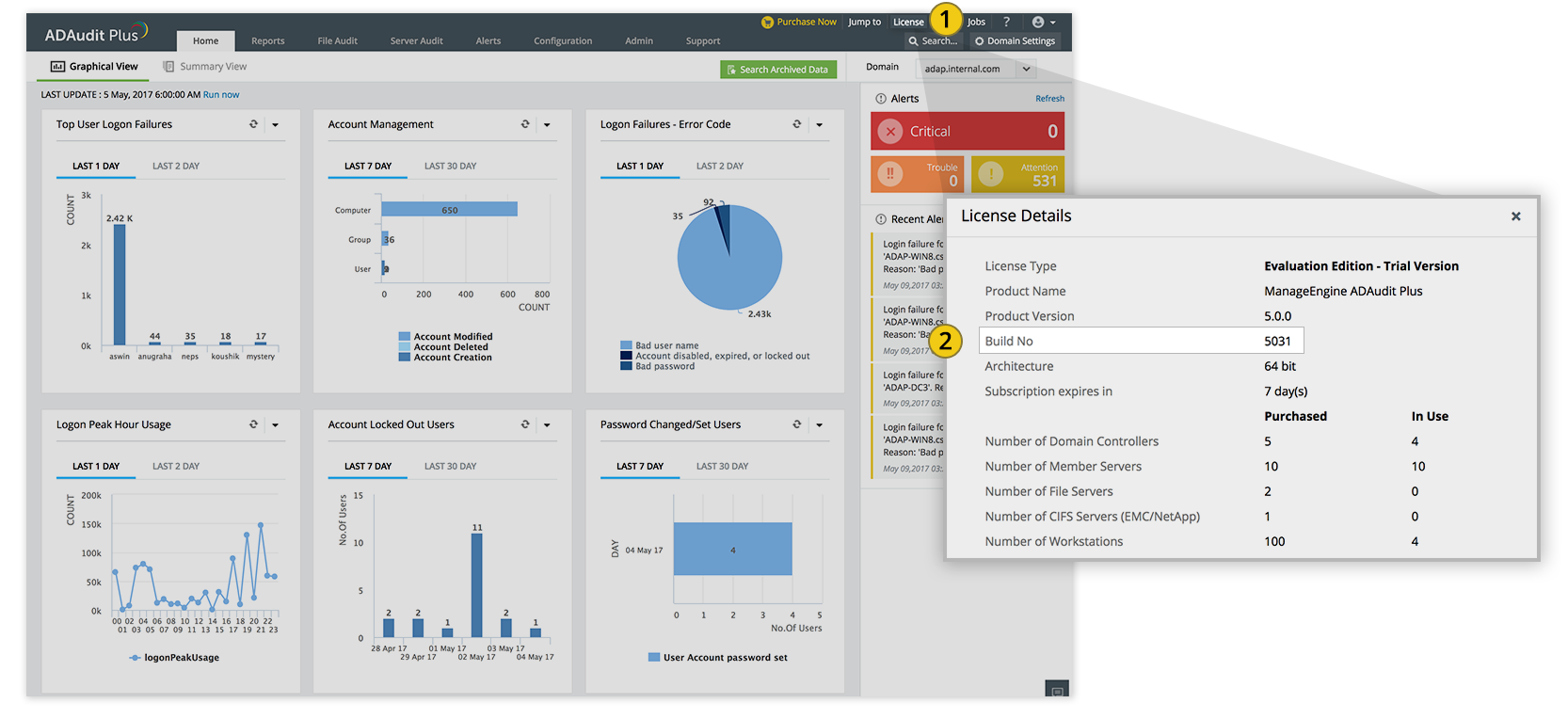
- 1 Log in to the ADAudit Plus web console, and click License in the top pane.
- 2 You will find the build number mentioned below the product version. This is the current build number of ADAudit Plus.
- How do I find my database type?
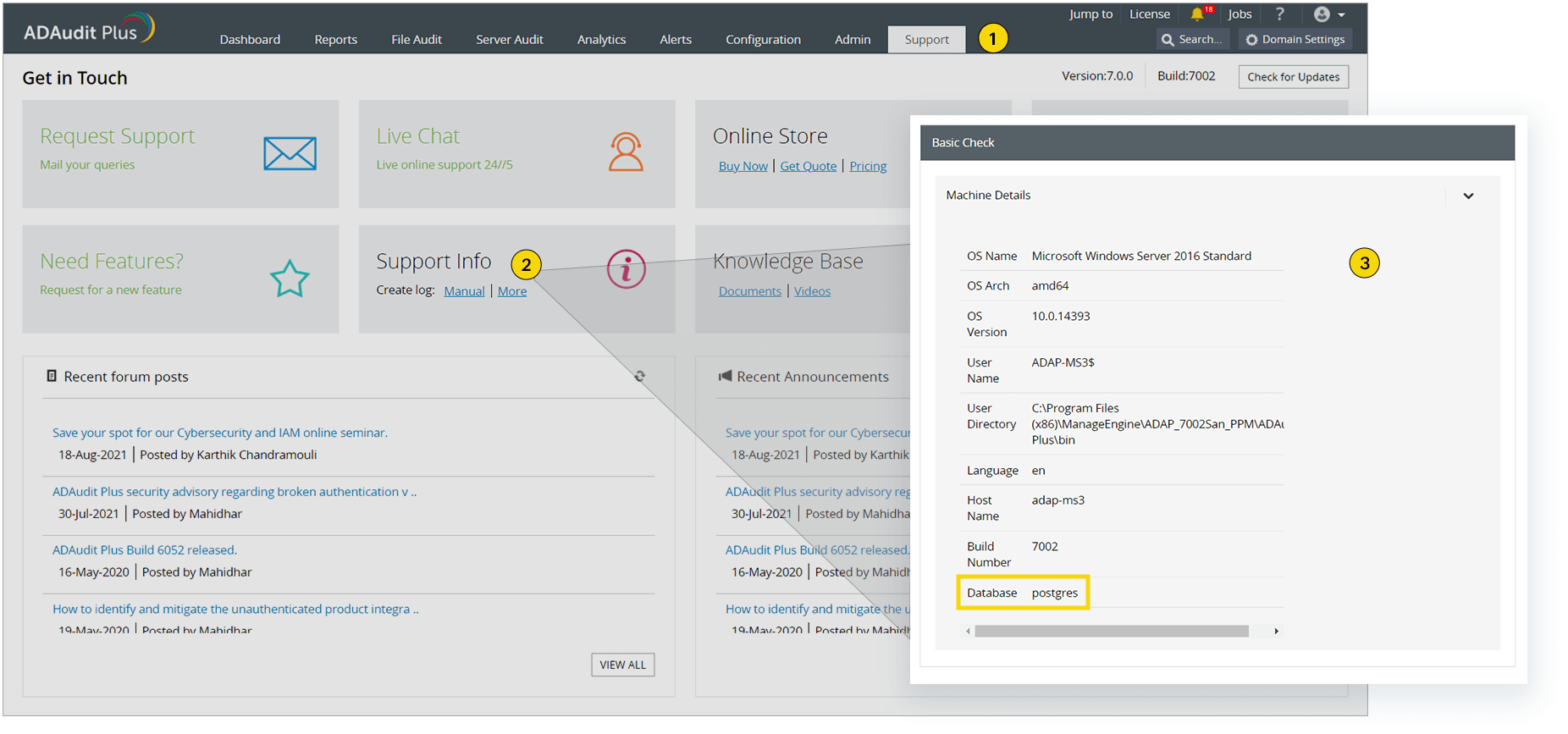
- 1 Log in to the ADAudit Plus web console, and click the Support tab.
- 2 On the Support Info tile, click More.
- 3 Under Basic Check, click the Machine Details drop-down to find your Database type specified at the bottom.
MySQL to PostgreSQL migration
ADAudit Plus supports PostgreSQL and MS SQL backends only, starting from build 7090. If you are using an ADAudit Plus build with MySQL backend, we recommend that you migrate to PostgreSQL before March 31, 2023.
If your build number is  | Upgrade to Build Number |
| 7000 to 7082 | Proceed with the steps to migrate from MySQL to PostgreSQL |
| 6000 to 6077 | Download and upgrade to 7000 |
| 5100 to 5121 | Download and upgrade to 6000 |
| 5000 to 5054 | Download and upgrade to 5100 |
| 4640 to 4693 | Download and upgrade to 5000 |
| 4600 to 4630 | Download and upgrade to 4640 |
| 4500 to 4544 | Download and upgrade to 4600 |

Steps to migrate from MySQL to PostgreSQL
- Stop ADAudit Plus, go to the Start menu > Services > Right-click the ADAudit Plus service, and select Stop.
Download PostgreSQL and extract the downloaded file to <Installation_folder>\ManageEngine\ADAudit Plus.
Note: Before downloading the file, ensure that the ADAudit Plus installation folder does not contain any folder named pgsql. If it does, rename the folder to something else, like pgsql_old, before downloading the PostgreSQL file.- Go to <Installation_folder>\ManageEngine\ADAudit Plus\bin, run the Command Prompt as administrator, and execute ChangeDB.bat.
In the Database Setup Wizard that pops up, fill in the following details, and click Save:
- Beside Server Type, select PostgreSQL Server from the drop-down.
- Beside Host Name, enter localhost.
- Beside Port, change the port number to 33308.
- Beside Database Name, enter ADAP or any other name of your choice.
- Beside Migrate Data, select Yes or No, depending on whether you want to migrate the data or not.
- Beside User Name, change the default username, 'adaudit', to any username of your choice.
- Beside Password, enter a suitable password of your choice to connect to the PostgreSQL database.
Note: This usually takes a few minutes, however, it might take a bit longer depending on the volume of data to be migrated from your MySQL database.
Please contact our technical support team at support@adauditplus.com for assistance with migration.
