Known Error Solution Database


'An unknown error has occured' / 'Error Code: 800706be' .... is a frustrating occurance! The known error handlers with solutions are documented below to help you have the product up and running in the quickest time possible.


valign="top">

Error Code


valign="top">

System Message


valign="top">

Cause


valign="top">

Solution

Conectivity & Permission

80070005

Access is denied

Not enough user credentials provided to collect audit data.

Privileges required for Collecting audit data

8004106C

WMI Quota violation / Memory leak.

WMI is taking up too much memory.

Native Mode for event collection is recommended to overcome errors while collecting event log data using WMI service. Also, sometimes the error normally gets fixed in the next event collection itself.

800706BA

The RPC server is unavailable.

The temporary inability of the software (Server Down/Not Reachable/Busy) to connect to the Domain Controller/File Server for collecting event logs and may get fixed during the next event collection schedule.

Please ensure, these ports are not blocked by any firewall (Interrupting the communication between ADAP & Servers).

* Port "389" to communicate with the LDAP Protocol.
Port "135" to communicate with RPC.
* Port "445" and "135" to communicate with NetBIOS Session Service.

Also, some Dynamic ports are to be opened. To accomplish that you can download a free tool from ADManager Plus from the link and install it.

1) Run the tool and select DMZ PORT ANALYZER.
2) Enter the IP address of the Domain Controller for which you are receiving the error message.
3) A list will display the Dynamic port number to be opened.

800706BE

Remote Procedure Call Failed.

Server Connection lost when attempting a remote procedure call for event collection.

Usually a retry of the event fetch will solve this issue. If the error still recurs ping the server, from where the product is installed.

8007200f

Authentication Error

When, ADAP is unable to contact the Domain Controller.


Please try to connect/ping all the Domain Controllers listed under "Domain Settings" link from the computer where the product is installed.

If you are able to ping all the Domain Controllers, please Contact Support.


8007203a

The server is not operational.

522

A required privilege is not held by the client.

The user account provided to ADAP doesn't have 'Event Log Read permission'.

Find the privileges required for collecting data from Security Log.

Account Lockout Analyzer Errors


valign="top">

Error Code


valign="top">

System Message


valign="top">

Cause


valign="top">

Solution

5

Access is Denied.

No Access Permission.

Check the Domain Account configured in domain settings has access privilege to the particular machine.

Access denied error for "Logon Session"

Access is Denied.

A missing registry value in the computer from where the error message occurs.

Please make sure that "AllowRemoteRPC" flag is not set on the target machine.
1. Logon to the target machine.
2. Open Registry editor [Click on Start --> Run-->regedit]
3. Navigate to Computer\Hkey_Local_Machine\system\CurrentControlSet\Control\Terminal Server
4. Make sure the value for "AllowRemoteRPC" is set to 1.

NetApp Filer Errors


valign="top">

Error Code


valign="top">

System Message


valign="top">

Cause


valign="top">

Solution

18

No more files to read.

When there are no more evt files to be read.

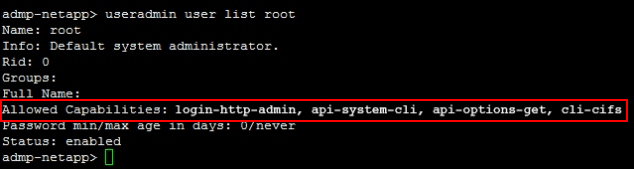
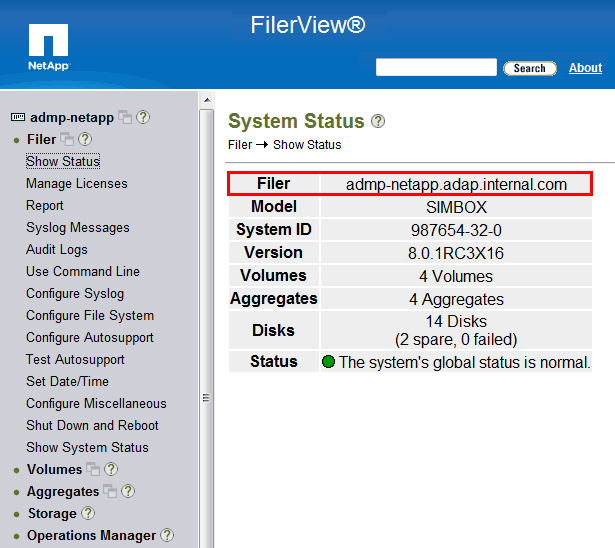
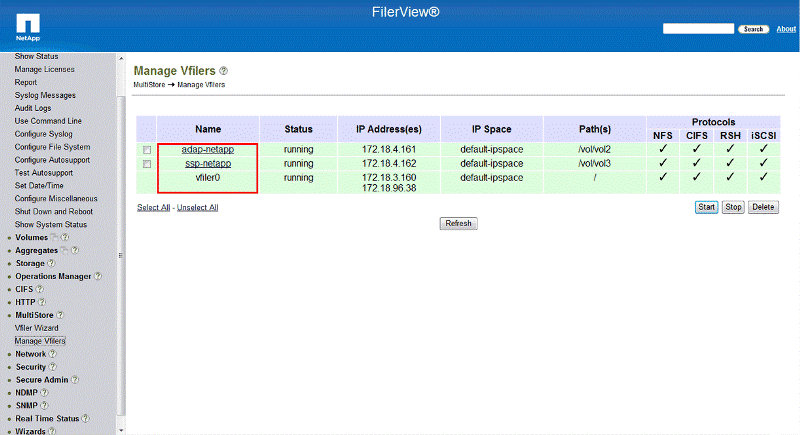
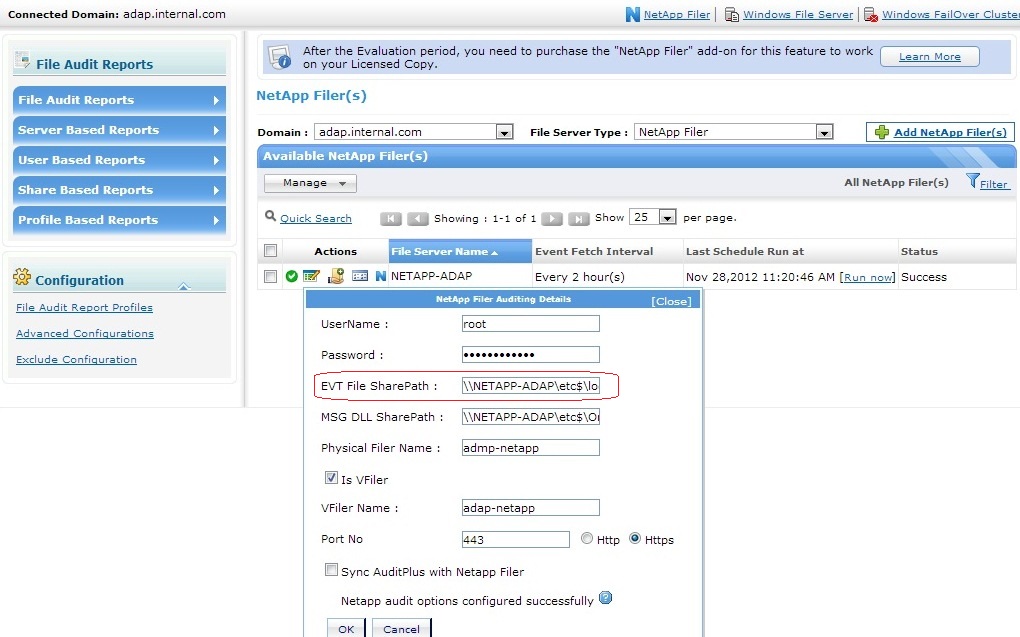
Check the NetAppEvt file path in the default location: \\NetApp Filer Name\etc$\log
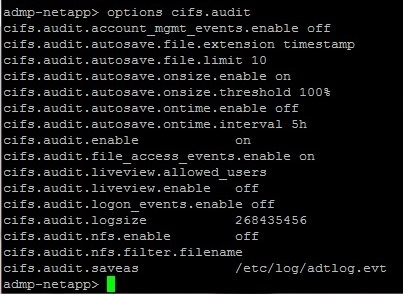
Also, Check the NetApp Filer 'Audit Options'.

2

The System cannot find the file specified.

The NetApp auditing Evt file does not exist in the specified location.

Check the NetAppEvt file path in the default location: \\NetApp Filer Name\etc$\log. Also, check in the following location: \\NetApp Filer\C$\etc\log

Also, please configure in ADAP.

3

The System can not find the path specified.

The NetApp auditing Evt file share path configured in ADAP is incorrect.

Check the NetAppEvt file path in the default location: \\NetApp Filer Name\etc$\log. Also, check in the following location: \\NetApp Filer\C$\etc\log, configure in ADAP.

5

Access is Denied.

Not able to read the evt file on the evt share path.

Check the Domain Account configured in domain settings page has read privileges.

-

Bad username or password / Authorization Failed.

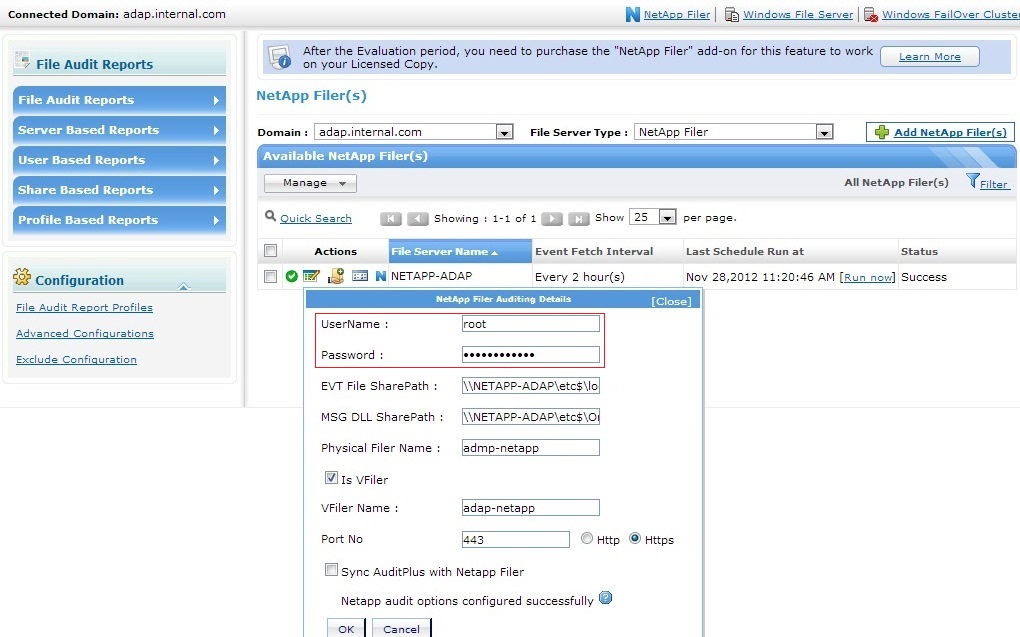
The username / password given in ADAP to connect to the NetApp Filer is incorrect.

Please enter the correct credentials in ADAP.

8

Not enough storage is available to process this command.

Not able to load the evt file on the system memory space.

Check the RAM size.

1392

The file or directory is corrupted and unreadable.

The evt file on the NetApp Filer is corrupted.

Repair / delete the corrupted evt file on the Filer.

Standalone Errors

ADAP does not load after installation

Port already in use.

ADAP runs on Port 8081, if another application is occupying 8081 on the same machine, ADAP will not start.

1. Go to folder of ADAP.
2. Take a copy of Server.xml file which is present inside the \conf (For Ex : C:\ManageEngine\ADAP\conf\Server.xml). Copy and paste the file in a different location.
3. Open Server.xml present in the \conf (For Ex : C:\ManageEngine\ADAP\conf\Server.xml) in Wordpad.
4. Look for "redirectPort":
“Connector acceptCount="100" connectionTimeout="20000" debug="3" disableUploadTimeout="true" enableLookups="false" maxSpareThreads="75" maxThreads="150" minSpareThreads="25" name="WebServer" port="8081" redirectPort=""/>”
5. Change the port to an available port.
6. Save the File & restart ADAP.

ADAP Service Won’t Start

1. ADAP is already running as standalone software
2. Login failure (error code: 1)
3. Access Denied (error code: 5)

1. ADAP cannot be started as a Windows Service when ADAP is already running in console mode.
2. The user credentials applied to ADAP service could not login to the domain.
3. The configured user is not having enough permission to start the service in the local machine where ADAP is installed.

Issue 1:
1. Open command prompt (run as administrator) and navigate to the bin folder in the installation directory (eg. \Program files\ManageEngine\ADAP\bin).
2. Execute the command “StopADAP.bat”.
3. Now start the service.
Issue 2: Please make sure that you have provided a valid user account. Also check the user account is enabled.
Issue 3:
Please make sure the user account provided has enough permission on the local machine where ADAP is installed.
Please follow the below steps if you are still getting an access denied:
1.Right-click on top-level folder containing the service executable. Go to Properties
2.Go to "Security" Tab
3.Click "EDIT"
4.Click "ADD"
5.Enter the name "SYSTEM", click OK
6.Highlight SYSTEM user, and click ALLOW check-box next to "Full control"
7.Click OK

ADAP Reports tab shows “No Data Available”

1. Necessary audit policies are not configured
2. Proper privileges not held by the user account provided to ADAP
3. Insufficient security log size of the configured Servers and event fetch interval

1. ADAP works on the basis of Windows native auditing for which certain audit policies needs to be configured.
2. ADAP requires enough permission to collect the security log events from the configured Servers.
3. Windows captures the changes under the security events of the respective servers and saves them as evt files. ADAP periodically collects these evt files. When the security log size is too small and the data will get overwritten, upon reaching the threshold; ADAP would not be able to collect those events.

Issue 1:
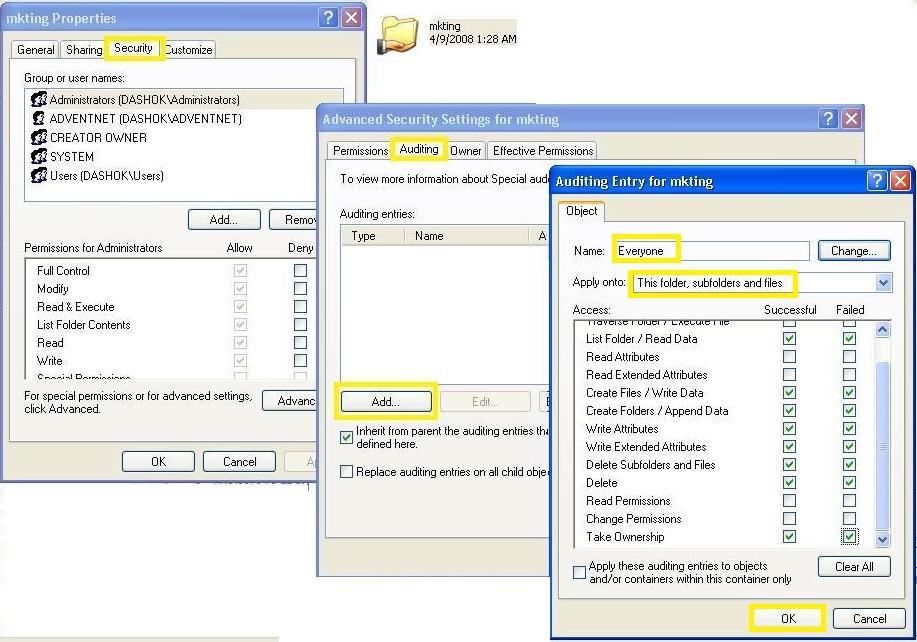
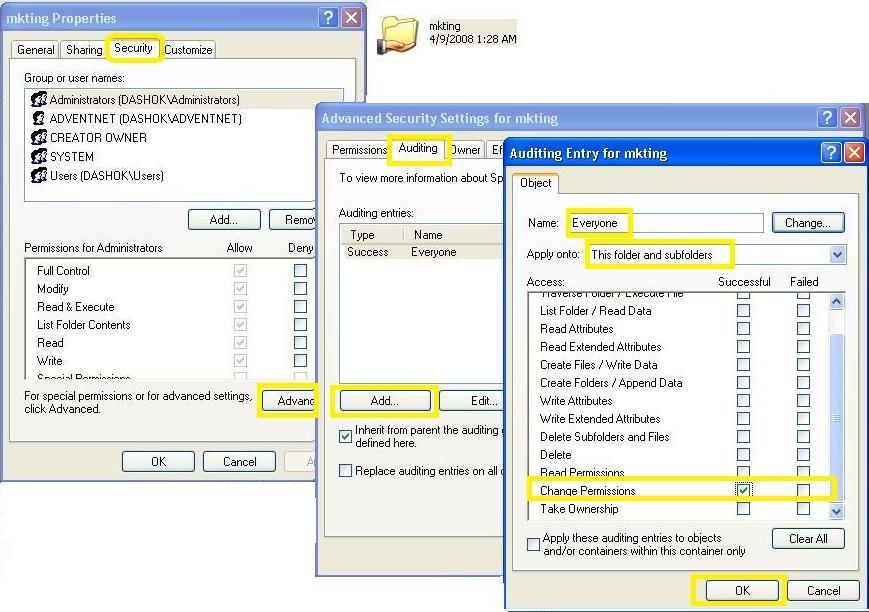
1. Please make sure that the required Audit Policies are configured. Given below the links for your reference.
For Domain Controllers:
1. Manually configuring audit policy.
2. Configuring SACL for AD Objects.
For EMC / File Servers:
1. Configure Object Access Auditing in a GPO.
2. Linking File Servers to the GPO.
3. Configuring SACLs.
Issue 2:
Configure the privileges and permissions required for ADAP.
Issue 3:
Please make sure that the Security log size is set to an optimum size so it can hold sufficient data, according to the event fetch interval configured in ADAP.
The recommended size (This size may vary depending on the number of users and the activity in your environment):
For Domain Controllers:
Windows Server 2003 - 256 MB
Windows Server 2008 / 2012- 512 MB
For File Servers:
Windows Server 2003 - 300 MB (Max size that can be set)
Windows Server 2008 / 2012 - 1 GB

"Procedure Call failed” on Domain Controllers / Member Servers / Workstations

1. DNS or NetBIOS name resolving error
2. The RPC service or related services may not be running
3. Network connectivity problems
4. File and Printer sharing may not be enabled

ADAP uses Remote Procedure Call to remotely connect to the configured servers and collect the security log events. RPC is a protocol that one program can use to request a service from a program located in another computer in a network.
A “Remote Procedure call failed” error is triggered when the request initiated from the client fails to reach the remote Server.

Issue 1:
Name resolution is the act of resolving a name to an IP address. This normally takes two forms: NetBIOS Name Resolution or the more common DNS Name Resolution. Please confirm that the remote server can be pinged by just the “server name” from the machine where ADAP is installed.
Eg: ping ADS-DC1
If you are able to ping by using a fully qualified domain name but not by just using the server name, then you may either have an entry in the host file or you have to create an alias for the particular server in the DNS server.
Please make sure Port "445" and "135" are to communicate with NetBioS Session Service.
Issue 2:
The Remote Procedure Call is a Windows Service which has to be up and running along with the dependent services. Please make sure that the RPC service is started and running.
Issue 3:
Please make sure that the necessary ports are open for RPC. Verify that ports greater than 1024 are not blocked. Clients connect to RPC Endpoint Mapper on port 135. RPC Endpoint Mapper then tells the client which randomly assigned port between 1024-65535 a requested service is listening on.

Database Growth

Unexplained Database Growth.

Schedule Archive Events
Exclude Configuration:
Logon Audit: Exclude User Accounts
File Audit: Exclude File types, User Accounts

No Domain Configuration Available

None of the domains are discovered.

ADAP, upon starting, discovers the domains from the DNS Server associated with the machine running the product. If no domain details are available in the DNS Server, it would show this message.

No Data Available (Event logs)

"Last Event Read Time" column shows - "Yet to Fetch event data"
"Status" column shows - "Troubleshoot"

None of the domains are discovered.

1. Ensure that the required audit policy for corresponding Domain Controllers and Servers have been enabled.
2. Ensure that an optimal size of the Security log in the eventviewer is maintained.
3. Verify if there has been an upgrade in the Domain Controller versions from "Windows Server 2008" to "Windows Server 2012". This is specific to events collected from Domain Controllers. In such a scenario, delete the Domain Controller and Re-add under the Domain Settings Tab of ADAP.
4. There might also be a scenario when ADAP has swept through the security logs but the desired audit events were not available at the time of sweep.


© 2017 卓豪(中国)技术有限公司,保留一切权利